
Choosing a font for subtitles, shown on the same caption
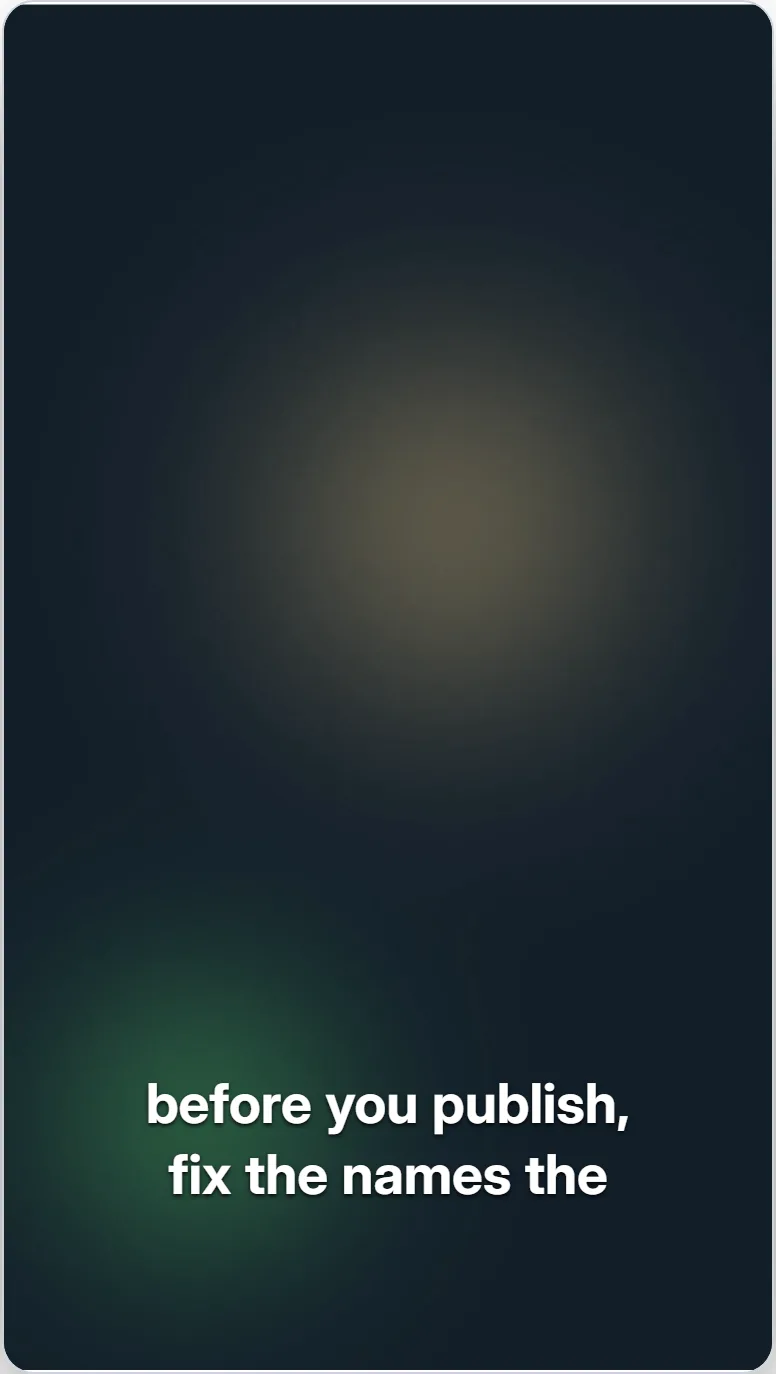
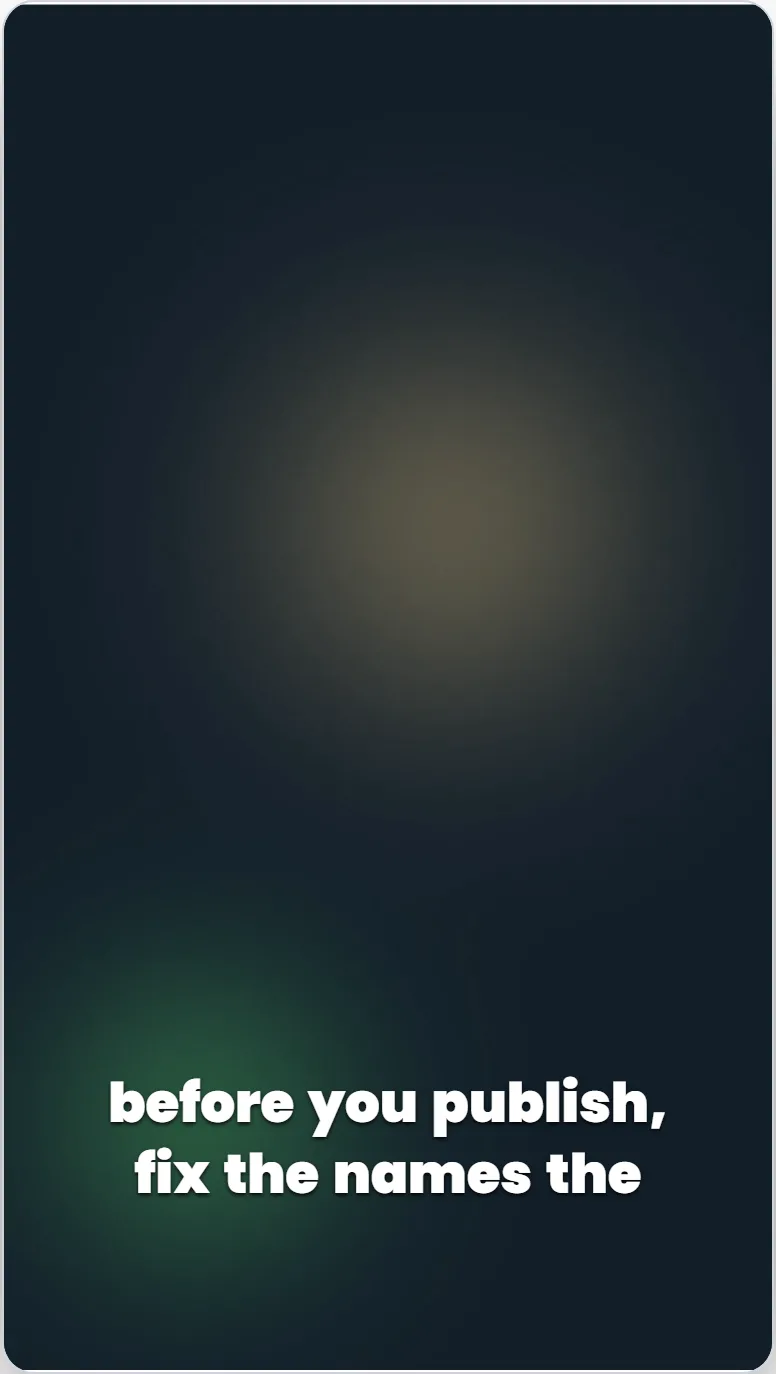
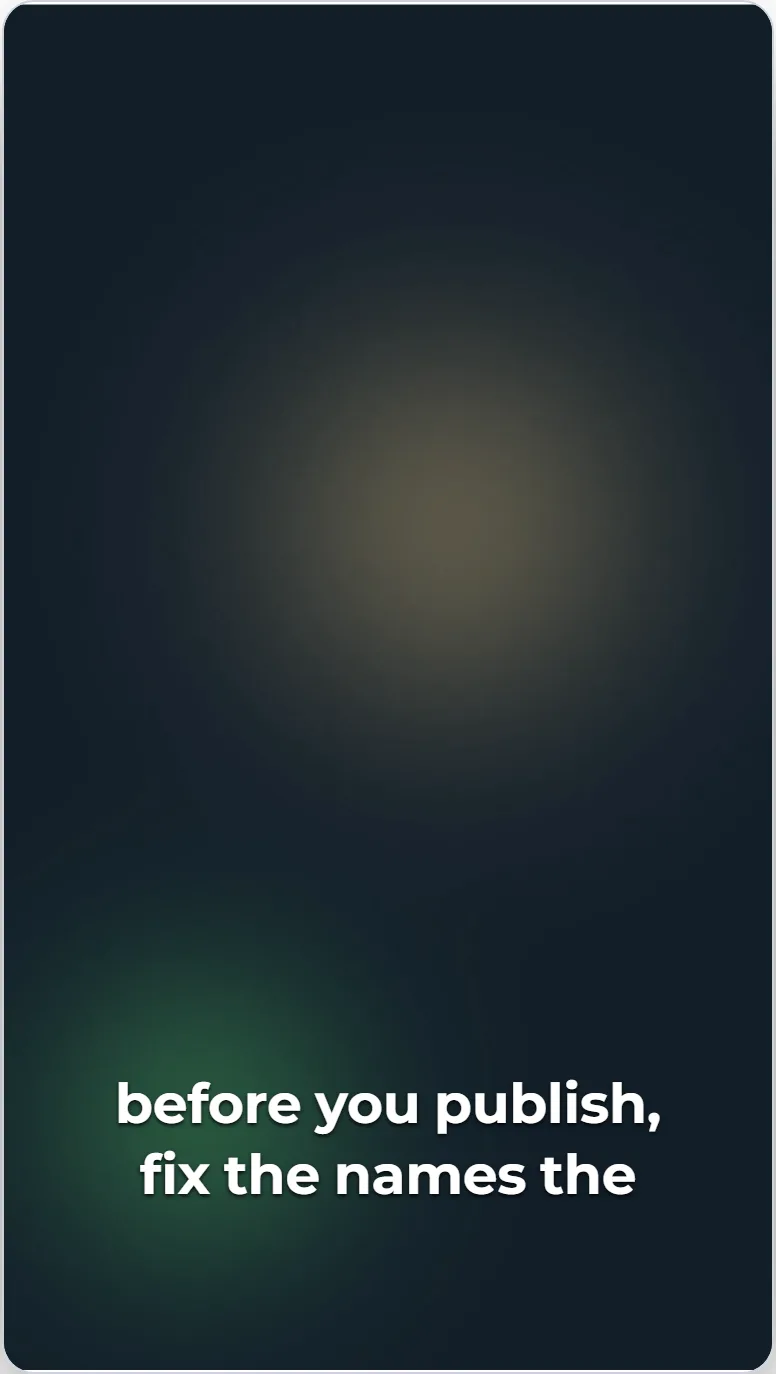
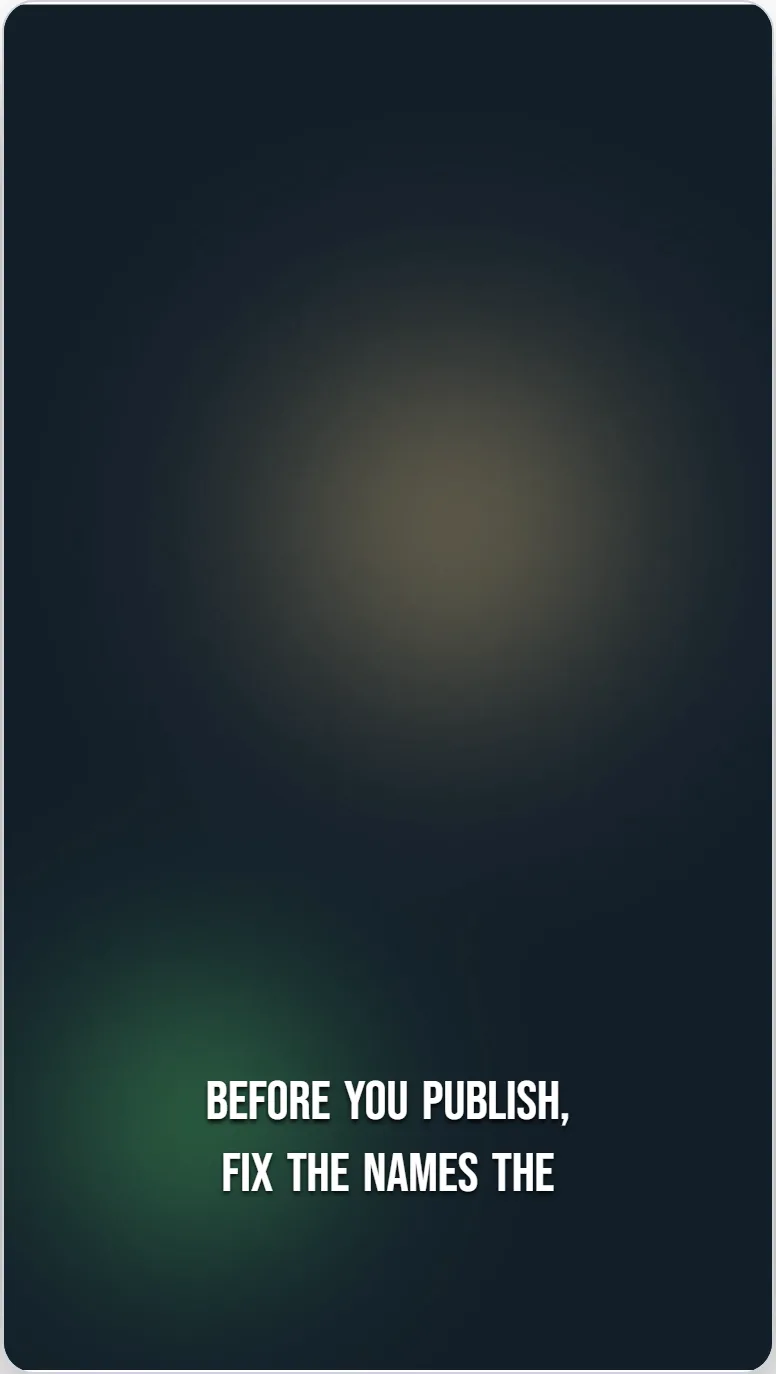
The best subtitle font is the one a viewer reads without noticing. These examples put one caption in eight fonts from our editor's catalogue so the differences are visible, then explain what to weigh when you choose.
Last updated
What the examples are, and what they are not
Every image below is a still from the editor's own preview, on an original example clip we made with synthesized speech and a generated background. The preset (Clean Minimal), size, colour and position are the same in each; only the font and weight change. This is editorial guidance from looking at the results, not a legibility study or a ranking.
Start with a plain sans-serif at a heavier weight
Inter, Poppins and Montserrat are all clean sans-serifs with open letter shapes. At Bold or heavier they hold their outline against a moving background better than regular weights, which is why most caption presets start there. Poppins at Black is the heaviest of the three in the examples; Inter at Bold is the most neutral.
Condensed display fonts fit more on a line
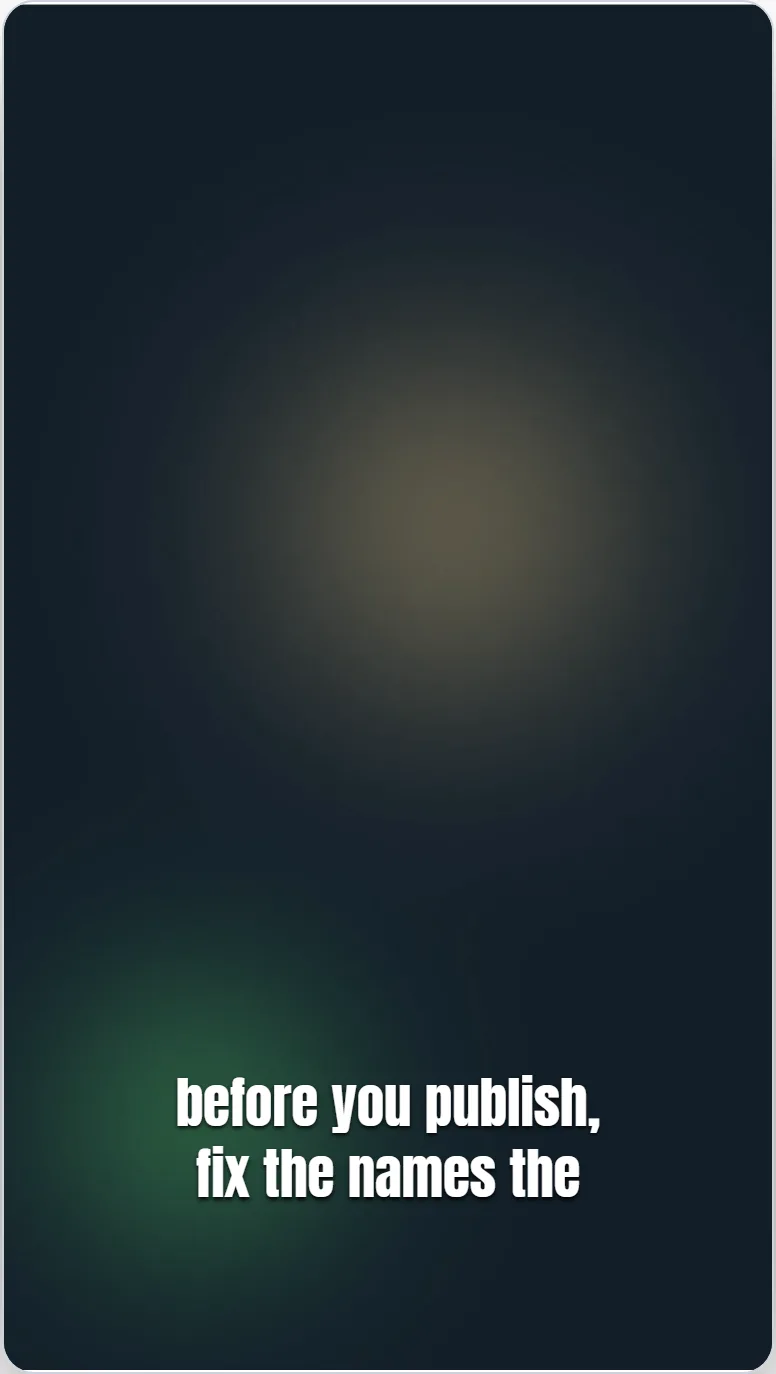
Bebas Neue and Anton are tall, narrow display faces. They fit more words across a vertical frame and read as punchy, but letters sit closer together, and Bebas Neue sets everything in capitals. Use them for short, emphatic lines rather than long sentences.
Serif and handwriting fonts set a tone, at a cost
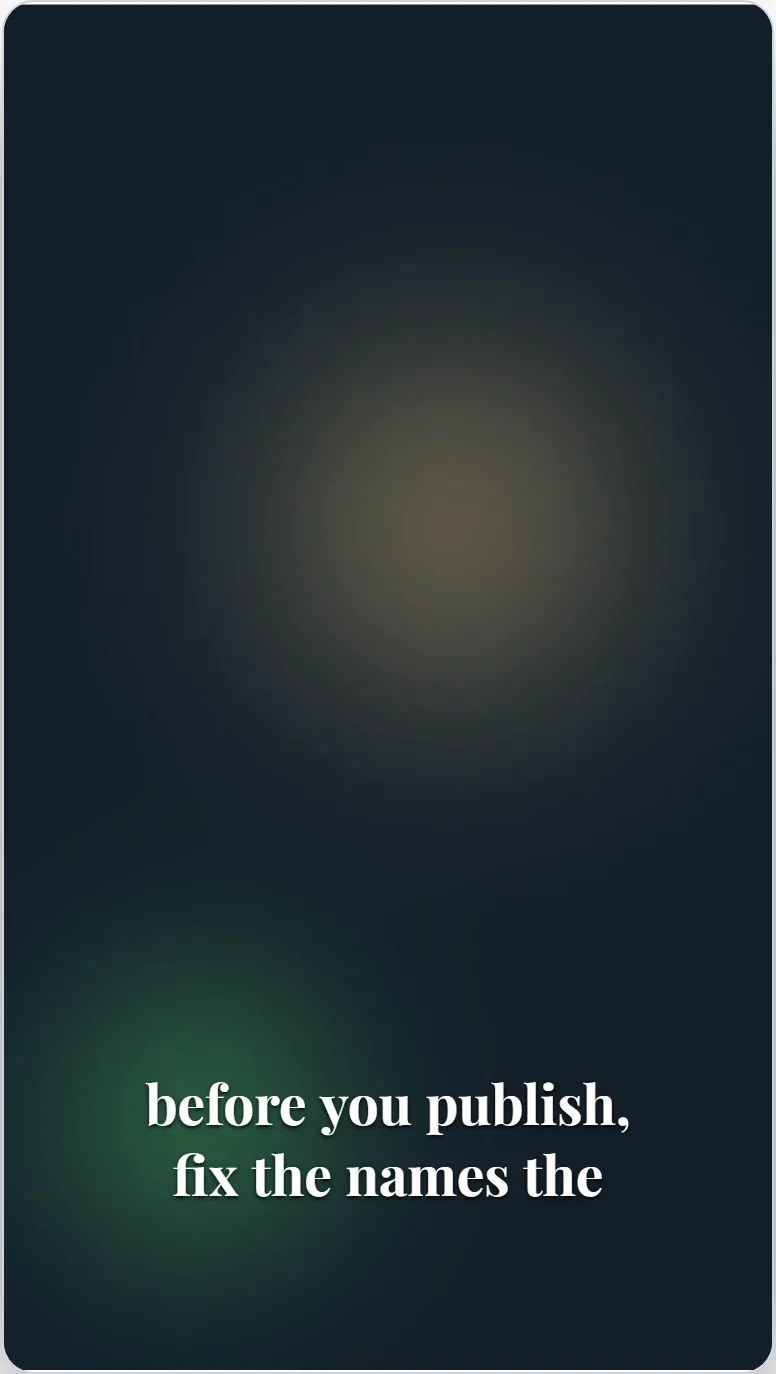
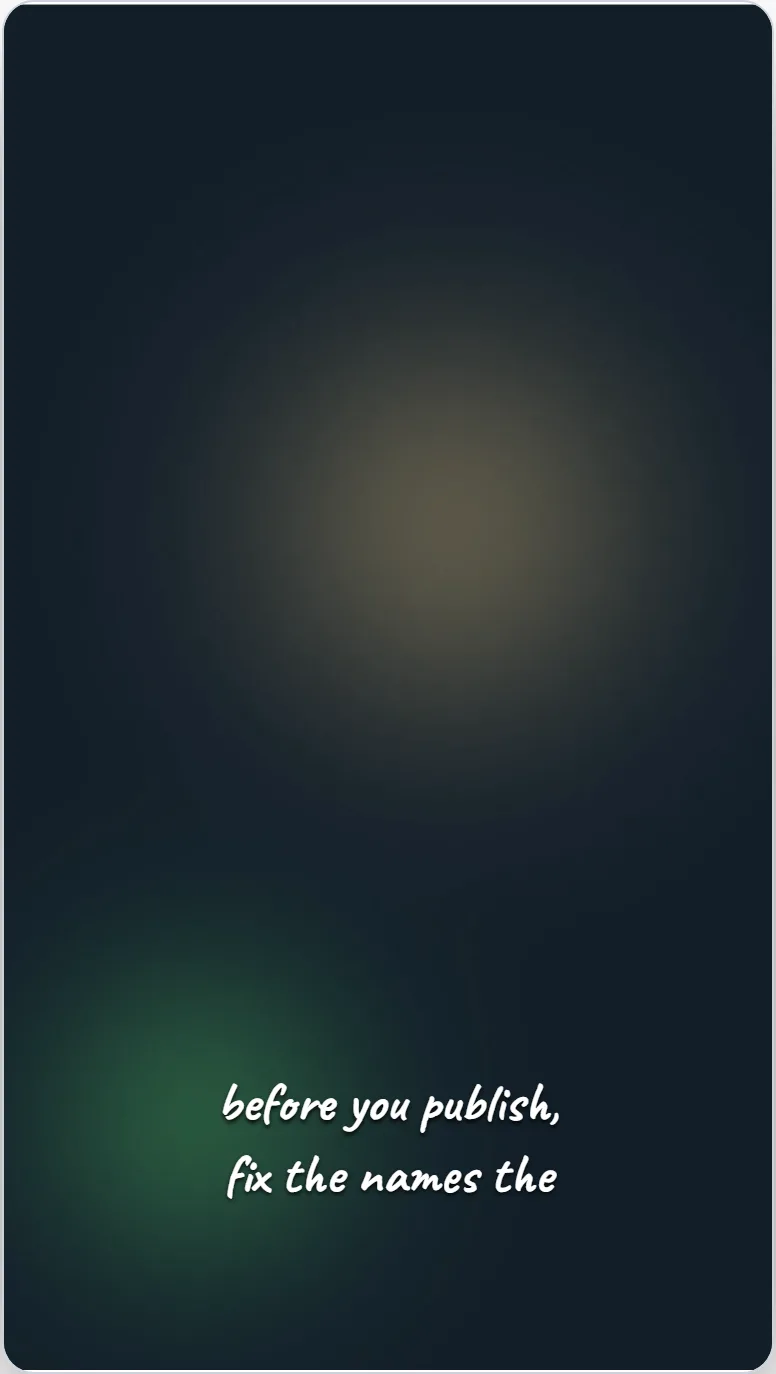
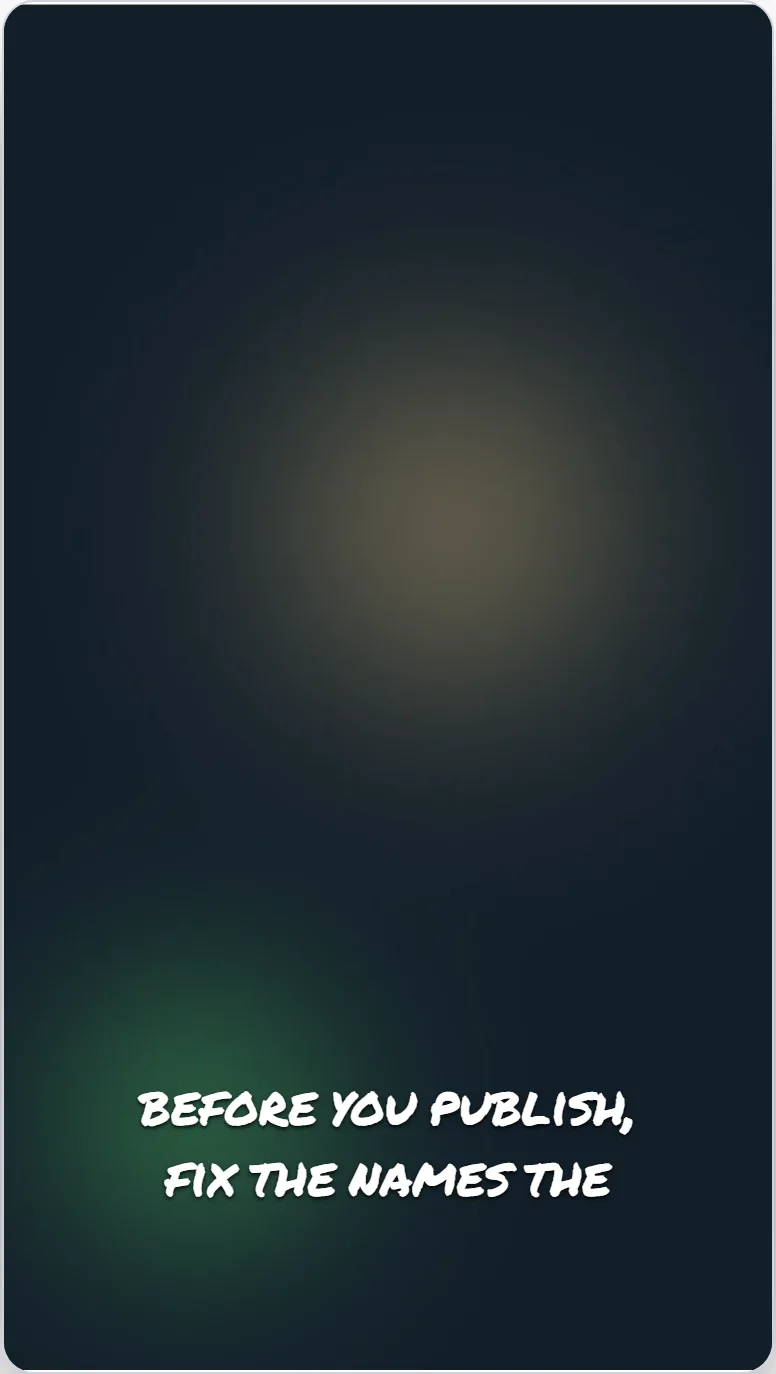
Playfair Display gives an editorial, documentary feel; its thinner strokes are easier to lose over busy footage. Caveat and Permanent Marker feel personal and informal. Caveat looks noticeably smaller at the same size setting, so it usually needs a larger size to match. Save these for short captions where tone matters more than reading speed.
Contrast matters as much as the font
White text on a moving background needs something behind it: an outline, a shadow or a background pill. In the editor these are under Colour: Outline, Background pill and Shadow. Outline and shadow can be exported on the Free plan with the free presets; a background pill counts as a premium effect and needs Starter to export, although it can be previewed on any plan.
How to change the font in the editor
Open Text in the editor sidebar. The Font list is grouped into sans, serif, display and handwriting; pick a family, then a weight. Families that ship as a single variable file offer Regular and Bold only, so the weights you see are the ones that export. Adjust Size, Letter spacing and Line height under Size & spacing, then check the caption against your own footage before exporting.
What the catalogue includes, and what it cannot draw
The editor's fonts are Poppins, Barlow, Noto Sans JP, Inter, Montserrat, Oswald, Roboto, Open Sans, Nunito, Rubik, Work Sans, Playfair Display, Caveat, Bebas Neue, Anton, Archivo Black, Lobster, Bangers, Permanent Marker, Pinyon Script, Luckiest Guy. There is no custom font upload. None of the bundled fonts can draw every script text, so burning those captions into a video is refused rather than rendered as empty boxes; SRT and VTT downloads keep the text intact.
The same caption in eight fonts
Same clip, same moment, same preset, size and position. Captured from the editor preview on 17 September 2026.
Frequently asked questions
What is the best font for subtitles?+
There is no single best one. A plain sans-serif at a bold weight, with an outline or shadow for contrast, is the most dependable starting point. Choose a display or handwriting face only when its tone is worth some reading speed.
Can I upload my own font?+
No. The editor offers the bundled catalogue only, so preview and export use exactly the same font files.
Are all fonts free to use?+
Choosing a font is not a premium effect. On the Free plan, captions export with the Podcast Lower Third and Documentary presets in any catalogue font; effects such as a background pill need Starter to export.
Why does my caption in Japanese or Thai not export?+
None of the bundled fonts can draw Chinese, Japanese, Korean or Thai characters, so the editor refuses to burn them in rather than exporting empty boxes. You can still download SRT or VTT files.