
Subtitle safe areas: keep captions where people can read them
A caption can be spelled correctly and still be unreadable because an app's buttons, description or progress bar sit on top of it. This guide shows the problem and the fix on real editor previews, and says where the platforms' own guidance ends.
Last updated
What the platforms themselves say
The clearest published guidance is written for advertisers, not for ordinary posts, so treat it as a close guide rather than a rule for every video. TikTok's in-feed ad specifications (updated June 2026) recommend a 9:16 vertical video and say the safe zone depends on the video's dimensions, the caption length and any extra formats, with downloadable templates rather than one fixed margin. Meta's Reels ads page recommends 9:16 and keeping key messages inside its Reels safe zone. YouTube's Shorts help page treats square or vertical videos up to three minutes as Shorts and publishes no caption margin. None of them gives one pixel offset that is safe for every post, and neither does this guide. Sources read 17 September 2026.
What the editor's overlays mark
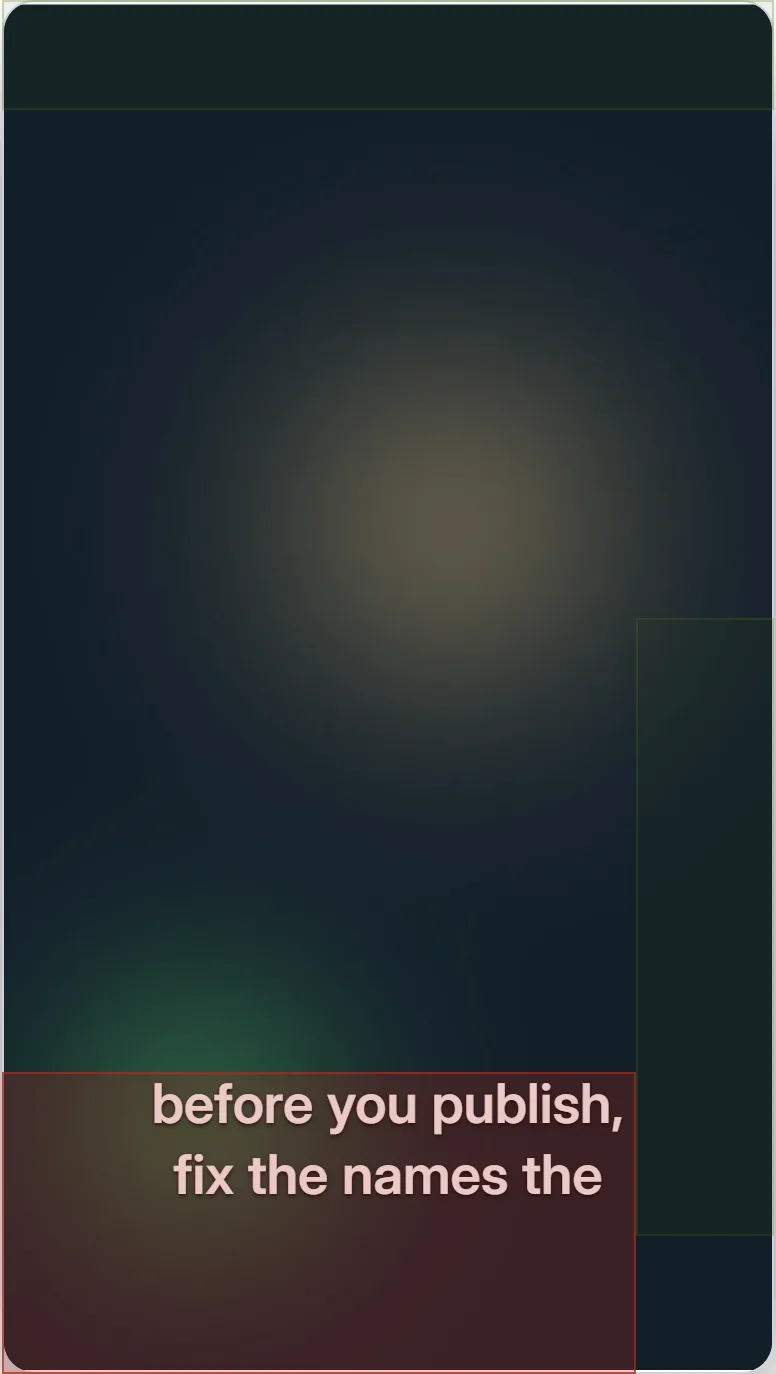
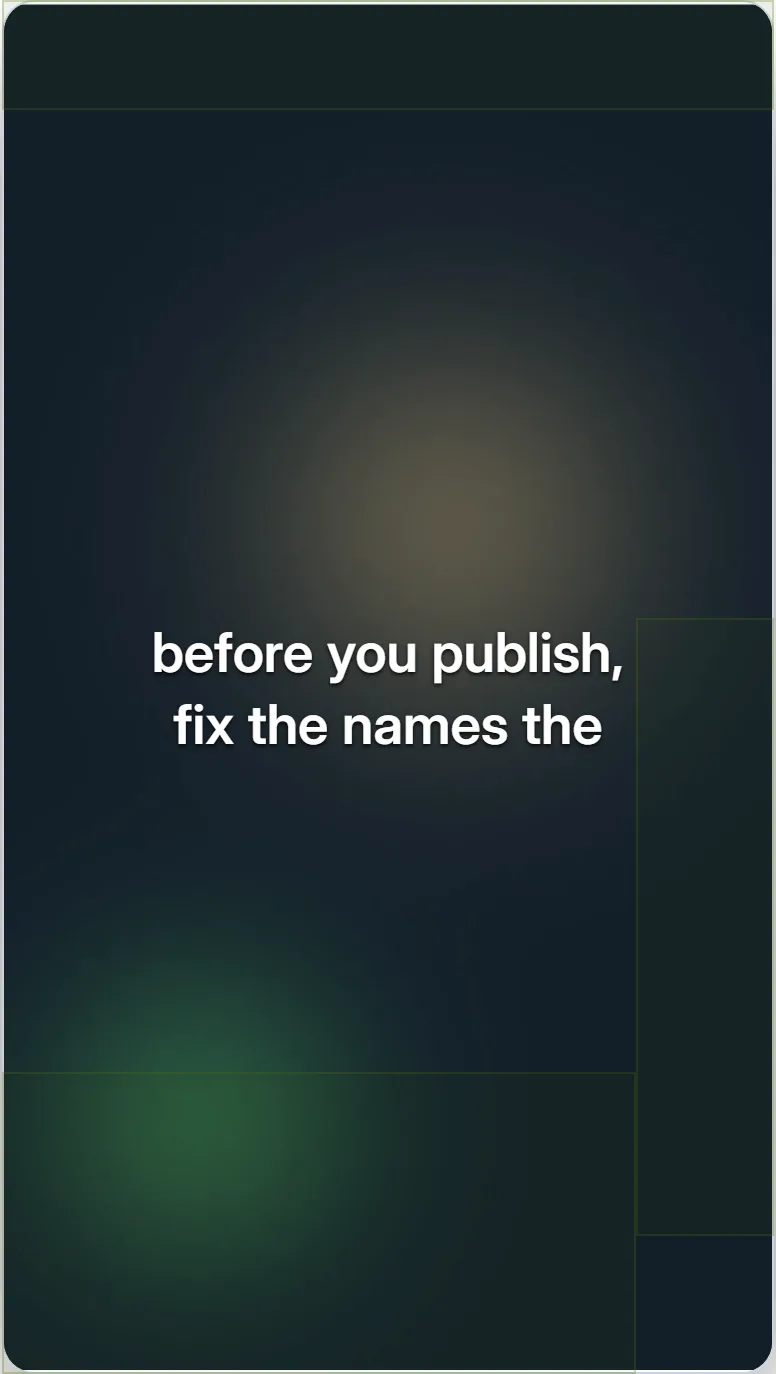
The editor can draw an approximate overlay for three apps. TikTok: caption and handle (the bottom 22%); action rail (45% to 90% down the frame, on the right 18%); top bar (the top 8%). Instagram Reels: caption and audio (the bottom 20%); action rail (42% to 88% down the frame, on the right 16%); top bar (the top 7%). YouTube Shorts: title and channel (the bottom 18%); action rail (40% to 88% down the frame, on the right 18%); progress bar (the bottom 3%). These regions are this product's own approximations, not figures published by the platforms, and they deliberately err towards covering slightly more than the real interface, because the exact layout shifts between devices and versions.
Fixing placement in the editor
Open Layout in the editor sidebar and pick TikTok, Instagram Reels or YouTube Shorts under Safe area. A zone the caption overlaps turns red. Move the caption by choosing top, center or bottom under Placement, by changing Distance from edge, by narrowing Text width so lines wrap before the button rail, or by dragging the caption on the video. Then check the final export in the app's own upload preview, because the live interface is the real test.
Upload the right shape first
The editor keeps the shape of the video you upload; it does not crop or reframe it. Export a vertical clip at 9:16 from your editing app before captioning it for TikTok, Reels or Shorts, so the caption is positioned against the frame people will actually see.
Landscape video has a different problem
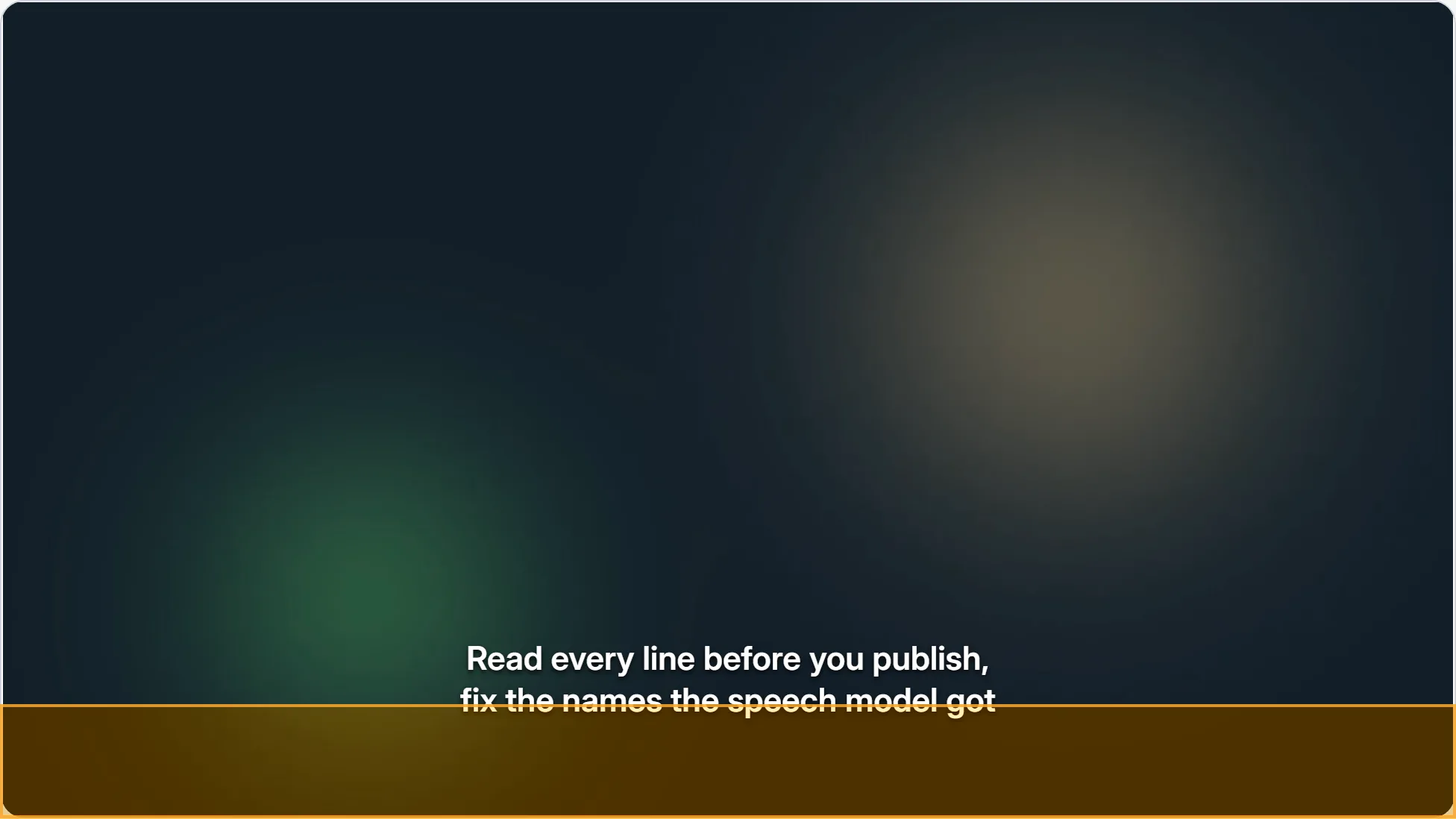
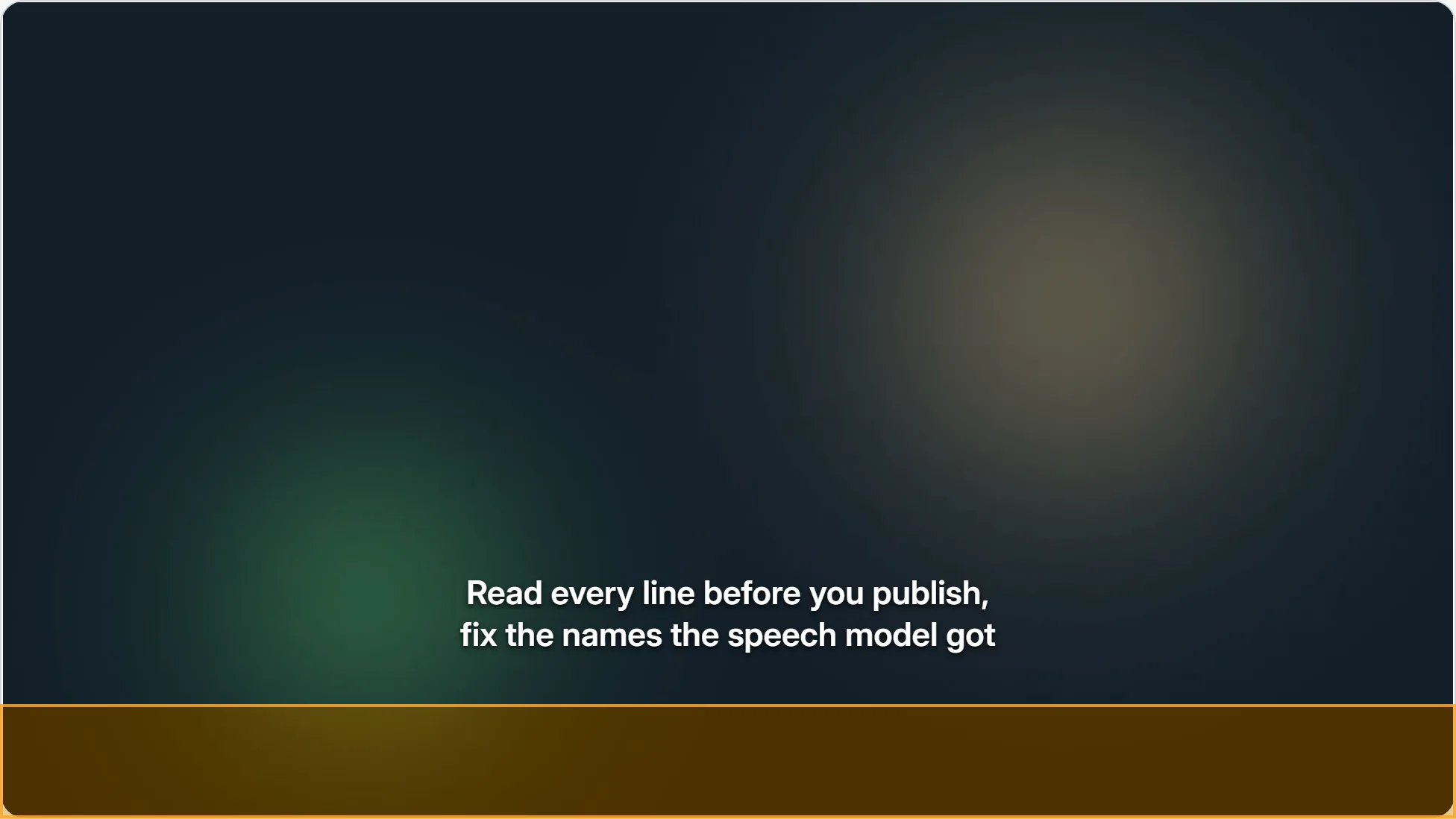
In a landscape player the risk is the bottom edge: control bars appear when a viewer hovers or pauses, and a caption tight against the edge collides with them. The editor has no landscape platform overlay, so the strip in the landscape examples below is drawn on afterwards as an illustration, not a measured player layout. Leaving clear space above the lower edge keeps captions away from controls that appear along the bottom.
Clipped captions
Pushing Distance from edge far enough the other way moves the caption out of the frame altogether, and the preview cuts it off. If a caption disappears or loses its last line, bring it back towards the centre and check the preview before exporting. Narrowing Text width keeps long lines from reaching the side edges.
Portrait: before and after, with the TikTok overlay
The editor preview on an original vertical example clip. Before, the caption sits at the default bottom position and the overlapped TikTok zone is highlighted red. After, Placement is set to center and the caption clears every zone. Captured 17 September 2026.
Landscape: before and after
The editor preview on an original landscape example clip. The amber strip is an illustration of where a player's controls can appear, added after capture. Before, the caption touches it at the default distance; after, Distance from edge is raised to 20% and the caption sits clear.
Frequently asked questions
Is there one safe margin for TikTok, Reels and Shorts?+
No. The platforms describe safe zones that change with dimensions, caption length and format, and publish templates rather than a single number. Use an overlay as a guide and check the app's own preview.
Can the editor turn a landscape video into 9:16?+
No. It keeps the shape of the uploaded video. Reframe or crop it in your editing app first.
Are the overlays exact?+
No. They are approximations that err towards covering slightly more than the real interface, because app layouts change with devices and versions.
Where should captions go on a landscape video?+
Above the bottom edge with some clear space, so controls that appear along the bottom of the player do not cover them.