
Descript alternatives for adding captions
Descript is built for editing audio and video through a transcript. Some alternatives keep that way of working; others only caption a video that is already cut. Here is how each compares with Descript.

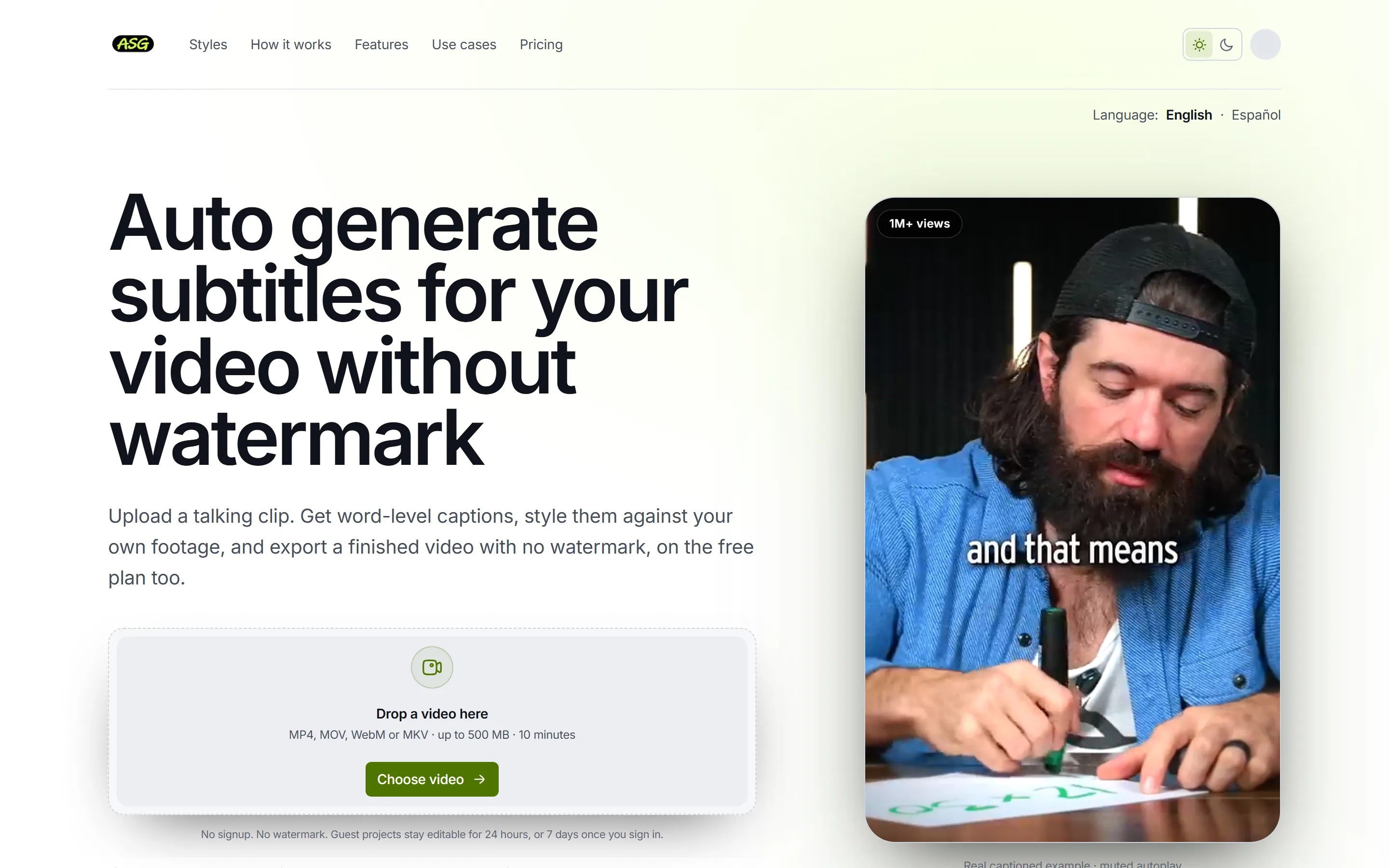
Captioning a finished video is a different job from editing one
Descript edits audio and video by editing a transcript like a document, with recording, AI audio cleanup and clip tools; translation and dubbing are listed on Business. Descript's captions help describes caption presets built from the script, with font, size, alignment, text and background colours, stroke and outline, active-word styling and word, line or paragraph animation.
That workflow is powerful when the transcript is how you cut the video: removing a sentence removes the footage. When the edit is already done in another app, the question is simpler. How do the captions look, and what does the free export give you?
- Free plan. Descript's Free plan includes 1 hour of media a month, 720p export with a watermark, and 5 GB of storage.
- Subtitle files. Descript's help says subtitles export as an SRT or VTT file uploaded alongside the video, and that captions which stay on the video are a separate captions feature. The article states no plan restriction.
- Paid plans. Descript's paid plans export without a watermark: 1080p on Hobbyist with 10 media hours a month, 4K on Creator with 30 media hours a month.
The alternatives at a glance
| Tool | Cut video by editing text | Free video export | Subtitle files | Paid price |
|---|---|---|---|---|
| Descript (for reference) | Text-based audio and video editor | Watermarked, 720p; 1 media hour a month on Free | SRT or VTT as a separate file | Hobbyist $24 monthly or $16/month yearly; Creator $35 or $24 |
| Auto Subtitle Generator | No: correcting text changes the captions only | No watermark on any plan; 1080p, up to 10 min / 500 MB | SRT, VTT, TXT on every plan | $7/month or $60/year |
| Kapwing | Trim with Transcript: delete text to cut footage | Watermarked, 720p, 4-min videos, 30 export min/month | SRT/VTT on Pro and above | Pro $16 billed yearly or $24 monthly; Business $50 or $64 |
| VEED | Edit by Script on all plans | Watermarked; 720p Free, 1080p Creator, 4K Pro and above | SRT or VTT on Pro and Enterprise | Creator $12, Pro $22, Studio $39 per user / month, billed yearly |
Each alternative, measured against Descript
Auto Subtitle Generator
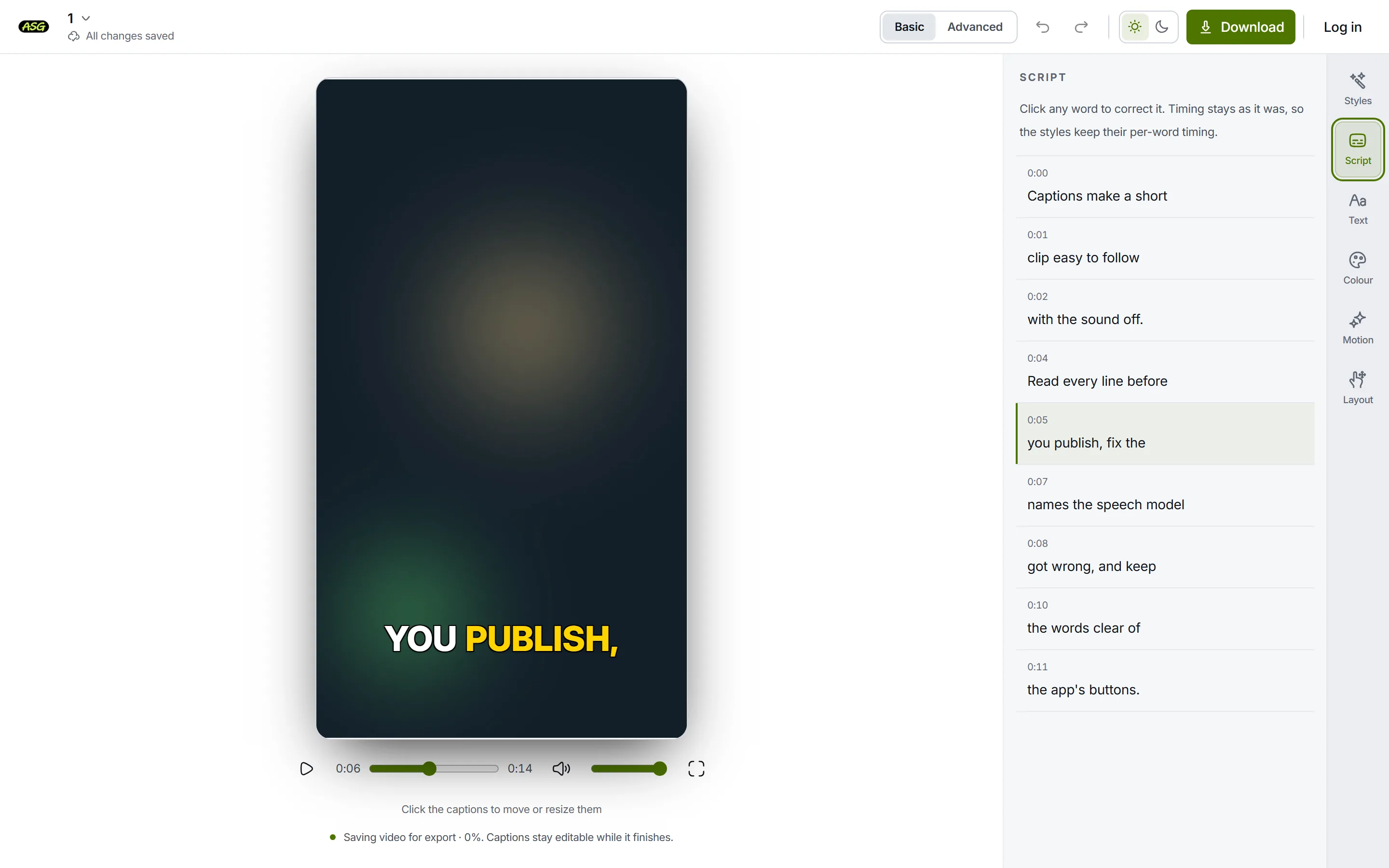
Where Descript treats the transcript as the edit, this treats it as the captions: correcting a word changes the text on screen and leaves the footage alone.
Better than Descript
- No watermark on free exports; Descript's Free plan adds one.
- Free exports at 1080p, where Descript's Free plan exports at 720p.
- SRT, VTT and TXT files on every plan.
- Starter costs $60 a year; Descript's Hobbyist is $16 a month billed yearly.
No better than Descript
- No transcript editing: it cannot cut footage by deleting words.
- Video files only, where Descript also edits audio.
- No translation or dubbing, which Descript lists on Business.
- Free covers 3 video projects / month, and only the Podcast Lower Third and Documentary styles export on it.
Kapwing
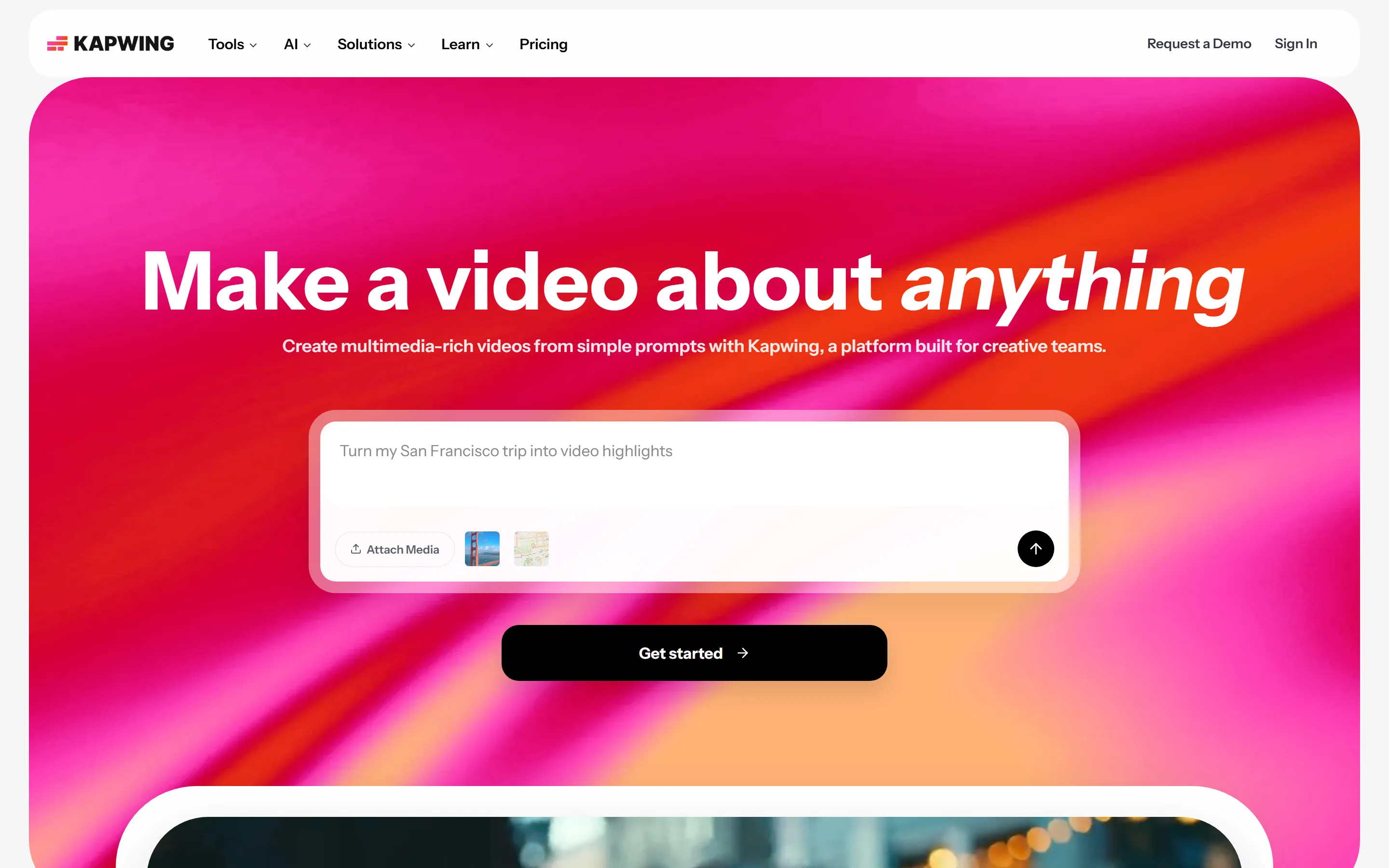
The closest stand-in for Descript in a browser studio. Kapwing's Trim with Transcript removes a section of video when you highlight it in the transcript and delete it.
Better than Descript
- A shared team workspace on Pro, where Descript needs Creator for a team.
- Publishes its free-plan limits in detail.
No better than Descript
- Trim with Transcript cuts footage the way Descript does, so the habit carries over rather than improves.
- Free exports are watermarked and 720p, as on Descript, and stop at 4 minutes.
- Subtitle files need Pro and above.
VEED

An all-in-one browser editor that includes Descript's signature move. VEED's Edit by Script cuts a video by editing its transcript: delete a word and the matching footage goes, restore it and the footage returns. VEED lists it on all plans.
Better than Descript
- Its cheapest paid plan, Creator, is $12 a month billed yearly, below Descript's Hobbyist at $16.
- Translation comes on Pro, a cheaper plan than the Business tier Descript requires.
No better than Descript
- Edit by Script matches Descript's delete-a-word editing rather than improving on it.
- Free exports are watermarked and 720p, as on Descript.
- Subtitle files need Pro.
Also worth a look
- Clipchamp. A conventional timeline editor from Microsoft, without transcript editing or Descript's audio cleanup. Microsoft's help for Clipchamp, covering personal and work accounts, describes editable, styleable autocaptions that are exported as part of the video, with a separate .SRT download. The article does not say which plans include it. Which plans include autocaptions is not published.
- YouTube Studio. No editing of any kind, the opposite end of the scale from Descript. YouTube creates automatic captions for uploaded videos in supported languages. Its help says they may not be ready at upload, can misrepresent speech, and can be reviewed and edited in YouTube Studio.
When Descript is still the better choice
- You want transcript editing to be the whole workflow, with recording and AI audio cleanup in the same project.
- You work with audio-only files. The uploader accepts MP4, MOV, WebM and MKV video files from the device, up to 120 minutes on any plan. There is no audio-only upload and no import from a URL.
- You need translation or dubbing alongside captions. Descript lists translation and dubbing into 30+ languages on its Business and Enterprise plans.
Frequently asked questions
Is there a Descript alternative with watermark-free free exports?+
No plan adds an Auto Subtitle Generator watermark to exported video, including Free. Kapwing and VEED both state that free exports are watermarked.
Which alternatives still let me cut video by editing the transcript?+
Kapwing and VEED. Kapwing's Trim with Transcript removes a section of video when you highlight it in the transcript and delete it. VEED's Edit by Script cuts a video by editing its transcript: delete a word and the matching footage goes, restore it and the footage returns. VEED lists it on all plans. Auto Subtitle Generator does not: correcting its text changes the captions only.
Which alternative accepts audio-only files?+
Not Auto Subtitle Generator. The uploader accepts MP4, MOV, WebM and MKV video files from the device, up to 120 minutes on any plan. There is no audio-only upload and no import from a URL.
Which alternative is cheapest?+
On paid plans, Auto Subtitle Generator's Starter, then VEED's Creator. Starter costs $7 billed monthly or $60 billed yearly, with 200 MP4 exports a month, 4K output and videos up to 120 minutes and 5 GB. VEED lists Creator at $12, Pro at $22 and Studio at $39 per user per month, billed yearly ($147, $265 and $465 a year), with Enterprise on custom pricing.
Try it on your own clip
Automatic captions are easiest to judge on real footage. Upload a video to generate and preview captions without an account; signing in is only needed to download.
Upload a video to caption