
VEED alternatives for captioning a video
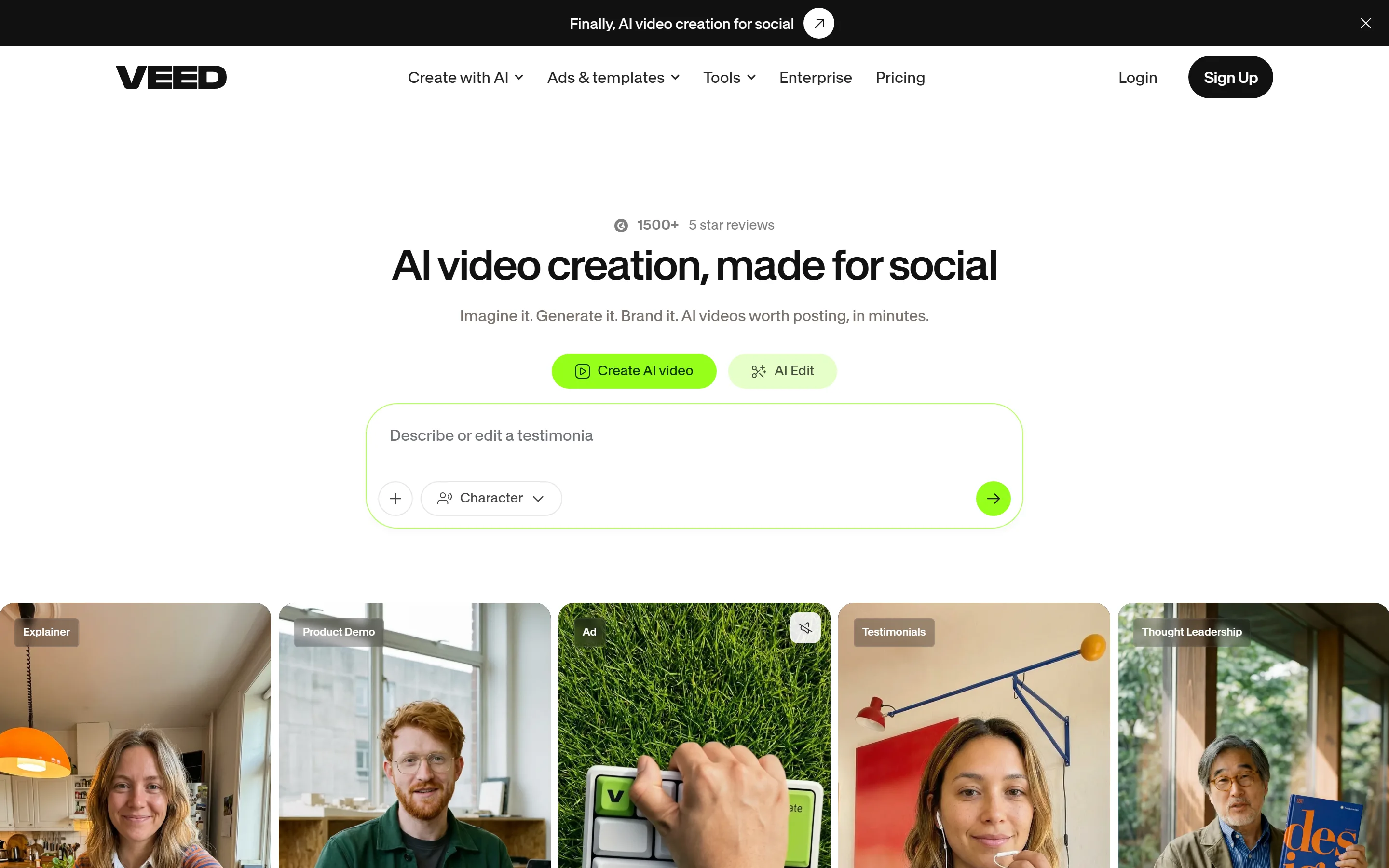
VEED is a full browser video editor with subtitles built in. If captions are the job you came for, several tools do that job with different trade-offs. Here is how each one compares with VEED on the things people leave it over.
Why people look for a VEED alternative
Subtitles are one tool inside VEED's wider browser editor, which also lists AI video generation, audio tools, background removal, translation and dubbing. That breadth is useful when the whole edit happens there. It is also why a person who only needs captions often looks elsewhere.
- Free exports are watermarked. VEED's help centre states that projects exported from a free account carry a VEED watermark, and that only a paid subscription exports without it.
- Free export quality. VEED's export help lists 720p on the Free plan, up to 1080p on Creator, and up to 4K on Pro, Studio and Enterprise.
- Subtitle files are a paid feature. VEED's subtitle help says subtitle files can be downloaded as SRT or VTT on Pro and Enterprise plans.
- Translation and speakers cost more. VEED lists translation into 50+ languages on Pro and Studio; its FAQ says translations are counted in minutes against the plan allowance, and its help says translation uses AI credits. VEED's subtitle help describes Detect Speakers as a paid feature available on Pro or higher.
The alternatives at a glance
| Tool | Free video export | Subtitle files | Translation | Paid price |
|---|---|---|---|---|
| VEED (for reference) | Watermarked; 720p Free, 1080p Creator, 4K Pro and above | SRT or VTT on Pro and Enterprise | Minute-based, on Pro and Studio | Creator $12, Pro $22, Studio $39 per user / month, billed yearly |
| Auto Subtitle Generator | No watermark on any plan; 1080p, up to 10 min / 500 MB | SRT, VTT, TXT on every plan | Not offered | $7/month or $60/year |
| Kapwing | Watermarked, 720p, 4-min videos, 30 export min/month | SRT/VTT on Pro and above | 155 language variants; automated translation | Pro $16 billed yearly or $24 monthly; Business $50 or $64 |
| Descript | Watermarked, 720p; 1 media hour a month on Free | SRT or VTT as a separate file | Translation and dubbing on Business and Enterprise | Hobbyist $24 monthly or $16/month yearly; Creator $35 or $24 |
Each alternative, measured against VEED
Auto Subtitle Generator
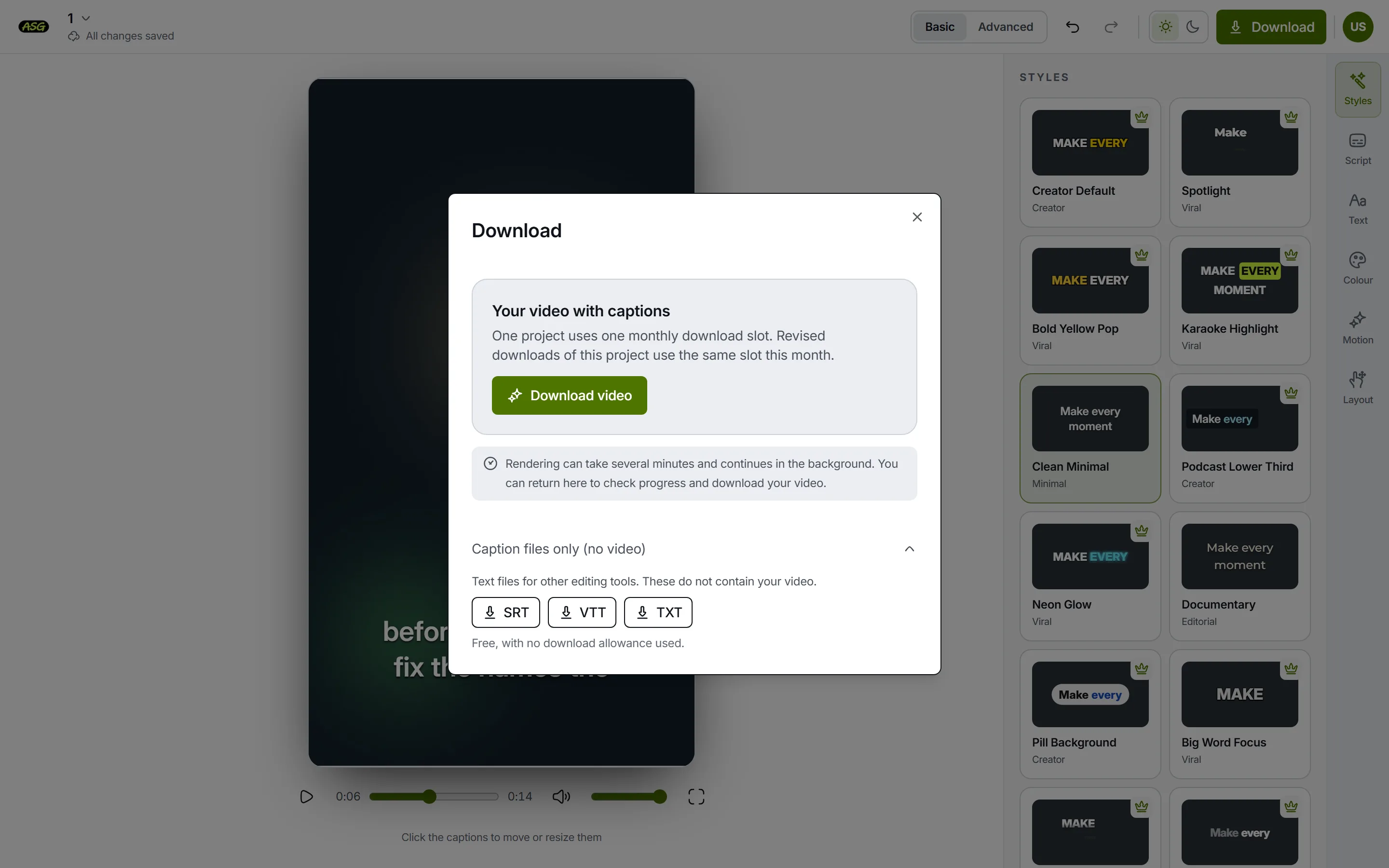
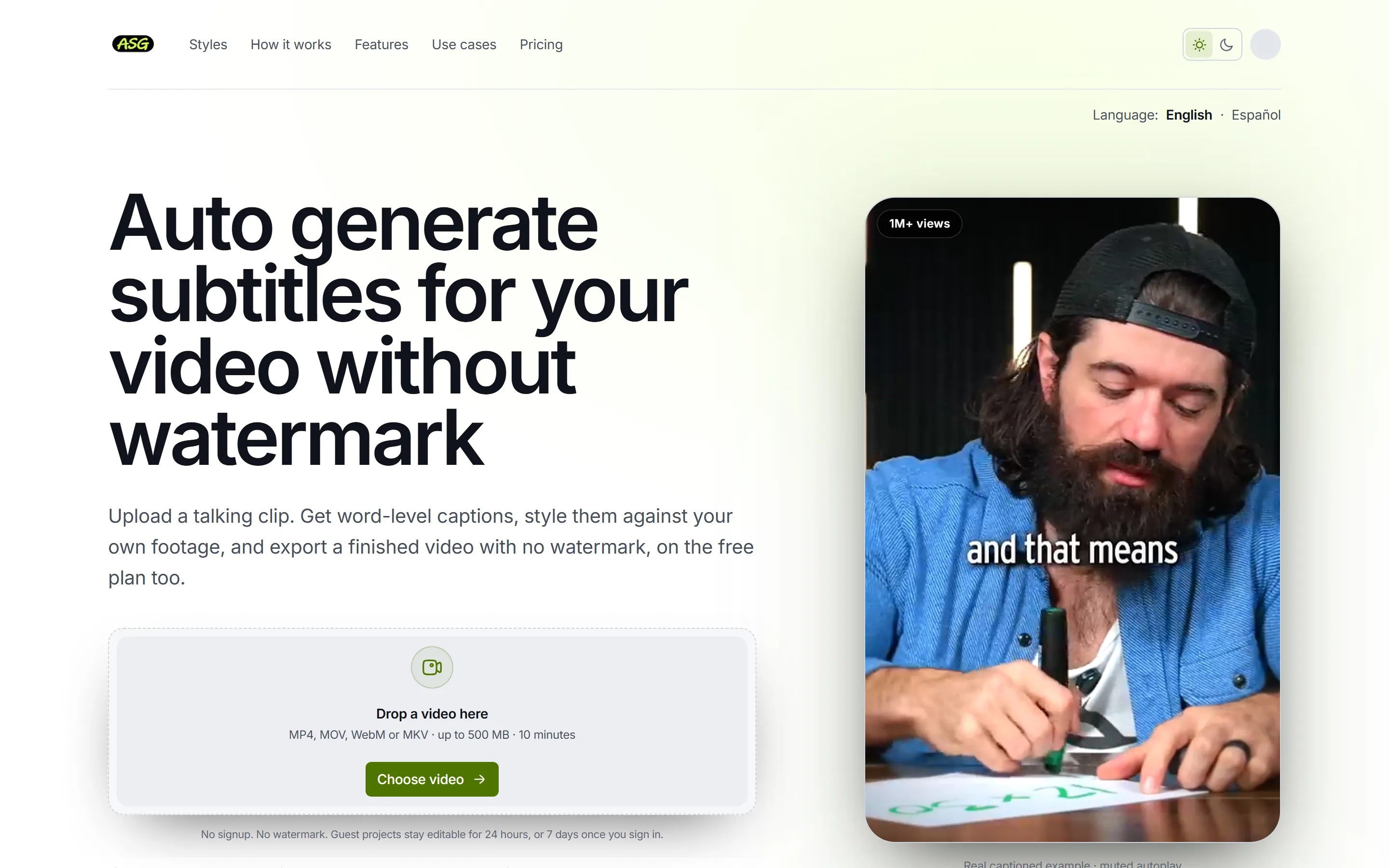
Where VEED is an editor with captions inside it, this is only the captioning step: generate captions for a video that is already cut, correct and style them, and export.
Better than VEED
- No watermark on free exports; VEED's Free plan adds one.
- Free exports at 1080p, where VEED's Free plan exports at 720p.
- SRT, VTT and TXT files on every plan; VEED puts subtitle files on Pro and Enterprise.
- Starter costs $60 a year, against $147 a year for VEED's cheapest paid plan.
No better than VEED
- It is a caption tool: no trimming, music, B-roll or multi-clip editing.
- No translation or speaker detection; VEED offers both on paid plans.
- No Edit by Script: correcting the text changes the captions, not the footage.
- Free covers 3 video projects / month, and only the Podcast Lower Third and Documentary styles export on it.
Kapwing
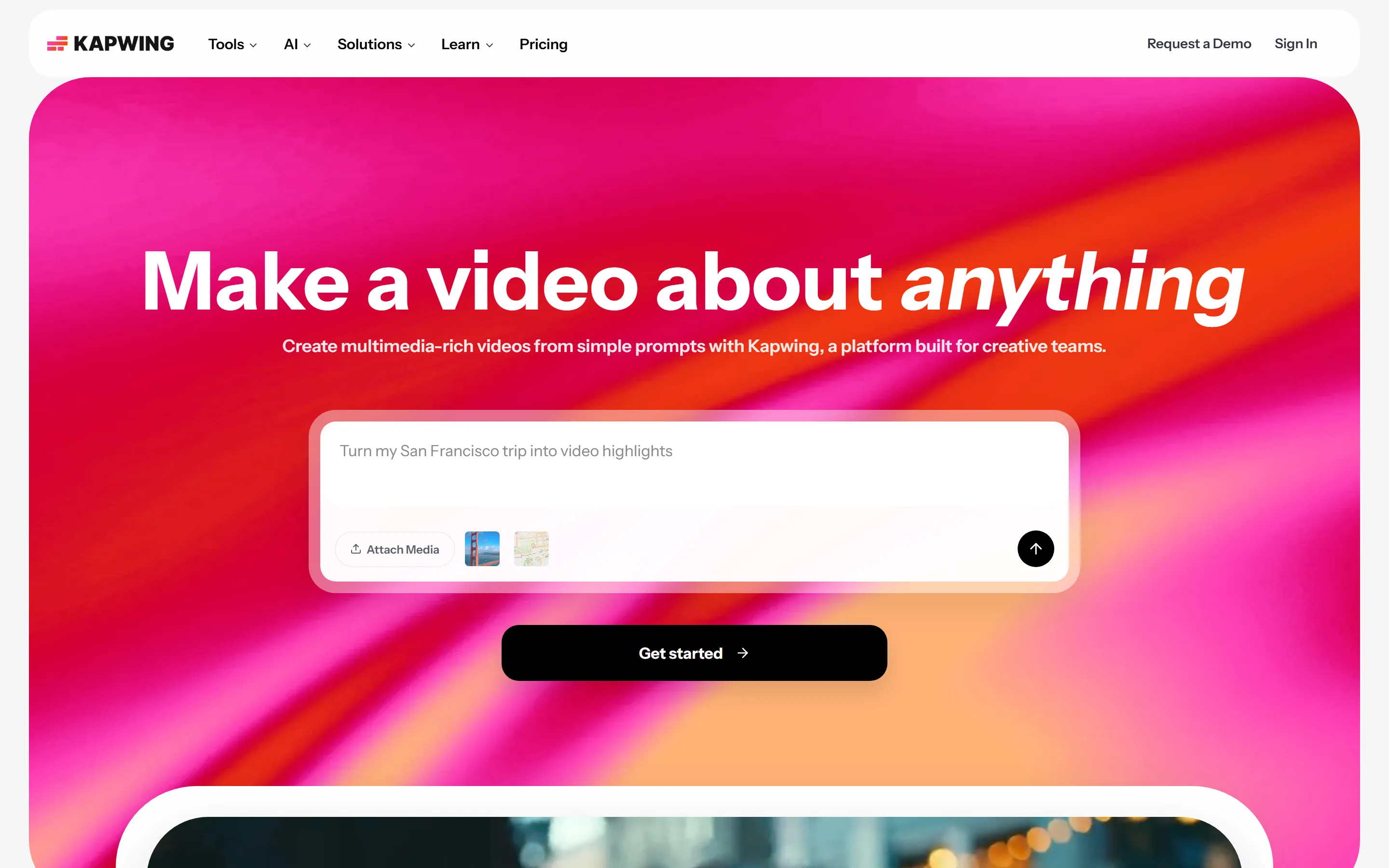
The closest like-for-like swap for VEED: another browser studio with subtitles, translation and a timeline built in.
Better than VEED
- Subtitle files on its first paid plan, Pro; VEED needs Pro, the plan above Creator.
- A shared team workspace from Pro; VEED keeps team management for Enterprise.
- Publishes its free-plan limits in detail, so you know what Free covers before you start.
No better than VEED
- Free exports are watermarked and 720p, as they are on VEED.
- Free videos stop at 4 minutes; VEED limits free files by size, not length.
Descript
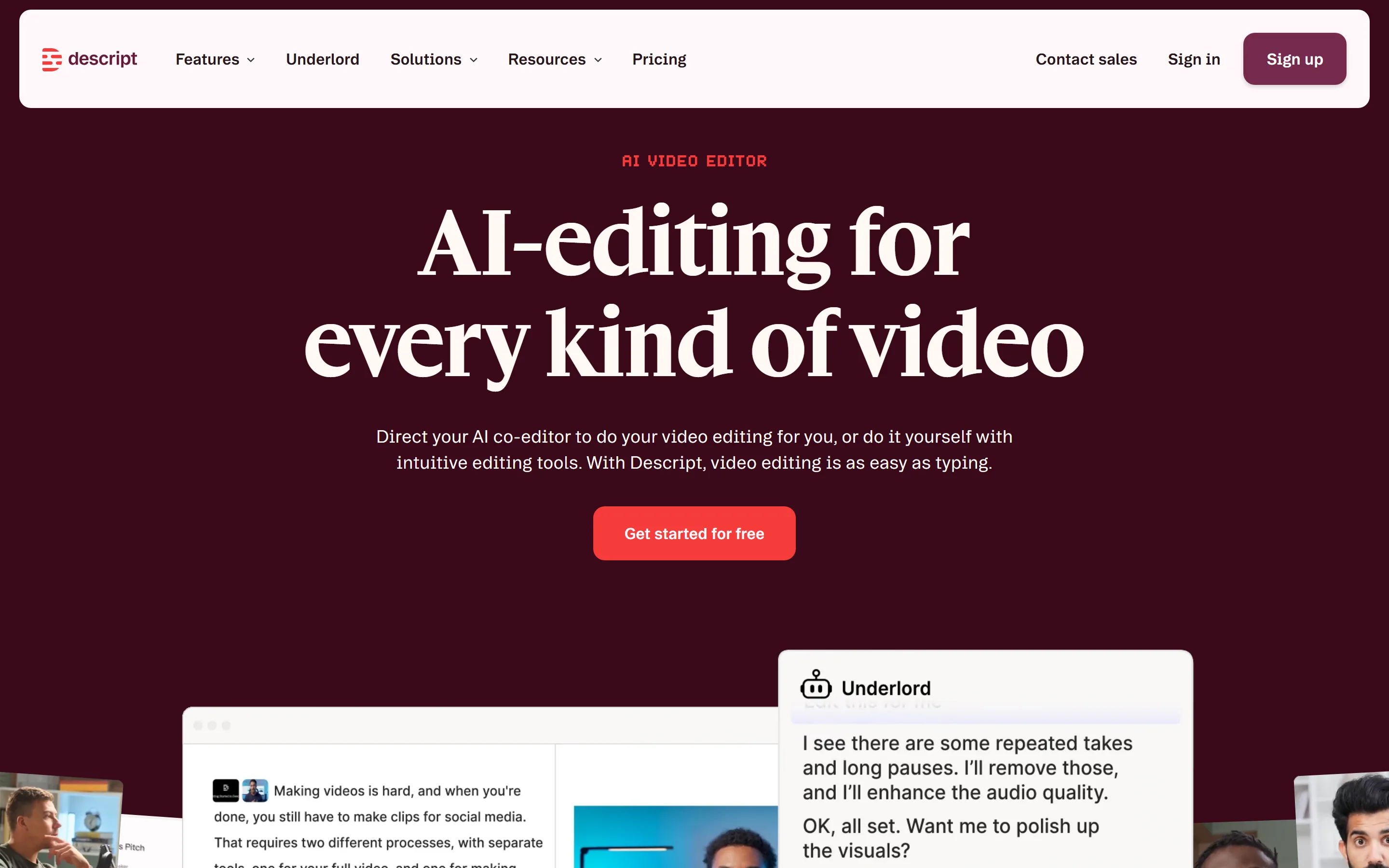
A different shape from VEED: transcript editing is the whole product rather than one tool among many.
Better than VEED
- Built around the transcript, with recording and AI audio cleanup alongside.
- Teams from Creator, up to 3 people, or 5 on Business; VEED keeps team management for Enterprise.
No better than VEED
- Free exports are watermarked and 720p, with 1 hour of media a month.
- Priced per person like VEED, with Hobbyist at $16 a month billed yearly.
Also worth a look
- Clipchamp. Like VEED, a general editor with captions inside it, from Microsoft. Microsoft's help for Clipchamp, covering personal and work accounts, describes editable, styleable autocaptions that are exported as part of the video, with a separate .SRT download. The article does not say which plans include it. Which plans include autocaptions is not published.
- YouTube Studio. Not an editor, and it produces no file to post elsewhere. YouTube creates automatic captions for uploaded videos in supported languages. Its help says they may not be ready at upload, can misrepresent speech, and can be reviewed and edited in YouTube Studio. For a video that only lives on YouTube, it may be all you need.
When VEED is still the better choice
- The video still needs editing: trimming, music, B-roll or several clips on one timeline.
- You cut talking footage by editing the transcript. VEED's Edit by Script cuts a video by editing its transcript: delete a word and the matching footage goes, restore it and the footage returns. VEED lists it on all plans.
- You need captions translated or speakers detected, in the same place as the edit.
- You want AI video generation and voice tools under the same subscription as captions.
None of the alternatives above replaces all of that at once. If you use more than captions in VEED, switching tools means stitching several together.
Frequently asked questions
Is there a free VEED alternative without a watermark?+
No plan adds an Auto Subtitle Generator watermark to exported video, including Free. Kapwing and Descript both state that their free exports are watermarked.
Which alternatives let me download an SRT file?+
SRT, VTT and TXT files can be downloaded on every plan after signing in, and do not use a video project slot. Kapwing lists SRT and VTT downloads from Pro, Descript documents SRT or VTT export, and Clipchamp documents an SRT download.
Which alternative is best for translation?+
VEED, Kapwing and Descript all list translation, on different plans. Auto Subtitle Generator does not translate captions.
Can I cut a video by editing its transcript?+
On VEED, yes. VEED's Edit by Script cuts a video by editing its transcript: delete a word and the matching footage goes, restore it and the footage returns. VEED lists it on all plans. Auto Subtitle Generator does not: correcting its text changes the captions only.
Try it on your own clip
Automatic captions are easiest to judge on real footage. Upload a video to generate and preview captions without an account; signing in is only needed to download.
Upload a video to caption