
The 5 best free auto subtitle generators for short-form video
Every tool here will caption your video for free. What separates them is how much say you get over how the captions look, and what you are allowed to download afterwards. So we checked the styling controls, watermark policy, export resolution and real free-plan limits of all five, our own included.
Adding subtitles to a short video should be simple. Upload the video, let the tool work out what is being said, fix the two words it got wrong, pick a caption style, export.
The confusing part arrives at the end. A lot of subtitle generators describe themselves as free, and free means something different in each of them. One stamps a watermark on the finished video. One caps exports at 720p. One gives you two videos a month. Several are full video editors with captioning bolted on the side.
So we compared five popular options on the questions that actually decide it when you are making Reels, TikToks, Shorts, talking-head clips or podcast cuts: can it generate subtitles automatically, can you fix its mistakes, does the free export carry a watermark, what resolution do you get, and what are the real limits on the free plan?
The short version
If you do not want to read all of it, this is the comparison in one table.
| Tool | Free exports | Watermark on free exports | Free resolution | Best for |
|---|---|---|---|---|
| Auto Subtitle Generator | 3 video projects per month, revisions included | No | 1080p, up to 10 min / 500 MB | Fast, precise control over how captions look and move |
| VEED | Free tier, watermarked | Yes | 720p, 1 GB per file | People who also need a full video editor |
| Kapwing | Unlimited, capped at 30 min of video a month | Yes | 720p, projects up to 4 min | Browser-based editing and creative workflows |
| Zubtitle | 2 per month | Yes | 720p, uploads up to 20 min | Simple social-video packaging |
| Submagic | 3 videos to try | Yes | Not published for the free tier | Animated captions and short-form effects |
All five will generate subtitles. What happens when you press Export is where they part company.
Of the five, Auto Subtitle Generator is currently the only one that gives you 1080p video exports with no product watermark on the free plan. VEED, Kapwing, Zubtitle and Submagic all brand free exports.
The other four are not bad for it. Two of them do far more than subtitles, and if you need those things a watermark on the free tier is a fair price for trying them. It just means the right answer depends on what you are making, which is what the rest of this is about.
1. Auto Subtitle Generator, the most control over the captions themselves
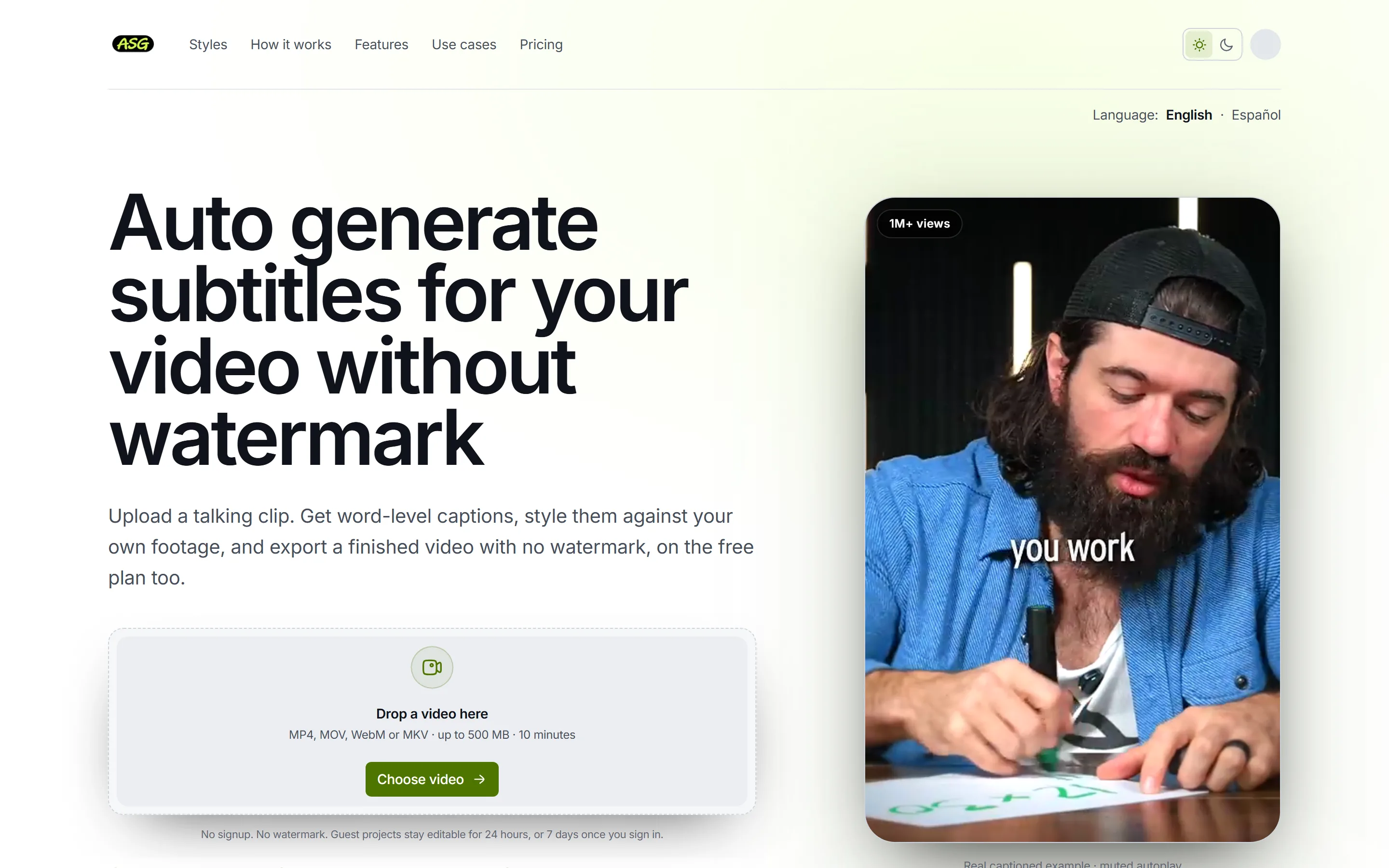
If the job is upload a video, generate subtitles, fix a few words, make them look right and download the finished clip, Auto Subtitle Generator is the shortest path on this list. It is a captioning tool rather than a video editor with captioning inside it, and that focus is the point: there is no timeline to learn, no project to set up, and nothing between dropping a file in and seeing captions on it.
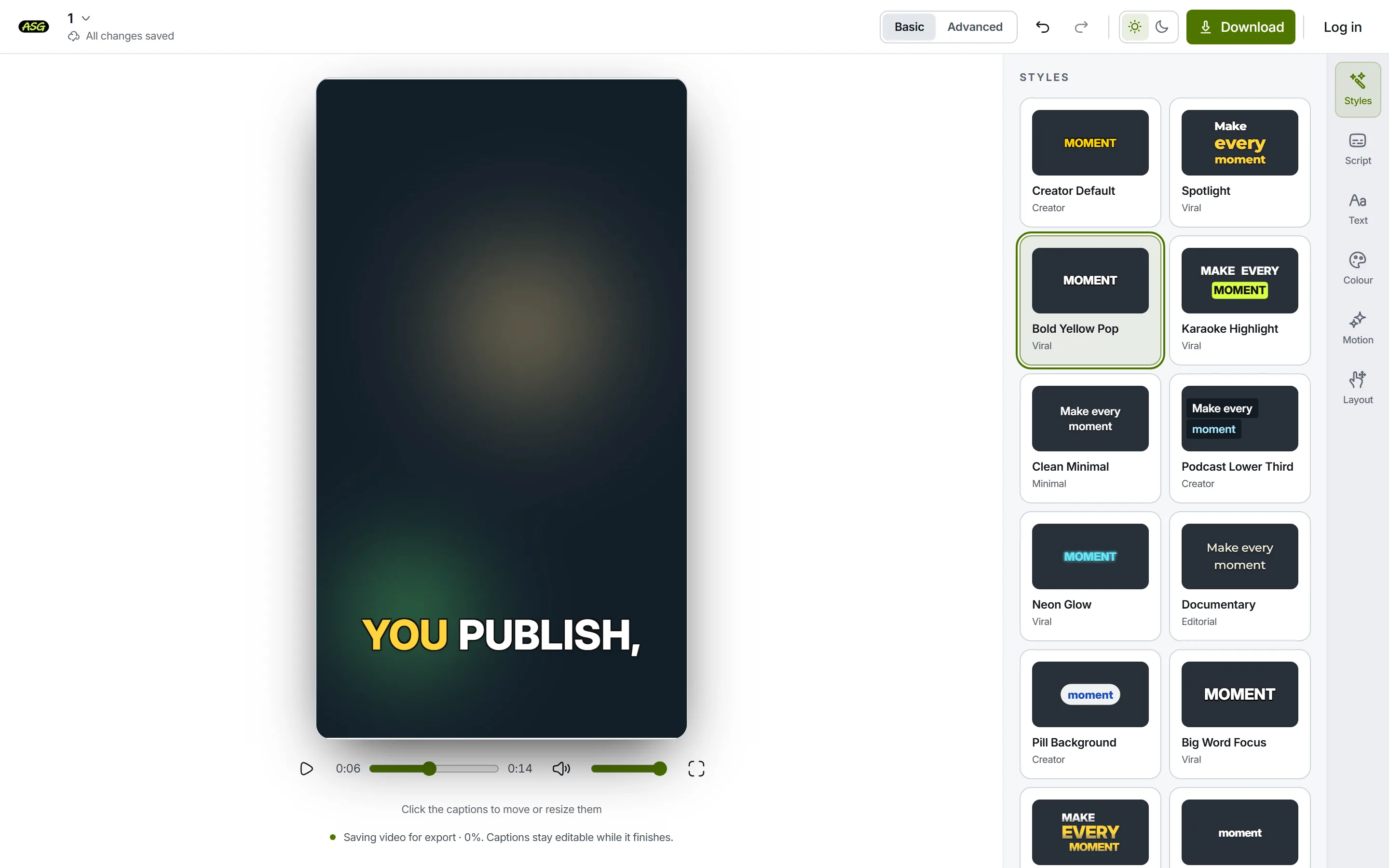
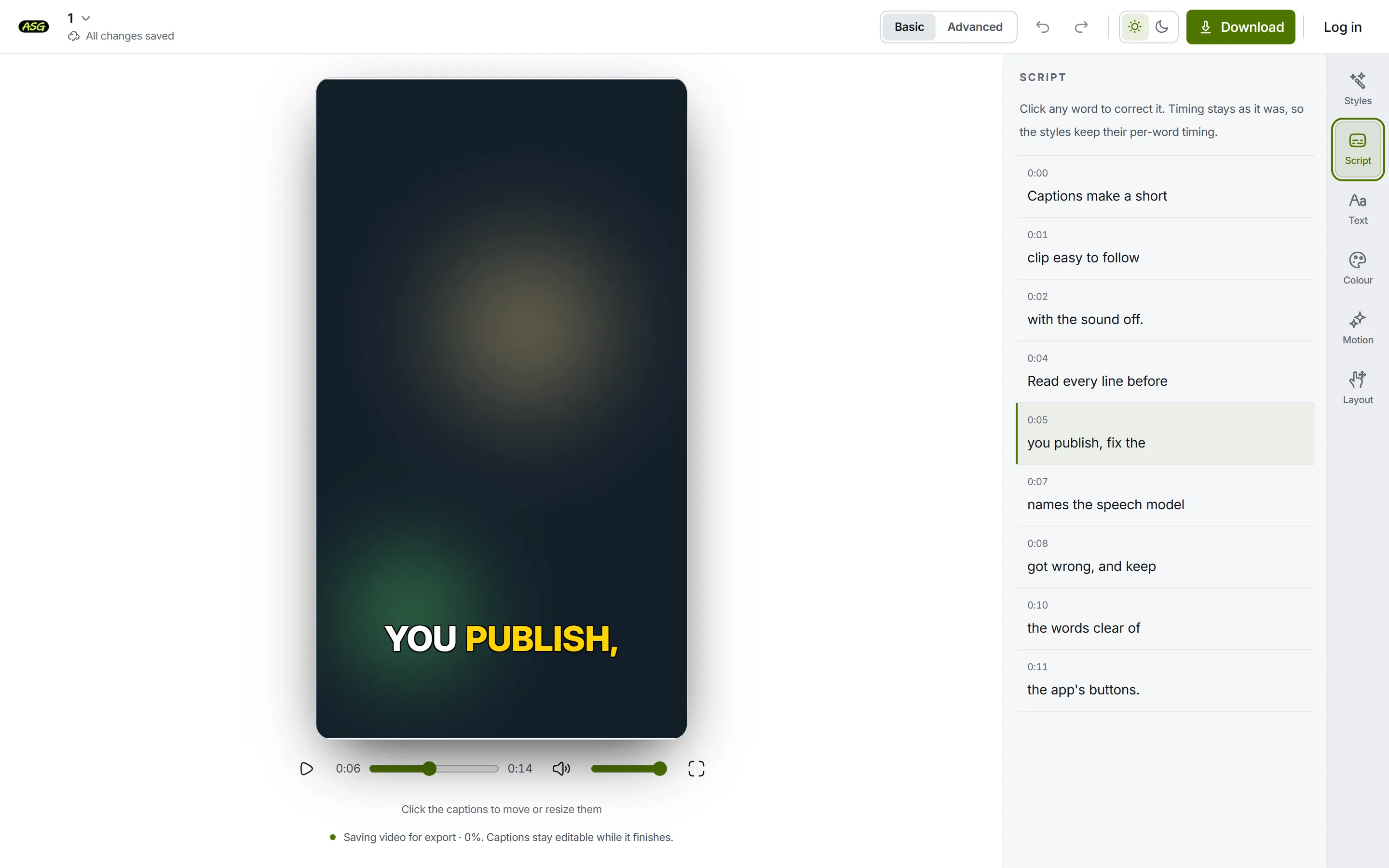
Upload MP4, MOV, WebM or MKV and the speech becomes timed, editable text. You correct the transcript and restyle the captions against your own footage, playing, rather than in a detached text box that shows you the result only after you export.
Timing is kept for every individual word, not just every line. That is what makes active-word and karaoke styles possible at all, and it is the foundation of the 15 presets: captions that reveal a word at a time, hold a line while the spoken word lights up, or scale the word being said.
Underneath the presets, the controls go a long way further than a colour picker. 4 ways to window the text, 5 enter and exit animations with their own durations and easing, 5 ways to emphasise the active word (colour, scale, pill, underline, glow), plus outline, drop shadow, per-word or per-line backgrounds with their own padding and corner radius, 21 bundled fonts, letter spacing, line height, line and word caps, free placement anywhere on the frame, and rotation. If a caption in your head does not match one of the presets, it is usually reachable from one.
The control that gets used most, though, is the least glamorous one. Drag the caption block and the regions each platform covers with its own interface light up: the TikTok description and handle, the Reels action rail, the YouTube Shorts title and progress bar. A caption that looks perfectly placed in an editor and sits under the app's own chrome in the feed is the most common way a good clip gets wasted, and it is invisible until you have already posted.
What works
- Captions are the whole product. Upload, generate, correct, style, export. No timeline, no project setup, no editing suite you did not come for.
- Word-level timing throughout, so active-word, karaoke and word-reveal styles are real options rather than a single canned template.
- Granular styling. 15 presets to start from, then 5 animations, 5 emphasis treatments, 21 fonts, outline, shadow, backgrounds, rotation and free placement underneath them.
- Platform safe areas drawn on the frame while you position captions, for TikTok, Instagram Reels and YouTube Shorts.
- 1080p exports with no watermark on the free plan, plus SRT, VTT and TXT when you want a separate caption track instead.
What does not
- 3 video projects a month on the free plan; revised downloads of the same project share its slot. Steady weekly output will run through that.
- Free uploads cap at 10 minutes and 500 MB. This is not the tool for a long-form edit.
- It is not a video editor. No trimming, no B-roll, no music, no multi-clip timeline. If you need those, two of the tools below are better answers.
- No CJK yet. The bundled fonts cannot draw Chinese, Japanese, Korean or Thai, and export refuses rather than rendering boxes.
You can upload and work on a video without an account; signing in is only required to download the finished file. A paid Starter plan for heavier use is listed on the pricing page.
Best for
Reels, TikToks, Shorts, talking-head clips, tutorials and podcast cuts, where the captions are a design decision rather than an afterthought and you want them exactly right without opening an editor to get there.
2. VEED, if you also need a full video editor
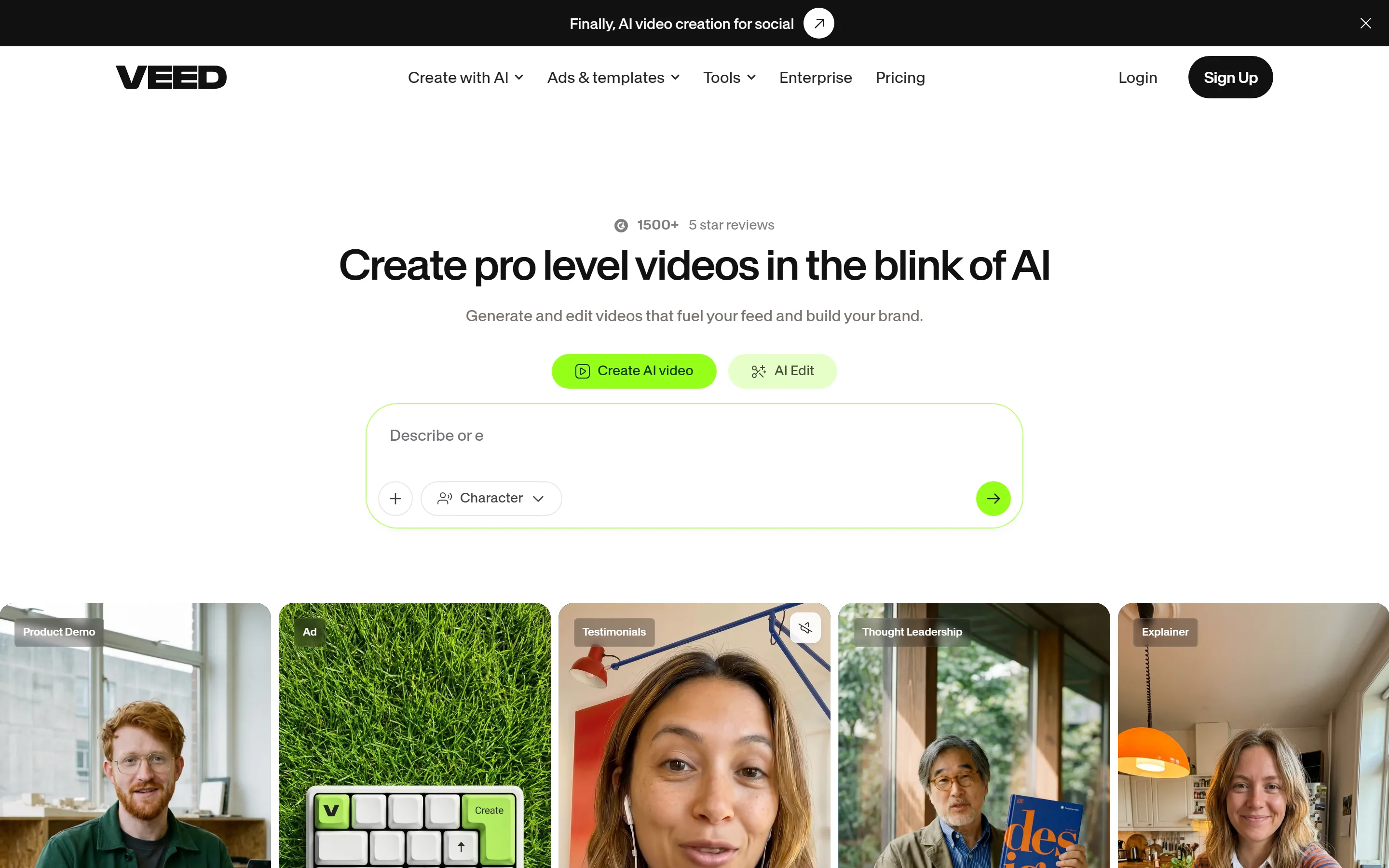
VEED is a different kind of product. Subtitles are one feature inside a large browser-based video editor that also does trimming, audio cleanup, resizing, effects, AI avatars and a long list besides.
That matters if subtitles are not the only thing you need. Being able to trim the clip, drop in music, resize it for a second platform and caption it without opening desktop software is a genuinely different offer from anything a captions-only tool can make.
The catch is the export. VEED's own support pages state that every project exported on a free account carries a VEED watermark, and that removing it requires a paid subscription; free exports are limited to 720p. A side-by-side comparison covers subtitle files, translation and prices, and VEED alternatives looks at other options.
What works
- A far broader editing toolkit than a captions-only product.
- Plenty of control over how subtitles look and animate.
- Convenient when the whole edit can happen in one browser tab.
What does not
- Free exports carry a VEED watermark.
- Free exports are capped at 720p.
- It is a lot of product to navigate if all you wanted was captions.
Bottom line
VEED makes sense when you want a full online video editor and captions are one job among several. If you only need a clean captioned clip for free, the watermark is the thing that will stop you.
3. Kapwing, the most generous free tier if you can live with branding
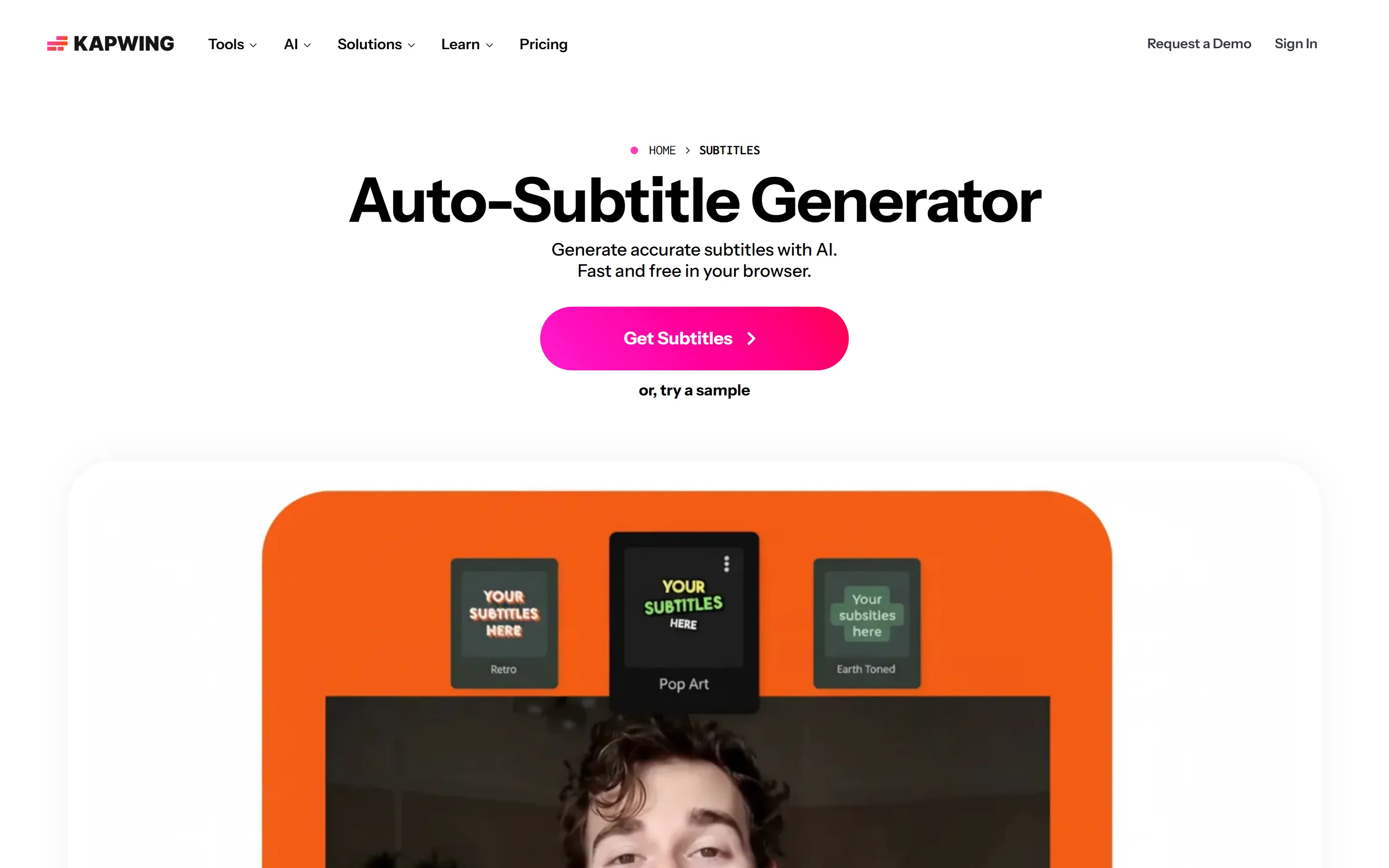
Kapwing sits in the same category as VEED: an online creative studio rather than a dedicated subtitle utility. Editable captions, a real timeline, media combining, resizing, and most of the rest of an edit without leaving the browser.
Its captions are editable at the word level. SRT, VTT and transcript downloads are listed on its paid plans; its plan comparison marks them as unavailable on Free.
Kapwing publishes its free-plan limits more precisely than anyone else here, which is worth crediting (Auto Subtitle Generator vs Kapwing sets them side by side). The free tier gives unlimited exports, all watermarked, at 720p, with projects capped at 4 minutes, a 30-minute monthly total of exported video, 2 GB uploads, 3 days of storage and up to 10 minutes of auto-subtitling.
What works
- A strong all-in-one browser editing workflow.
- Genuinely useful caption editing and styling options.
- Unusually clear published limits. You can find out exactly what free means before you start.
What does not
- Free exports are watermarked, with no exceptions on that tier.
- Projects are capped at 4 minutes and 720p.
- Files are kept for 3 days on the free plan.
Bottom line
A capable editor that happens to have a good subtitle workflow. It would not be our first pick if the requirement is simply a watermark-free captioned video for nothing.
4. Zubtitle, social-video packaging rather than editing
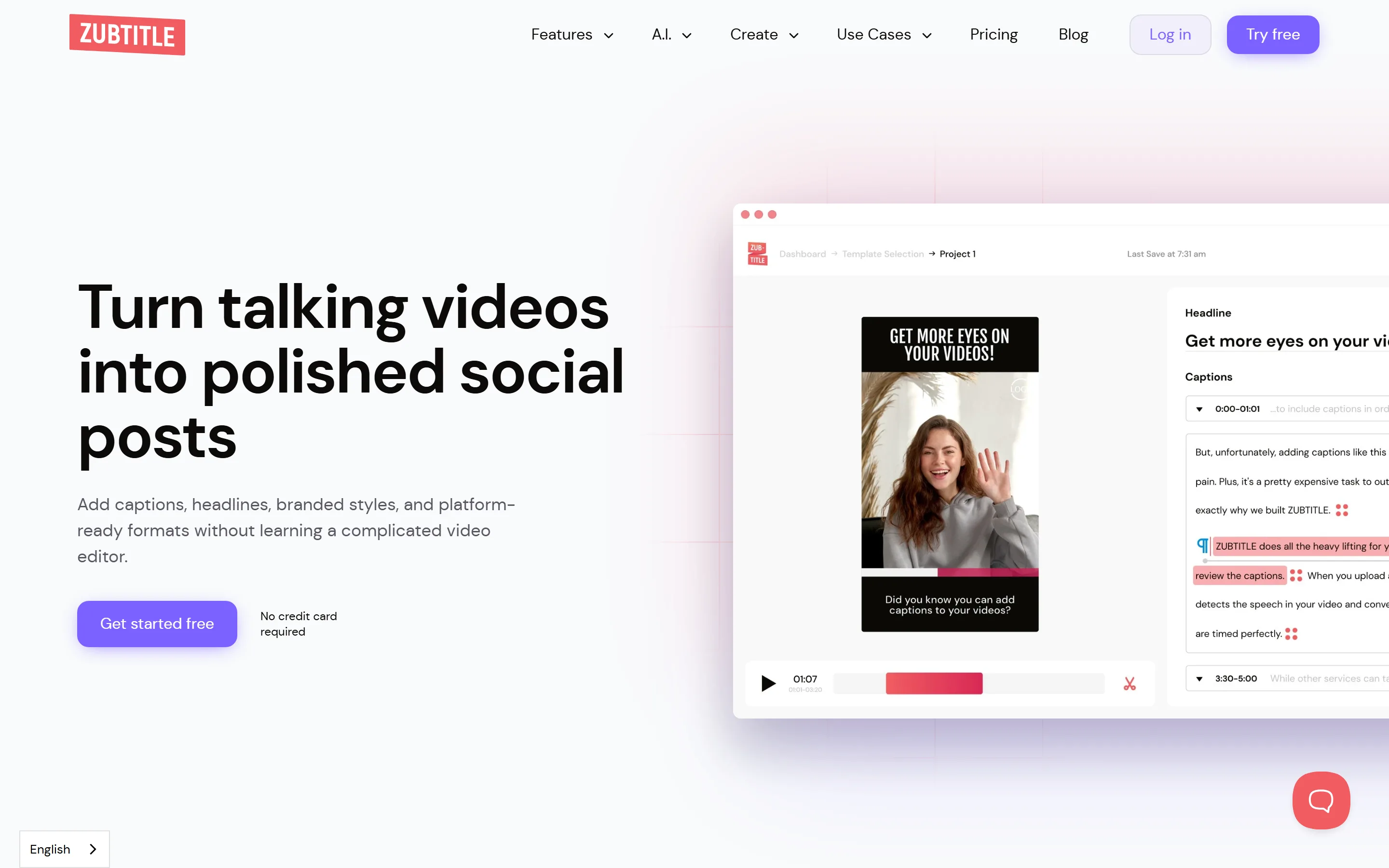
Zubtitle is aimed more squarely at social media than the general-purpose editors. The idea is not only to transcribe the video: you add subtitles, write a headline, resize for the platform, restyle, and add things like progress animations, and come out with something ready to post.
For anyone who regularly turns spoken clips into packaged social posts, that combination does real work that a captions-only tool does not.
The free Bootstrapper plan is free forever rather than a trial, and gives you 2 videos a month with uploads up to 20 minutes per video. Free videos carry a Zubtitle watermark and cap at 720p; removing the watermark means moving to a paid tier.
What works
- Built around social-video workflows rather than traditional editing.
- Headlines, resizing and captions work together instead of as separate chores.
- The free tier is ongoing rather than a countdown.
What does not
- Only 2 free videos a month.
- Free exports are 720p and watermarked.
- The 20-minute upload cap is generous, but you still cannot publish the result unbranded for free.
Bottom line
Worth trying for the social-first workflow. The free plan is best understood as a way to evaluate the product rather than a way to produce publishable content long term.
5. Submagic, the animated caption look on a trial rather than a free plan
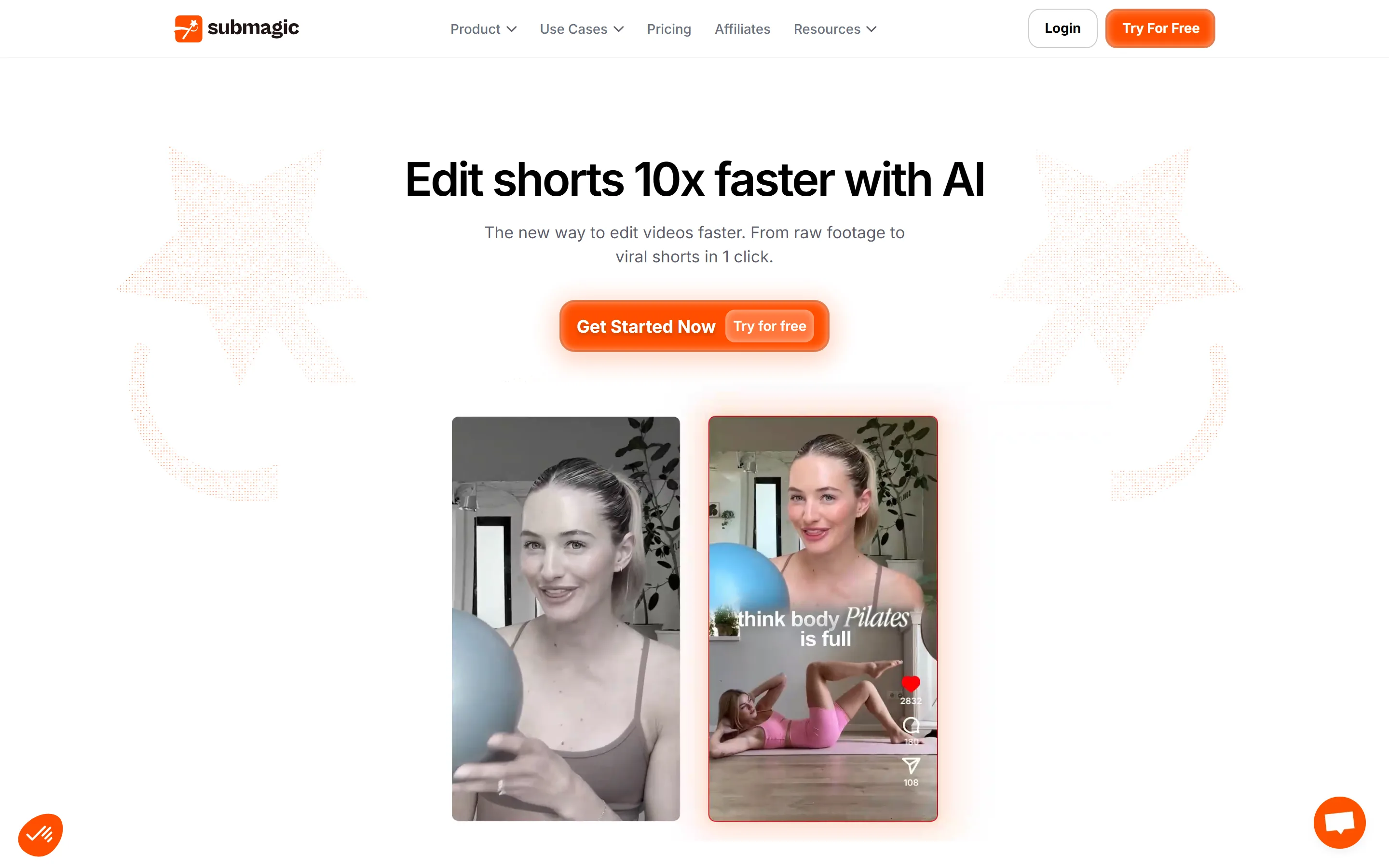
If you have seen the fast animated captions on Reels and Shorts where individual words pop and change emphasis with the speaker, Submagic is much closer to that style than anything else here. It is built specifically for short-form, and pairs automatic captions with animated templates and AI editing features like B-roll and text-based trimming.
Its free offer is the one most often misdescribed elsewhere, so it is worth being precise. Submagic's support article on its free trial describes an allowance to upload 3 short videos, a one-time trial rather than a monthly quota. Those exports carry a Submagic watermark; removing it means subscribing.
Submagic does not publish duration, file-size or resolution limits for the free videos. Its paid Starter plan caps each video at 2 minutes and exports at 1080p, so the free trial is unlikely to be more generous than that. But we are not going to state a number the company does not.
What works
- Designed specifically for the visual language of modern short-form video.
- Strong animated caption templates, and the closest thing here to a house style.
- The additional AI editing tools genuinely speed up social-video production.
What does not
- Free exports carry a Submagic watermark.
- 3 videos, not 3 a month. This is a trial, not a free plan.
- Free-tier duration and resolution limits are not published.
Bottom line
The most interesting option here if caption animation is central to your editing style. Expect to pay to use it regularly, and read it as a trial rather than a free tier.
So which one should you actually use?
There is no single answer, and anyone who gives you one is selling something. Start from what you are actually making.
If the job is I have a video, generate the subtitles, let me fix them, make them look exactly right, and give me a clean file, then a dedicated captioning tool is less work than any editor. That is where Auto Subtitle Generator fits: word-level timing, styling controls that go down to the emphasis on the spoken word, and the platform safe areas drawn on the frame while you place the captions, without a timeline to learn first.
The other four are better answers to other questions.
- Want a full video editor in the browser, with captions as one job among several? VEED or Kapwing make more sense than a captions-only tool, and the watermark is the cost of evaluating them.
- Turning talking clips into packaged social posts, with headlines and resizing in the same place? Zubtitle is the closest fit.
- Chasing bold animated captions and AI editing on top of them? Submagic is the one to trial.
- Need the most video for nothing, branding aside? Kapwing, by a distance. Unlimited watermarked exports beats a handful of clean ones if the watermark does not matter to you.
What to check before you commit to one
These sound obvious. They are also exactly where free plans differ, and where people discover the difference after they have already done the work.
Check the watermark before you start editing
This is the big one. A subtitle generator can be genuinely free and still put its logo on every finished video. There is nothing dishonest about that model, but finding out after ten minutes of fixing a transcript is a bad afternoon.
If the clip is for a client, a brand or your own account, settle the watermark question first, before you upload anything.
Look at the export resolution, not just the price
720p is fine for testing. If your source Reel is 1080p, exporting it lower is a downgrade you will notice on a phone screen, and no amount of caption styling compensates for it.
Do not stop at the word free. Check what the free version actually lets you download.
Make sure you can fix the transcript
Automatic subtitles are fast and they are not perfect. Names, brand words, accents, background noise, slang and technical terms are where they break, and those are the words your audience notices.
A good subtitle editor makes correcting one wrong word quick. A bad one makes you re-time the line around it. Test that before you commit, ideally on a clip with a proper noun in it.
Decide whether you need burned-in captions or a subtitle file
These are different things. Burned-in captions become part of the picture, which is what you want for Reels, TikToks and Shorts where the typography is part of the design.
An SRT or VTT file is a separate track the player draws, which is what you want when the platform supports selectable subtitles and viewers may turn them off.
Auto Subtitle Generator does both: export the video with captions on it, or download the subtitle file on its own. If YouTube is the destination, the YouTube subtitle generator walks through which of the two to use.
Read the duration limit next to the export limit
Three free videos sounds fine until each one is capped at 90 seconds. Unlimited free exports sounds better still until every one is watermarked and the monthly total is 30 minutes.
Always read the two numbers together, and work out which constrains you. For most short-form creators it is the export count; for anyone cutting podcasts it is the duration.
Why subtitle a short video at all?
The straightforward reason: audio should not be the only way to understand your video.
Captions make spoken information available visually, which matters most to viewers who are Deaf or hard of hearing. The W3C's accessibility guidance treats captions as a requirement for prerecorded synchronised media, not a nicety.
They also help in the ordinary situations creators think about: someone watching in a noisy place, scrolling with the phone muted, or simply following a fast speaker more easily with the words on screen.
What captions will not do is make a video go viral. Anyone promising that is guessing. The hook, the topic, the pacing and the content still decide that, and a subtitle tool has no opinion about any of them.
One caveat worth taking seriously: do not treat auto-generated subtitles as finished. Speech recognition gets things wrong on accents, overlapping speakers, background noise and unusual words. Read them once before you export, especially names, numbers, product names, and the first few seconds, where a mistake costs you the viewer.
Frequently asked questions
What is the best free auto subtitle generator without a watermark?+
Of the five tools compared here, Auto Subtitle Generator is the only one that exports finished video without a product watermark on its free plan. You get 3 video projects a month at 1080p, revisions of the same project included, with videos up to 10 minutes and 500 MB, plus SRT, VTT and TXT downloads. That is a claim about these five products, not about every subtitle tool on the internet.
Can I add subtitles to a video for free?+
Yes. All five tools here will generate automatic subtitles for free. The difference is what you may download afterwards: VEED, Kapwing, Zubtitle and Submagic all watermark free exports, while Auto Subtitle Generator does not.
Which free plan gives you the most video?+
Kapwing, if you do not mind the branding: unlimited exports at 720p, capped at 30 minutes of exported video a month and 4 minutes per project. If the video has to be clean, the comparison inverts, because none of Kapwing's free exports are.
How much control do you get over how the captions look?+
It varies more than the marketing suggests. Every tool here ships preset caption styles; the question is what happens when none of them is quite right. Look for control over the emphasis on the spoken word, enter and exit animation with its own timing, outline and shadow, per-word or per-line backgrounds, and free placement rather than three fixed positions. Auto Subtitle Generator exposes all of those, plus platform safe-area overlays so a caption does not end up under the app's own interface.
Are AI-generated subtitles accurate enough to publish unchecked?+
No. Treat automatic transcription as a fast first draft. Accents, pronunciation, background noise, names, jargon and overlapping speech all produce errors, and those errors tend to land on exactly the words that matter. Read the transcript once before exporting.
What is the difference between subtitles and captions?+
In everyday creator usage the words are interchangeable. Strictly, captions go further than dialogue: accessibility-focused captions also identify speakers and convey meaningful non-speech audio. For most Reels, Shorts and TikToks, someone asking to auto-generate subtitles means turning spoken words into timed on-screen text.
Should I burn subtitles into a YouTube video or upload an SRT?+
It depends on the video. Burned-in captions stay exactly as you designed them, which suits heavily styled Shorts. An SRT or VTT gives YouTube a separate track viewers can turn off and search engines can read, which is usually the better answer for standard long-form uploads. For a stylised Short, doing both is reasonable.
Try it on your own clip
Upload a video, generate the subtitles, correct anything the model misheard, style the captions down to the word being spoken, and check them against the platform safe areas before you export. 3 video projects a month at 1080p on the free plan, and no account needed to start.
Generate subtitles for your video