
Colour, outline, shadow and background
Everything about the colour of the subtitles: the words, the word being spoken, the outline round the letters, the shadow under them and the box behind them.
Last updated
How do you change the text colour?
Open Colour
Click Colour in the rail, or Colour and outline in the small toolbar above the selected words on the video. The panel opens with the word colours at the top.
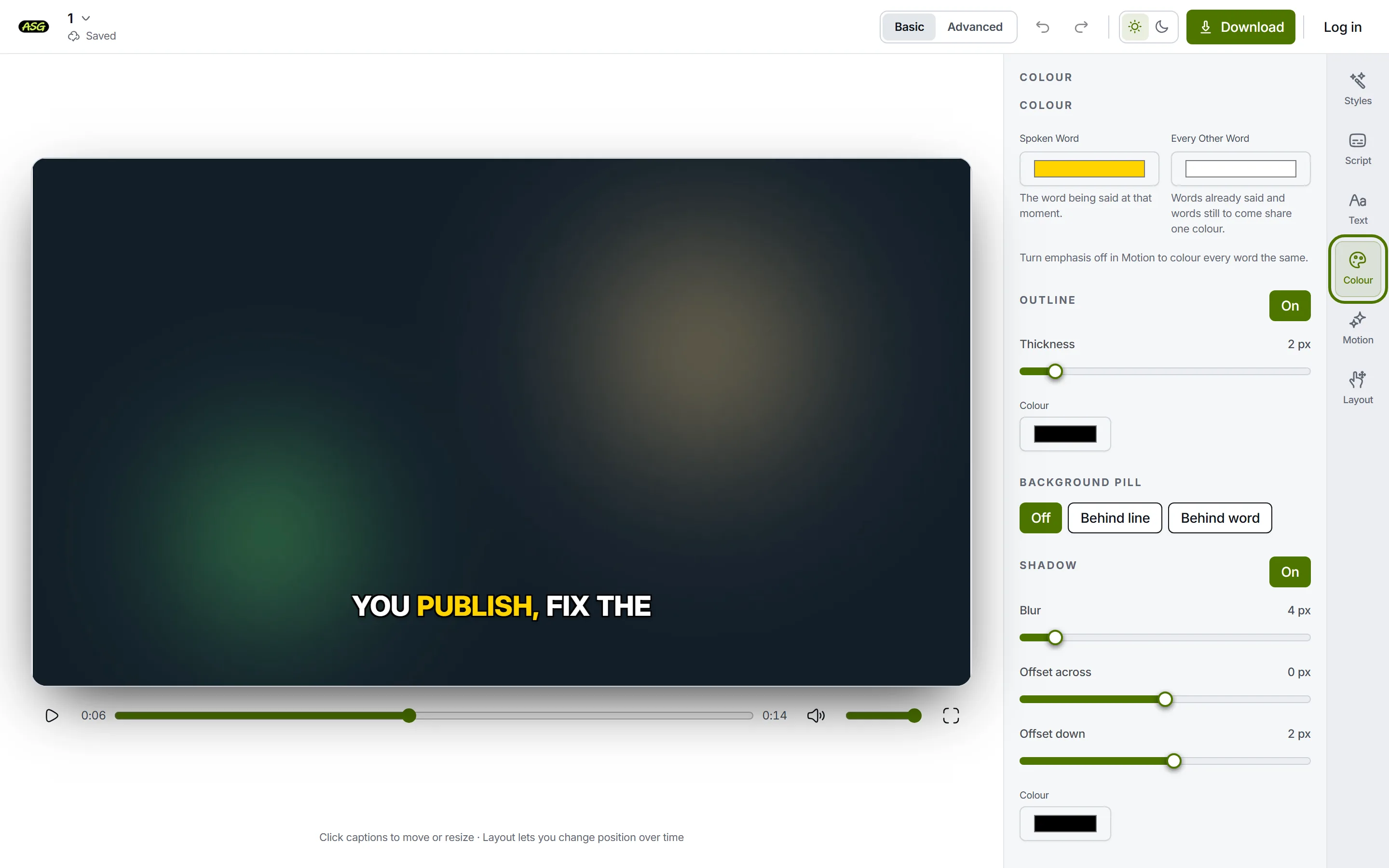
With emphasis on, the panel shows two word colours. Click a swatch
Your browser opens its colour picker, where you can choose by eye or type a colour code. The video follows as you choose.
Check it against the picture
Play through the brightest and darkest parts of the video. A colour that reads well over a dark room can disappear over sky; the outline and shadow below are the usual fix.
How does the highlight colour work?
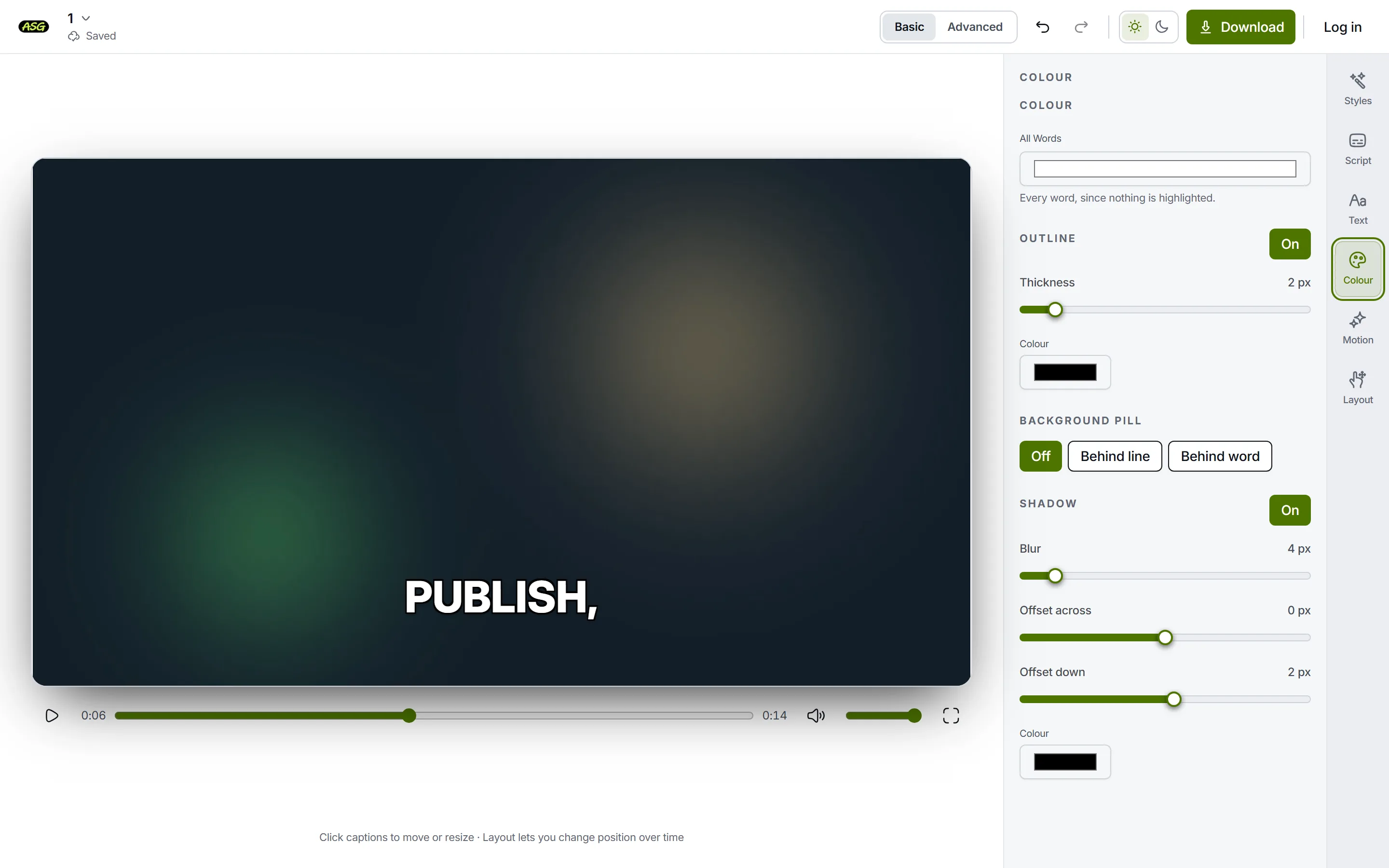
The highlight is the Spoken word colour. Which word gets it, and how, is set in Motion under Emphasis on the spoken word; Colour only decides the colours.
| Emphasis in Motion | The spoken word | Every other word |
|---|---|---|
| None | All words share the All words colour. | The same colour. |
| Color | Painted in Spoken word. | Every other word. |
| Scale | Grows, painted in Spoken word. | Every other word. |
| Pill | Text in Spoken word, on a box in the background pill's fill. | Every other word, no box. |
| Underline | Underlined, text and line in Spoken word. | Every other word. |
| Glow | Lit from behind in Spoken word. | Every other word. |
There is no separate colour for words already said: words before and after the spoken one share Every other word. Between words, when nobody is speaking, no word is highlighted.
How do you add or change the outline?
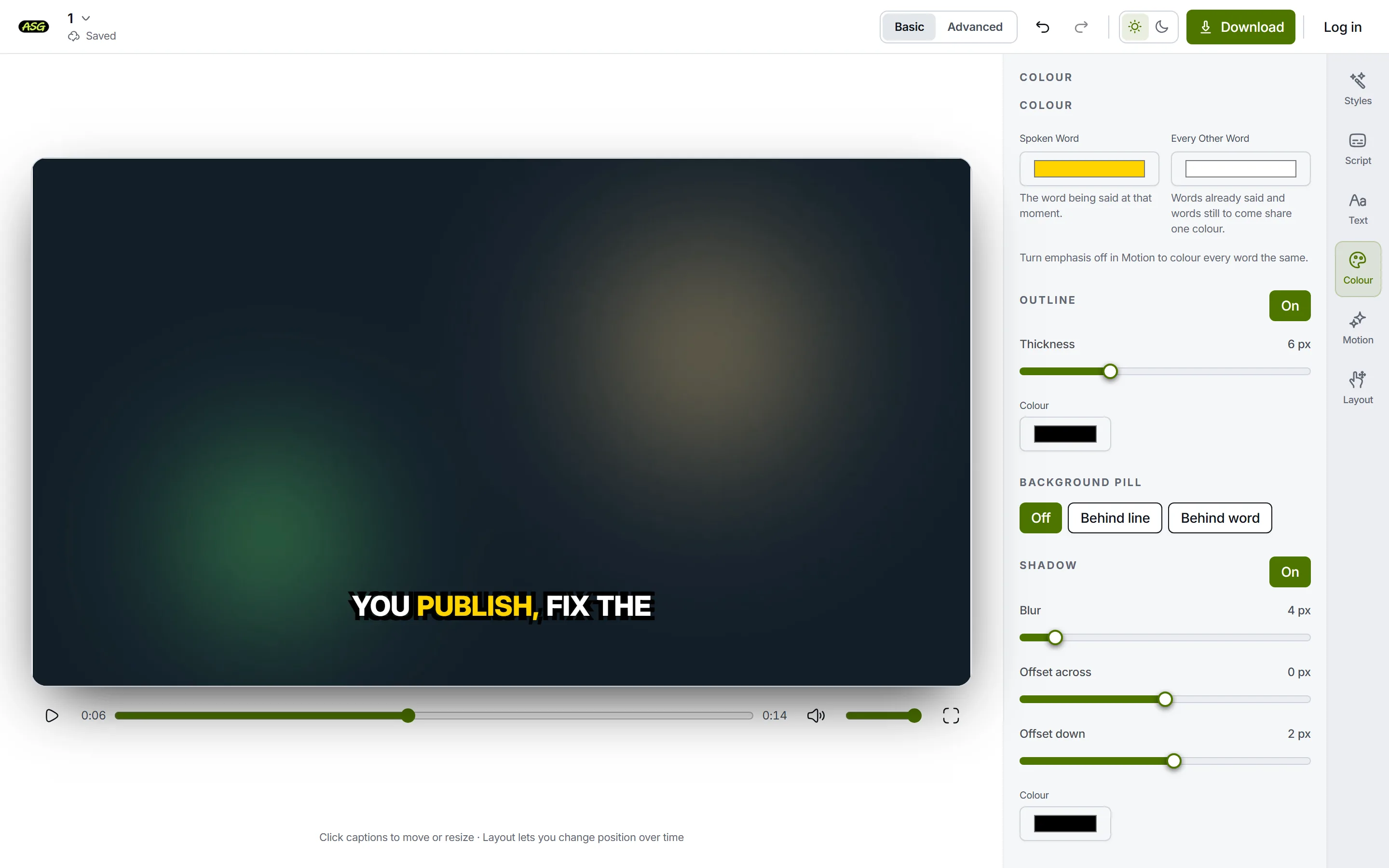
- On / Off beside the Outline heading switches it. Turning it back on gives a black outline of a usable thickness rather than zero.
- Thickness runs from 0 to 20 pixels. A thin dark outline is enough for most footage. The outline is drawn as copies of the letters offset to each corner, so at high values those copies show as a stepped edge rather than a smooth one.
- colour sets the outline's colour. Dark round light text is the usual choice, and the reverse works for dark text.
An outline is drawn round every letter, so it works over any background without hiding the picture behind the words. To check that two colours have enough contrast, try the subtitle contrast checker.
How do you put a box behind the words?
| Control | What it does |
|---|---|
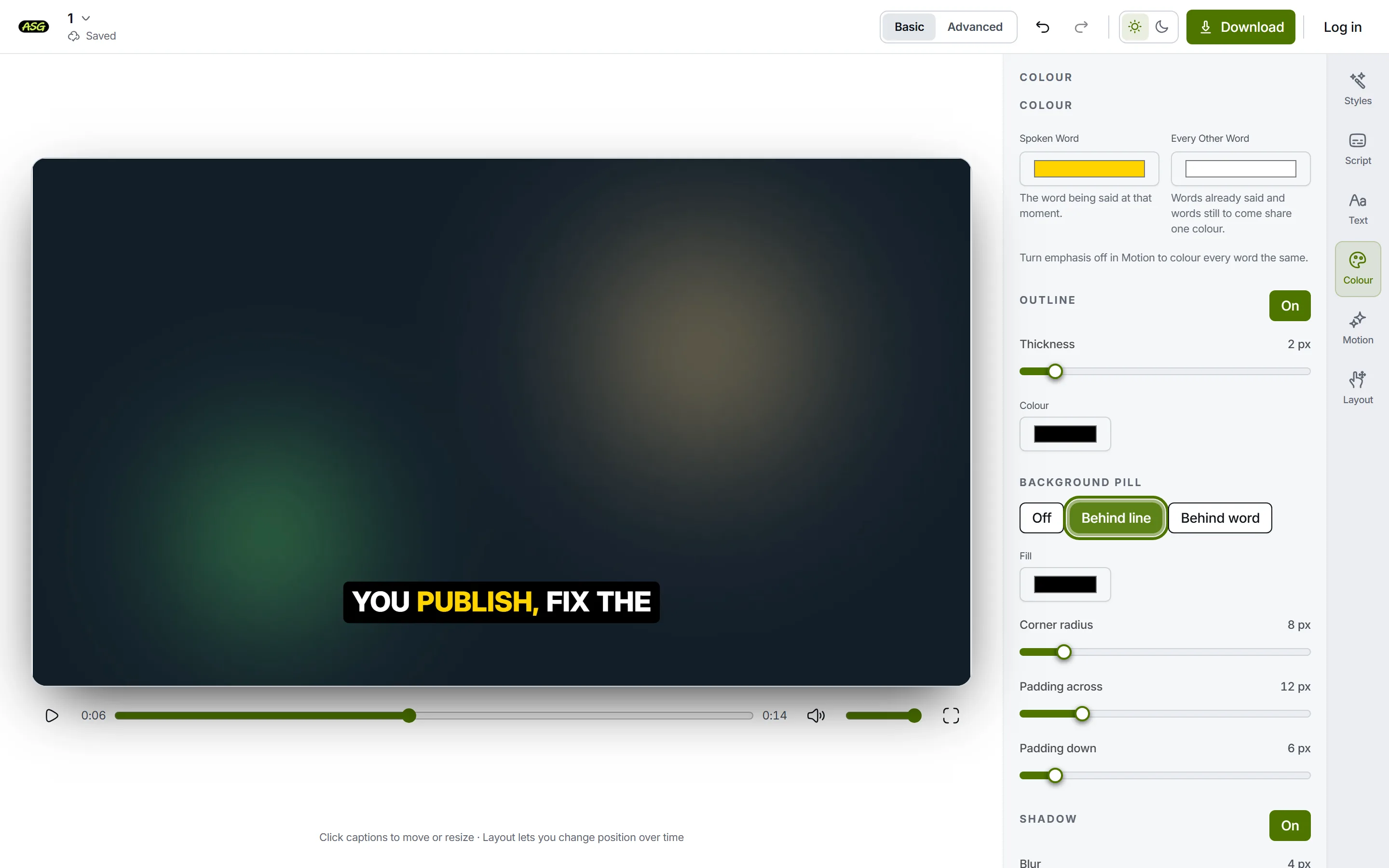
| Off | No box. The usual choice with an outline or shadow. |
| Behind line | One box behind each line on screen. The most readable choice over busy footage. |
| Behind word | A separate box behind every word. |
| fill | The box's colour. With Pill emphasis in Motion, it is also the colour of the box behind the spoken word. |
| Corner radius | 0 gives square corners; higher values round them, up to a full pill shape. |
| Padding across, Padding down | The space between the words and the edge of the box, in pixels. |
The fill and size controls appear once a box is on, or when the style uses Pill emphasis. On the Free plan, Behind line and Behind word are Starter effects unless your style already draws a box; with Pill emphasis, the fill colour is part of that style's look.
How do you change the shadow?
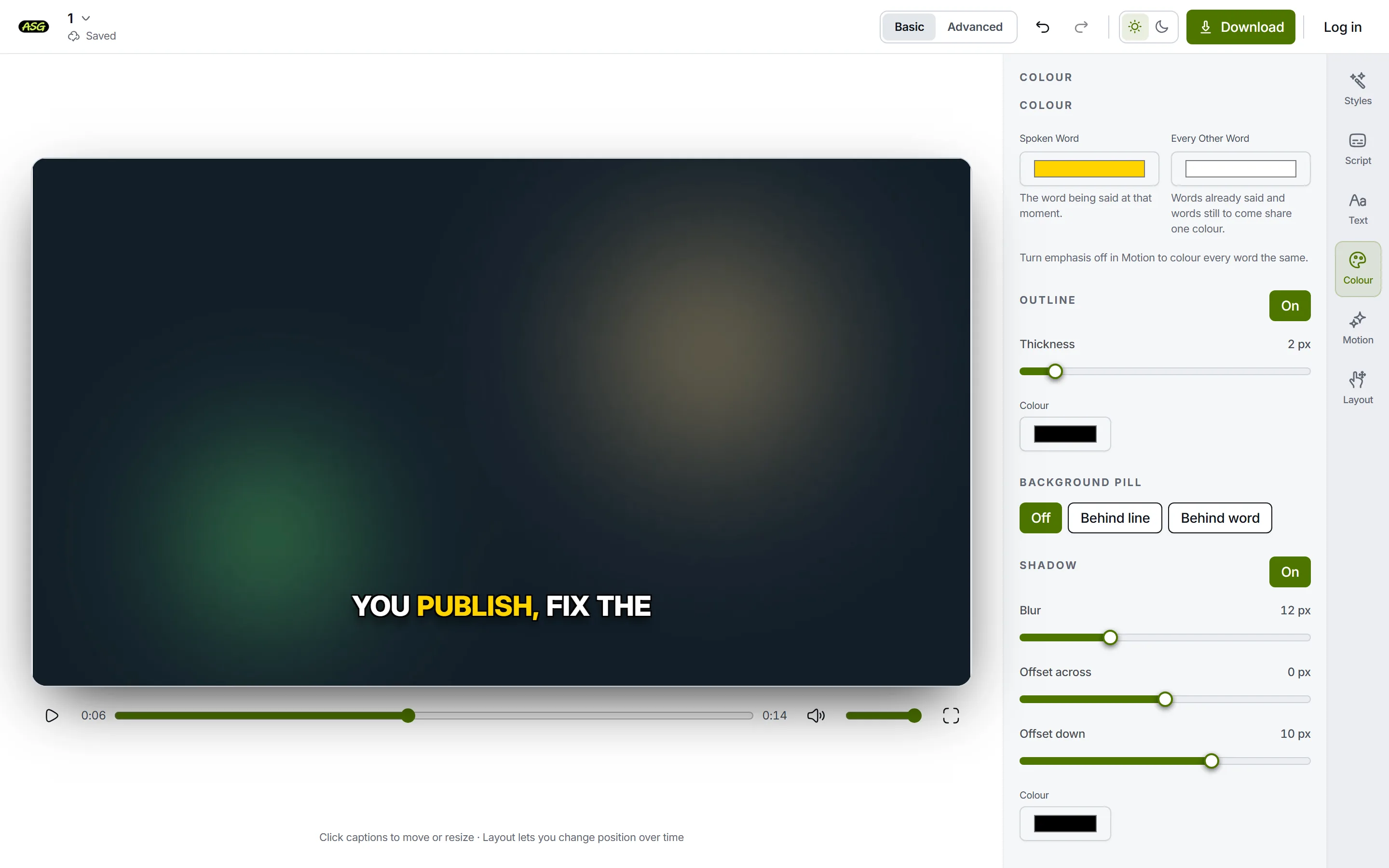
- On / Off beside the Shadow heading switches it. Turning it on gives a soft black shadow just below the letters.
- Blur softens the edge, from 0 (a sharp copy of the letters) to 40.
- Offset across and Offset down move the shadow from -30 to 30 pixels. Positive values go right and down.
- colour sets the shadow's colour. A dark shadow under light text helps most where the picture is bright.
What the Colour panel does not do
- It has no transparency control. Choosing a colour for a style's softer shadow or background makes it solid.
- It has no separate colour for words already spoken, and no gradient other than the Metallic text finish in Text.
- It does not colour one chosen word or line differently. Colours apply to the whole video.
- It does not affect caption files. SRT, VTT and TXT carry no colour. Downloading explains what each file holds.
Frequently asked questions
Why does changing the text colour do nothing?+
Your style picks out the spoken word, so the words are painted with Spoken word and Every other word instead. Change those two, or turn emphasis off in Motion to get a single colour for all words.
Can I make the background see-through?+
Not from the panel. The colour picker has no transparency setting. Some styles come with a softer background or shadow; choosing a new colour for it makes it solid.
Do colours reach the SRT file?+
No. SRT, VTT and TXT files hold words and timings only. The platform that shows them decides how they look.