
A tour of the editor
What each part of the screen does once your video has been transcribed, and where to find a control when you know what you want to change.
Last updated
What is on the screen?
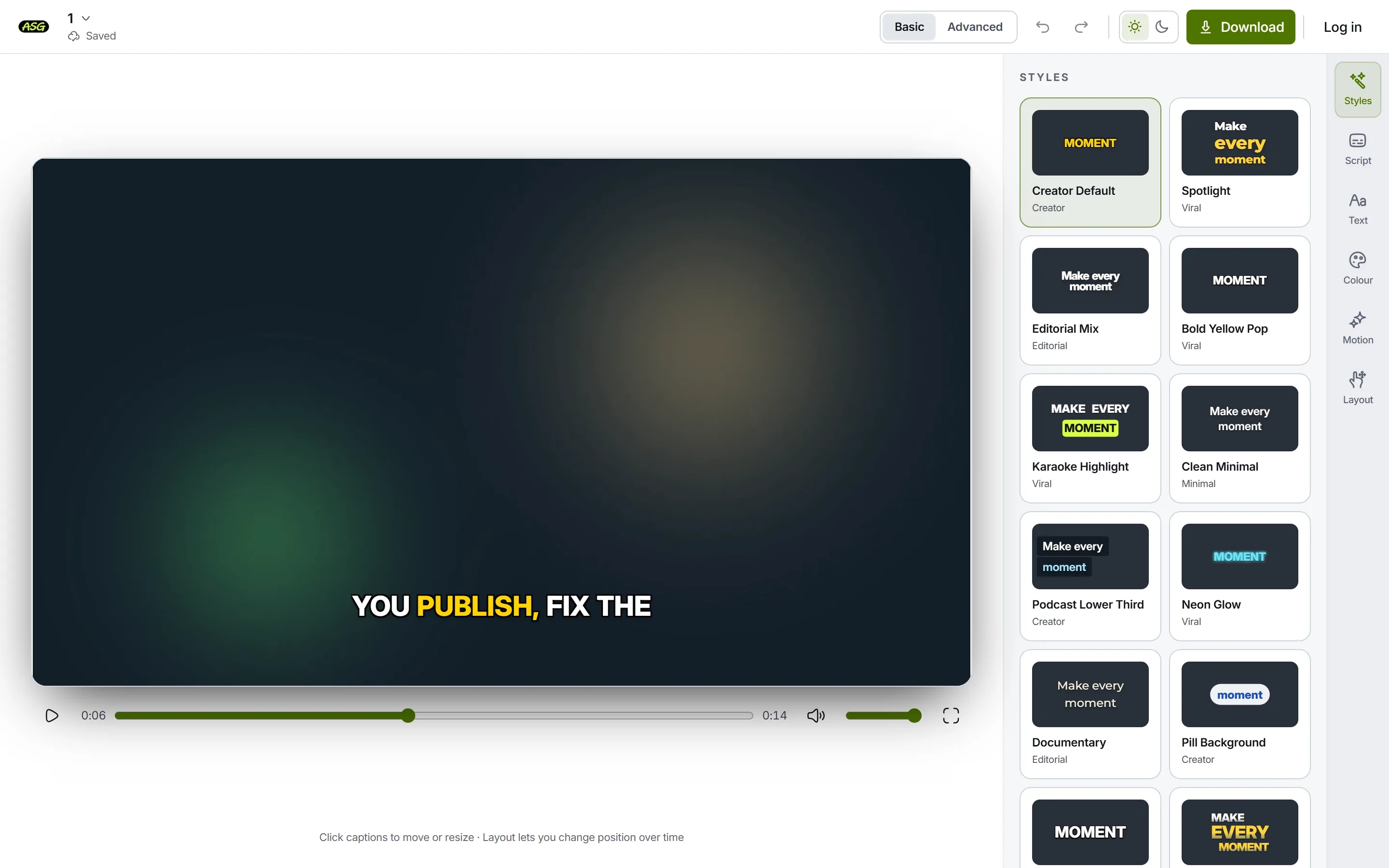
- Toolbar, along the top: the way home, the project name and its save state, Basic and Advanced, undo and redo, the light and dark switch, Download, and your account.
- Video, in the middle: your footage with the subtitles drawn on it as the export will draw them, and the player controls under it.
- Panel and rail, on the right: six buttons (Styles, Script, Text, Colour, Motion, Layout), each opening one panel at the full height of the screen.
- Timeline, along the bottom in Advanced mode: one block per line of the script, which you drag to change its timing.
What does the toolbar do?
| Control | What it does |
|---|---|
| Logo | Goes back to the homepage. Your project stays saved. |
| Project name | Opens your other projects, so you can switch to one or delete one. |
| Save state | Saved, Saving…, Offline or Not saved: whether the server has your latest change. |
| Basic and Advanced | Advanced adds the timeline. Nothing else is hidden in Basic. |
| Undo and redo | Step back or forward through your edits, words and styles alike. |
| Light and dark | Changes the editor's colours, not the video's. |
| Download | Opens the download options: the video with the words burned in, or SRT, VTT and TXT files. How downloading works. |
| Log in or account | Before you sign in, Log in. After, your account menu, with how much of this month's allowance is left. |
How do you work on the video itself?
Play, pause, seek, volume and full screen sit under the video. Space plays and pauses too, except while you are typing in a field.
Click the captions to select them
A dashed box with corner handles appears, and a small toolbar above it: text size (minus, the number, plus), Correct the words, the font, colour and outline, and motion. Each button opens the panel that holds the rest of that control.
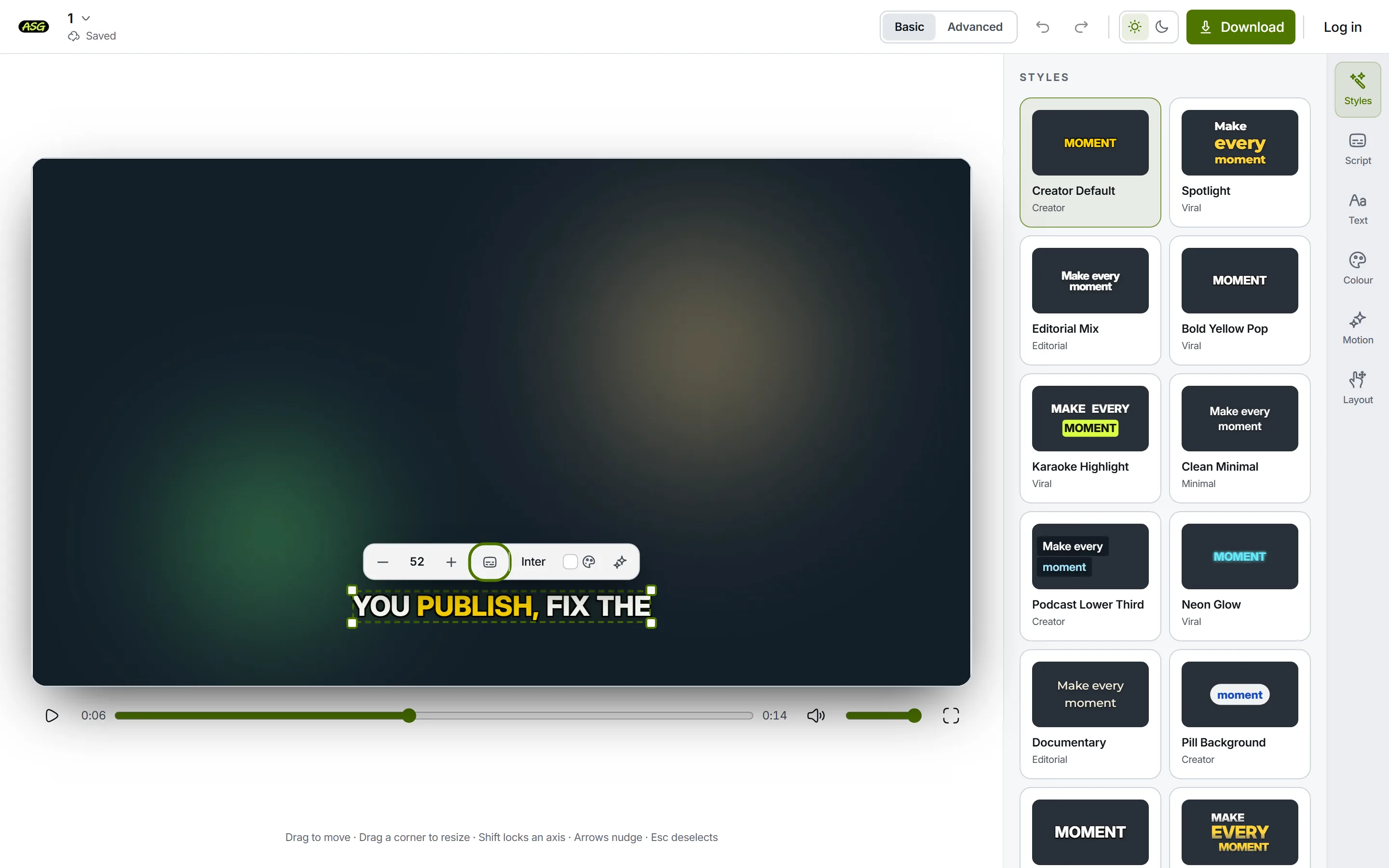
Selected captions, with their toolbar. The outlined button opens Script. Drag to move, drag a corner to resize
Hold Shift while dragging to move in one direction only. The arrow keys nudge the selection, and Escape puts it down. Moving the captions by hand switches Layout to a free position; choosing Top, Center or Bottom there snaps them back.
Double-click to correct the words
A double-click on the captions opens Script at the line you are looking at. Correcting the transcript covers what to do there.
What does each panel do?
| Panel | What you change there |
|---|---|
| Styles | A finished look in one click. Choosing another style keeps the words and timing. |
| Script | The words themselves, line by line, each with the time it starts. How to correct it. |
| Text | Font, size and spacing, the finish of the letters, and an emoji accent. |
| Colour | Text colour, outline, shadow and the background pill. |
| Motion | How words appear, which word is emphasised as it is spoken, and how many lines and words are on screen at once. |
| Layout | Top, center or bottom, the distance from that edge, the text width, position changes over time, and the safe-area overlays. |
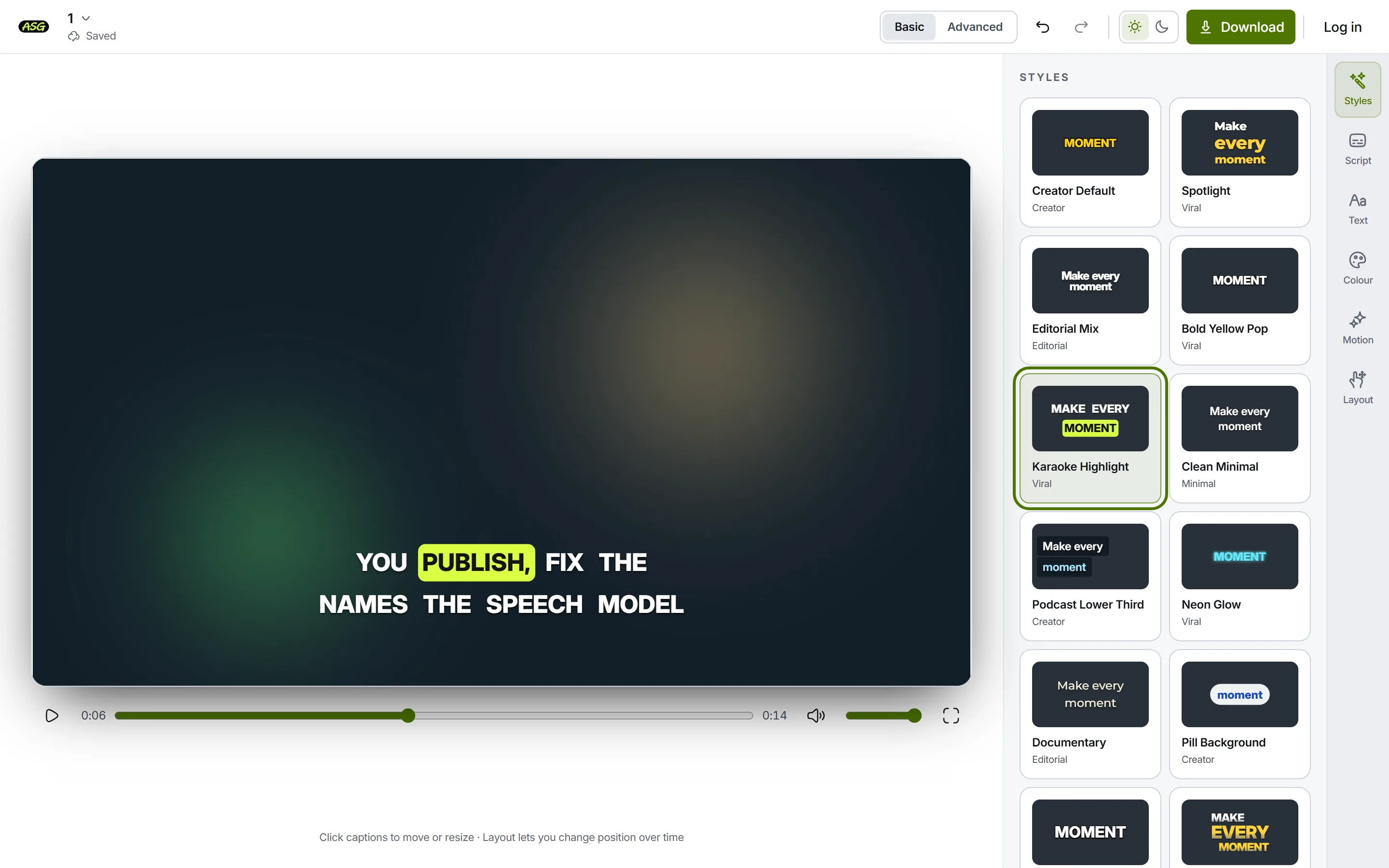
Every style can be previewed on every plan. The free plan exports Podcast Lower Third and Documentary (Accounts created before 4 October 2026 keep Clean Minimal and Documentary instead.); Starter exports all of them. If a style is not included, Download says so before anything is prepared, and offers a free one instead.
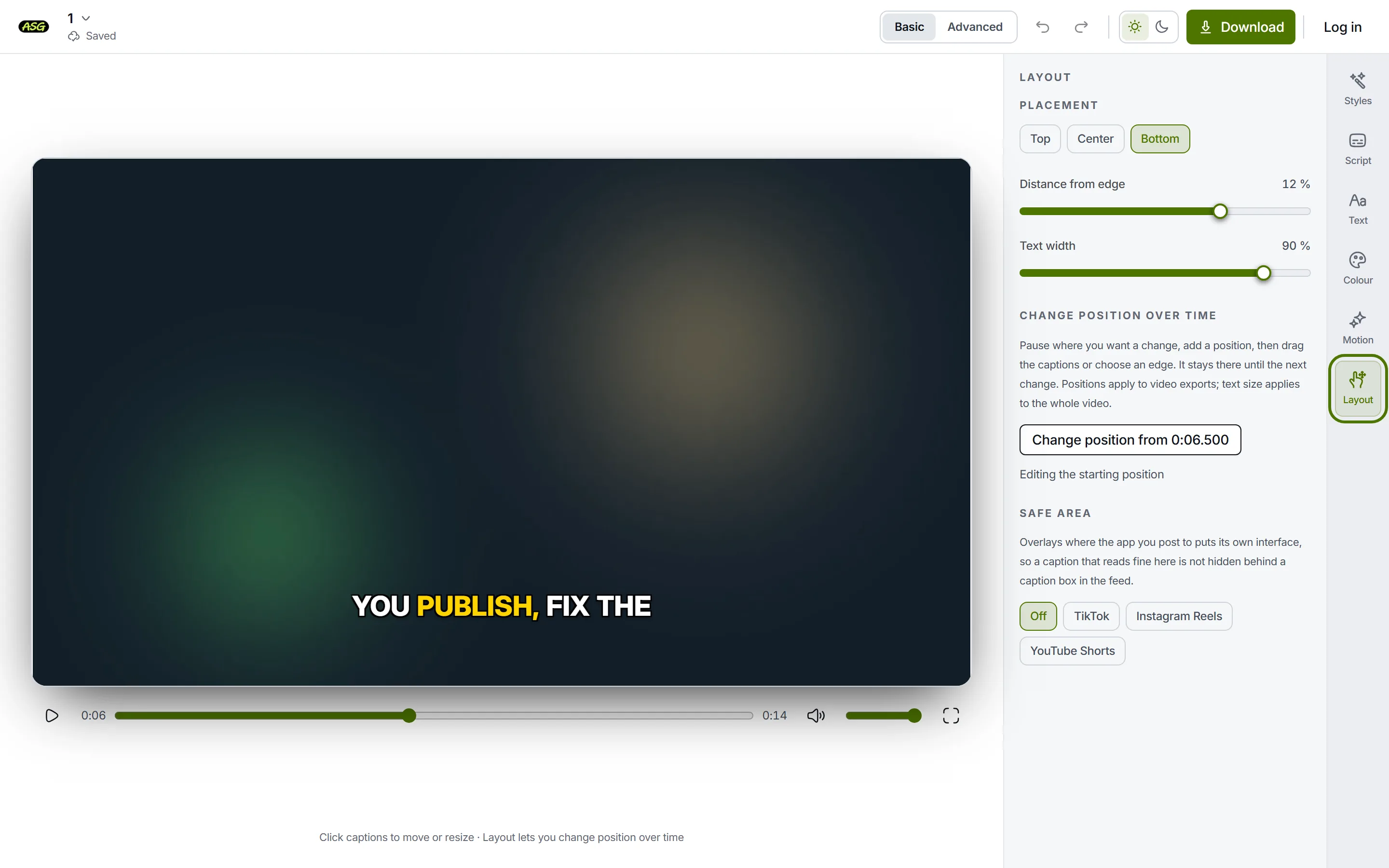
Safe area draws where TikTok, Instagram Reels or YouTube Shorts put their own buttons and text over a vertical video. Turn one on, then move the captions until they sit clear of the shaded areas. The overlay is a guide on screen only; it is never part of the download.
What does Advanced mode add?
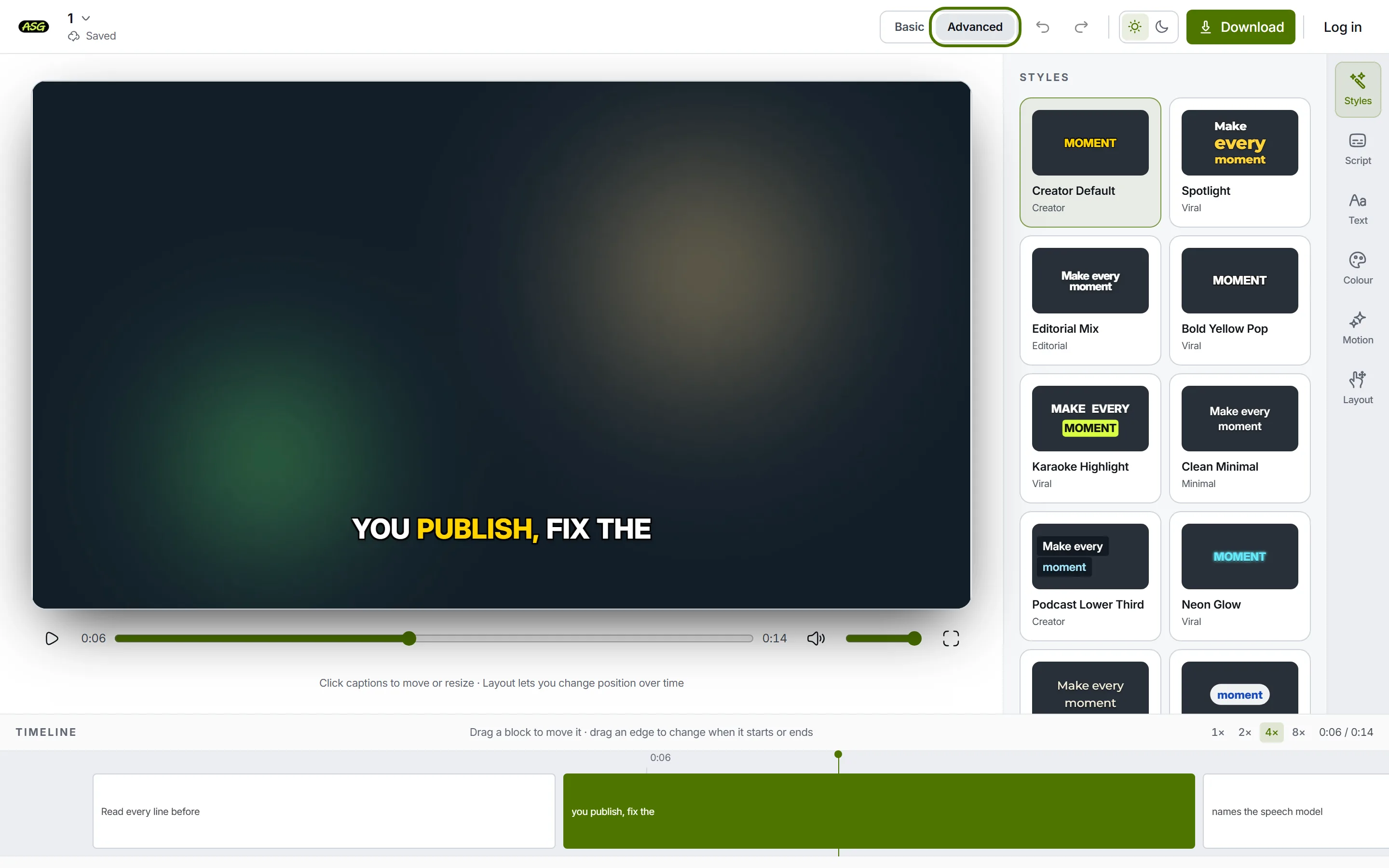
- Drag a block to move that line earlier or later. Drag either edge to change when it starts or ends.
- Double-click a block to jump the video to it.
- Zoom with 1×, 2×, 4× and 8× to work on short lines.
- The blocks are the lines of the script, so the timing you set here is the timing in an SRT or VTT file. See downloading.
What the editor does not do
- It does not import an SRT or VTT file. Every project starts from the speech in the video.
- It does not join or split script lines. They are cut when the project is created, up to four words each by the starting style.
- It does not translate. The subtitles are in the language that was spoken.
- It does not crop, trim or reframe the video. The export has the same picture as the upload.
- It has no custom font upload and works on one video per project.
When something looks wrong
- The panels say they open once your captions are ready. Transcription is still running. The video plays while you wait.
- The save state says Offline or Not saved. Keep the tab open: your edits stay in it and are sent when the connection returns. The recovery bar above the editor can download a copy of your current edits first.
- The captions are hidden behind an app's buttons. Turn on that app's safe area in Layout and move the captions clear of it.
- A word is wrong. Open Script and click it. The transcript guide has the details.
- Still stuck? Contact us with what you clicked and what you saw. Never send a password or payment details.
Frequently asked questions
Does the editor have keyboard shortcuts?+
Space plays and pauses the video when you are not typing in a field. With the captions selected, the arrow keys nudge them and Escape puts them down. Undo and redo are the two arrow buttons in the toolbar.
What is the difference between Basic and Advanced?+
Advanced adds the timeline under the video, where you change when each line starts and ends. Every style and position control is in both modes.
Can I use the editor on a phone?+
Yes. On a narrow screen the panel and its buttons move below the video, and Basic and Advanced move into a menu behind the settings button in the toolbar.