
Text: font, size and capitals
How to change the letters themselves: which font, how big, how far apart, and whether they are capitals. Plus the limit on how many words share a line.
Last updated
How do you change the font?
Open Text
Click Text in the rail. The panel starts with the fonts, under four headings: Display, Sans, Serif and Handwriting. The font in use is outlined.
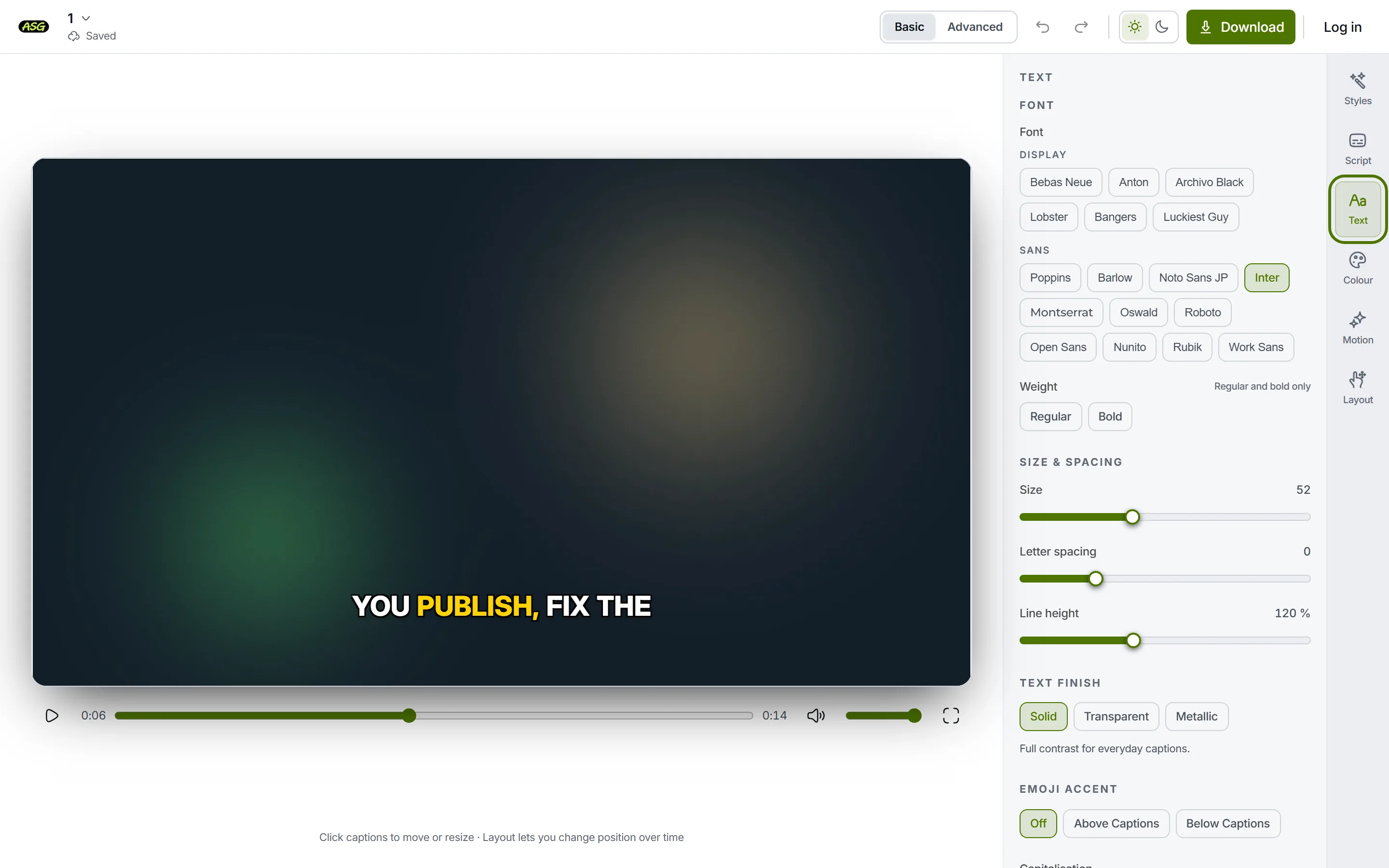
The Text panel, with the fonts grouped by kind. Click a font
The video redraws in it at once, and the outline in the list moves to it. Judge a font on the video rather than by its name.
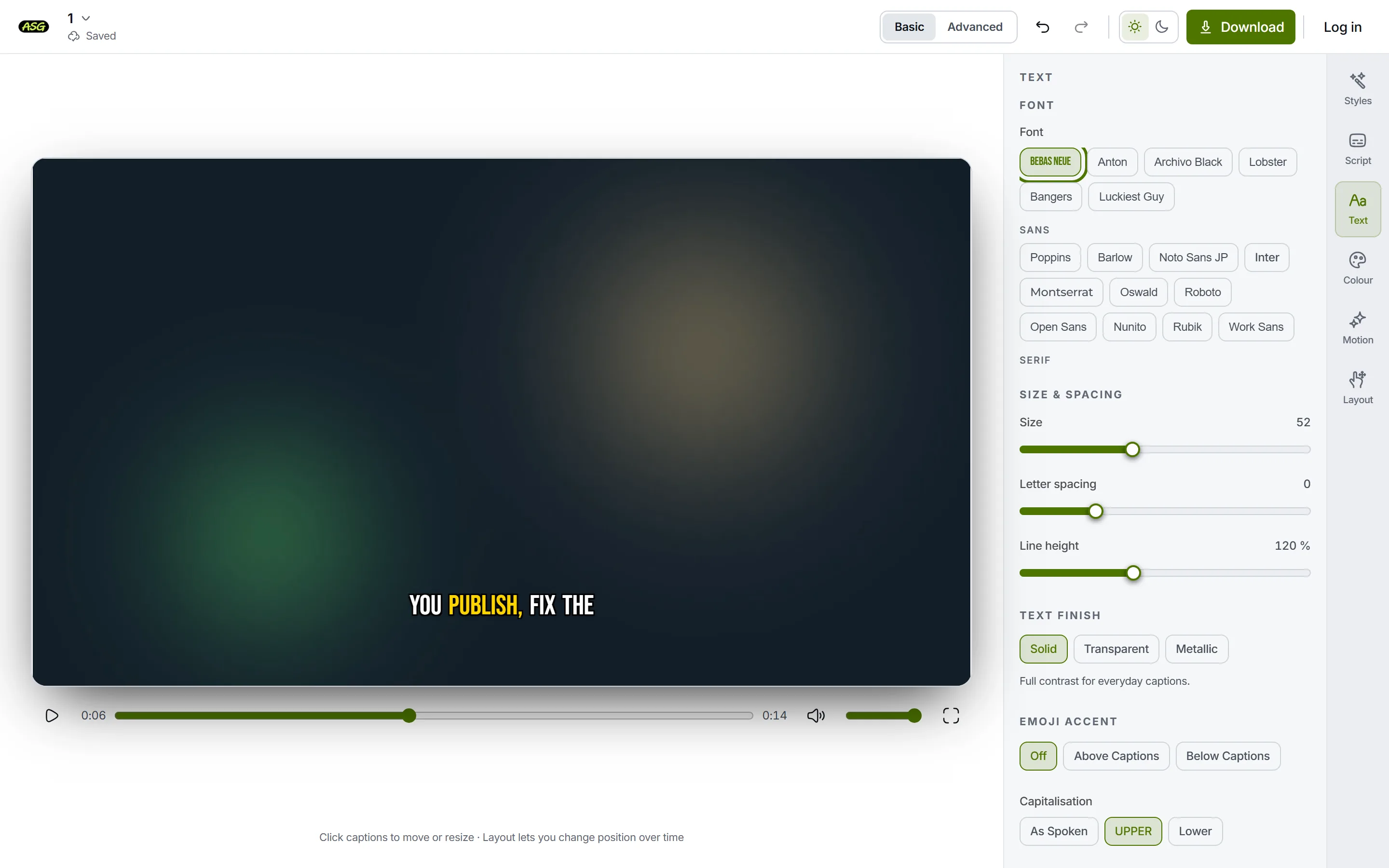
A Display font chosen: the video changes at once. Choose a weight, if offered
Under the list, Weight offers the weights that font has. Some fonts have five (Regular to Black), some say Regular and bold only, and fonts drawn at one weight show no weight row at all. Switching font keeps the closest weight the new font has.
How do you change the size and spacing?
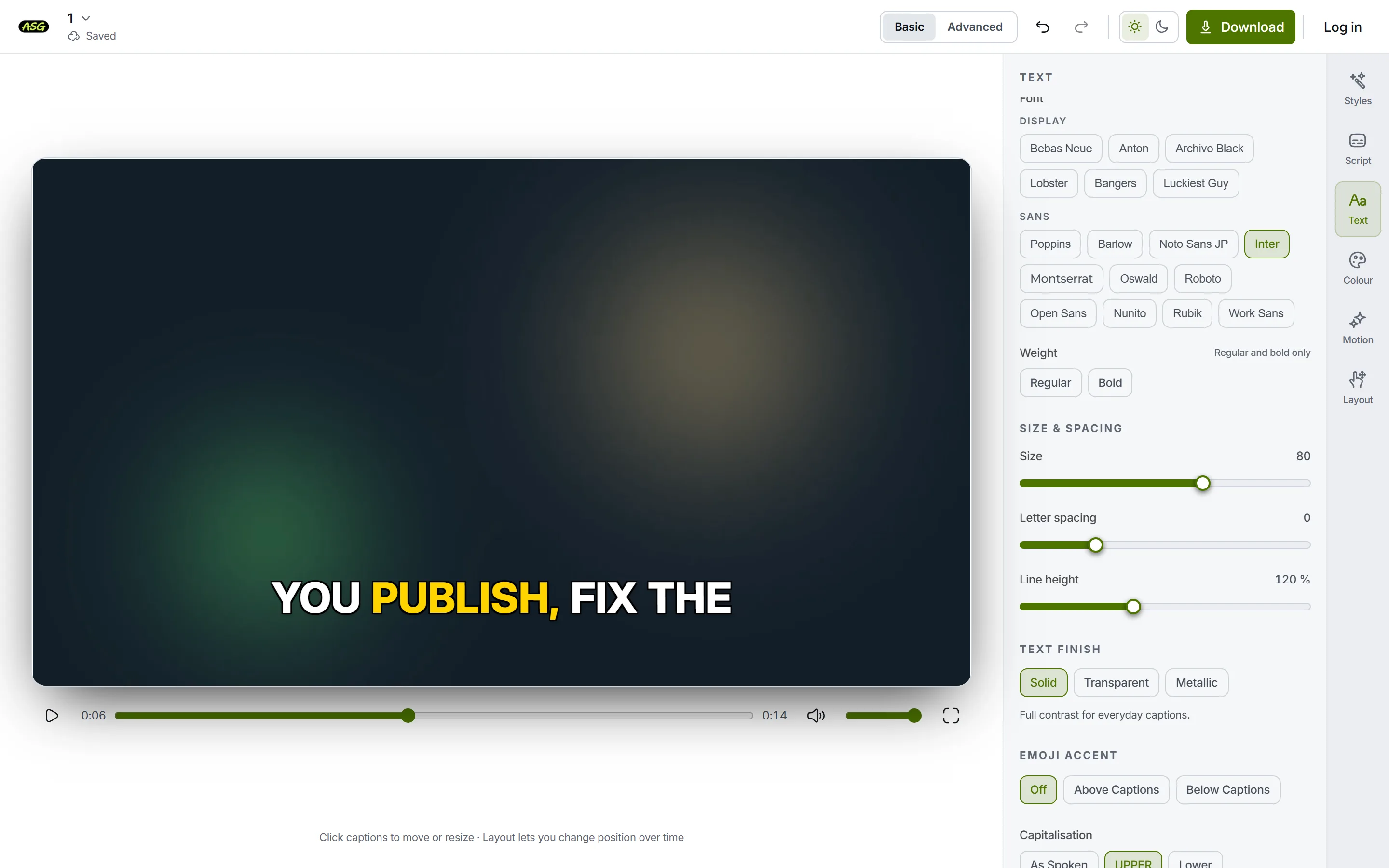
| Control | What it changes |
|---|---|
| Size | The font size, as a share of the video's height: 52 means 5.2% of the height, at 720p and at 4K alike. |
| Letter spacing | The gap between letters. Below zero pulls them together; above zero spreads them out. |
| Line height | The distance between lines when two or three show at once, as a percentage of the text size. |
Or resize on the video. Click the subtitles on the video to select them, then drag a corner handle, or press the minus and plus in the small toolbar above them. Both change the same Size value, and one drag is one undo step.
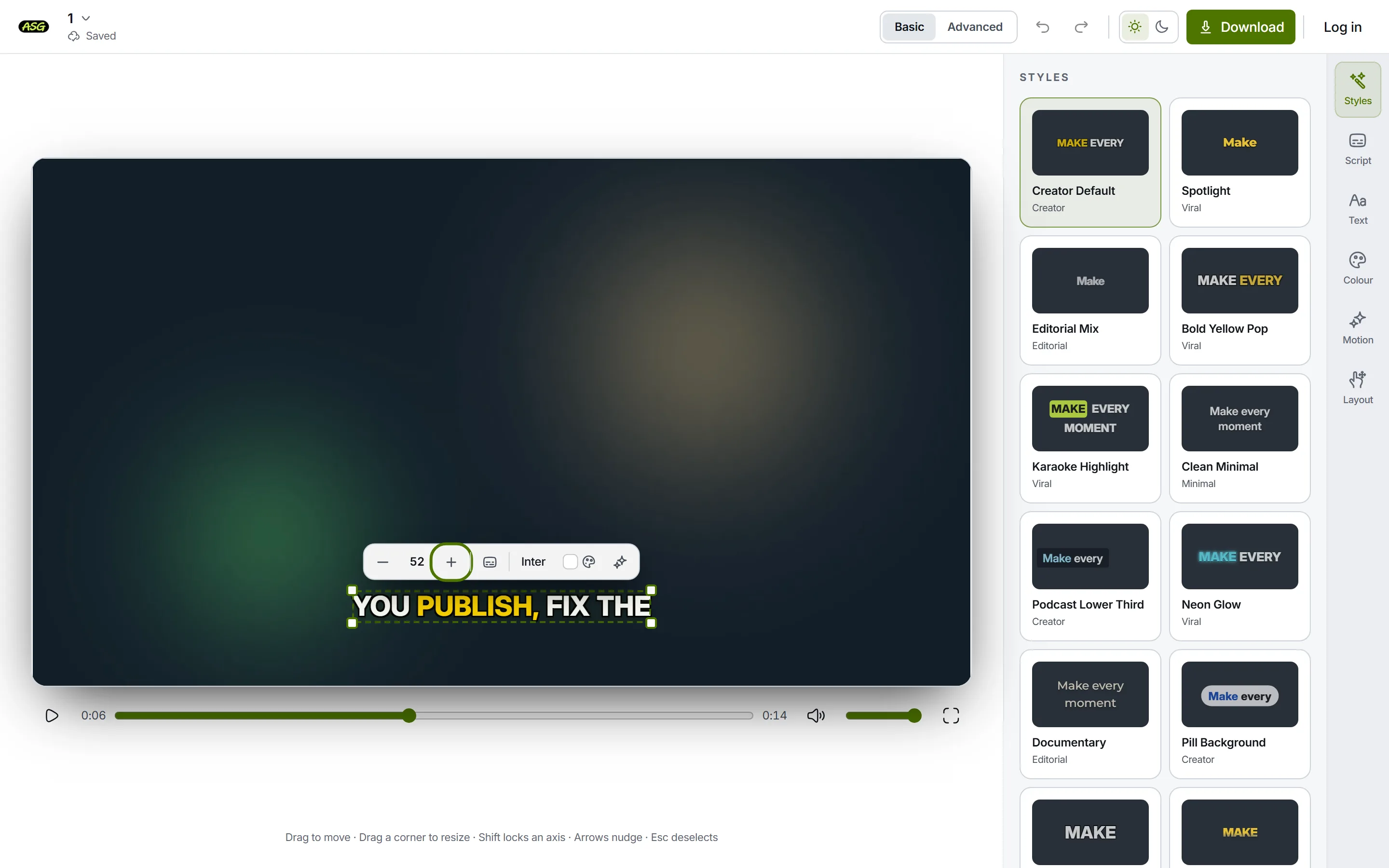
Size applies to the whole video, even where Layout moves the subtitles to another place from a chosen moment. For choosing a font and size that stay readable, see the best fonts for subtitles.
How do you change capitals?
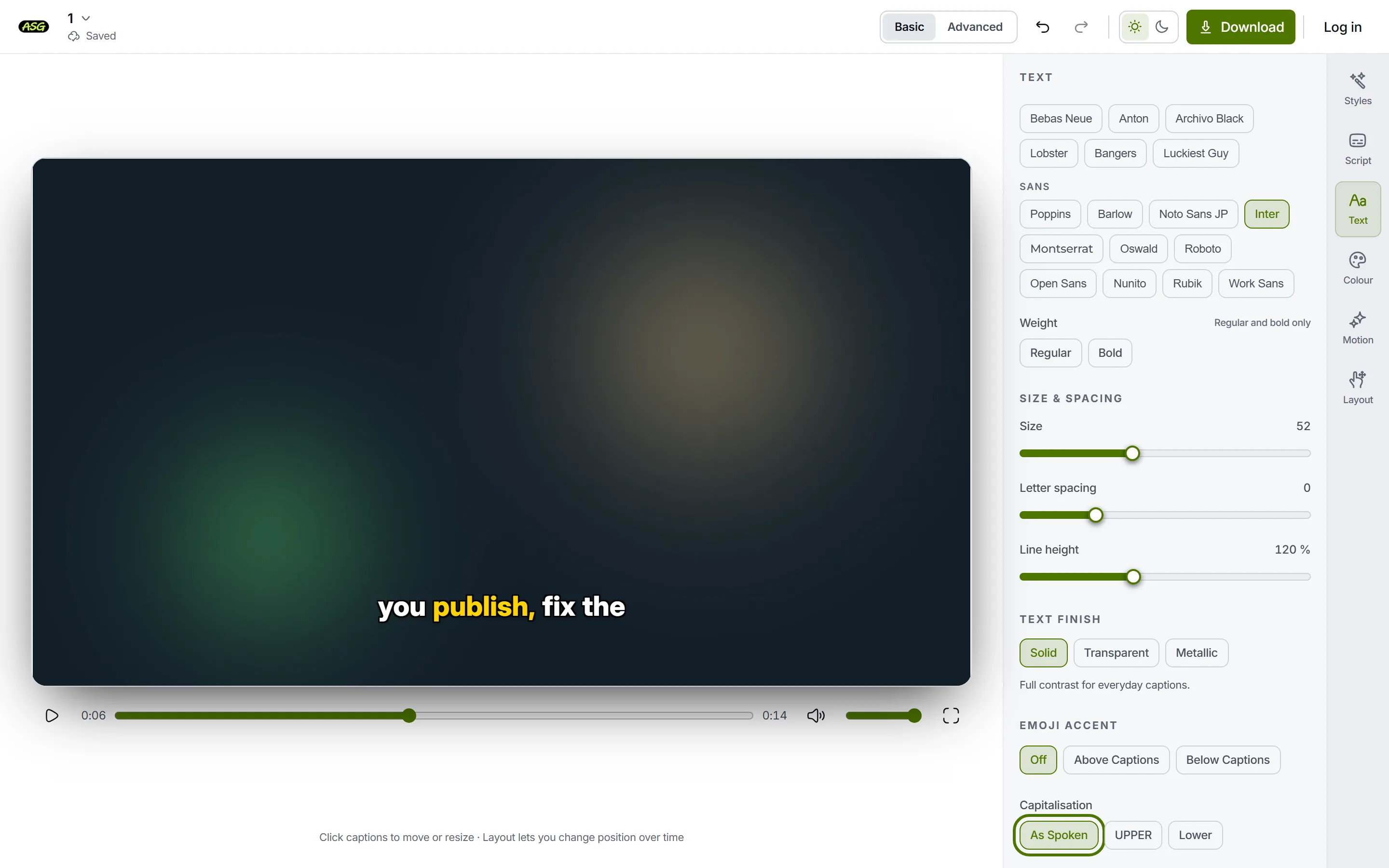
- As Spoken shows the words with the capitals they have in Script.
- UPPER shows every letter as a capital. Many bold styles start this way.
- Lower shows every letter in lowercase.
- This changes the picture only. Caption files are written from the words in Script, so to change a capital in an SRT file, correct the word in Script.
What are Text finish and Emoji accent?
- Text finish is the surface of the letters. Solid is full contrast. Transparent makes the words not being spoken see-through while the spoken word stays bright. Metallic shades the letters using your text and highlight colours.
- Emoji accent puts an emoji above or below the words. Automatic by sentence matches an emoji to the topic of each sentence from a built-in list of words and phrases, without AI and without touching your allowance, and shows none when nothing matches clearly. English has the widest coverage; Fixed emoji uses the one you pick for the whole video. Emoji size and Distance from text set its size and gap.
- On the Free plan, Transparent and Metallic finishes and the emoji accent are Starter effects unless the chosen free style already uses them. Choosing a style lists every Starter effect.
How many words fit on a line?
Three things decide it, and only one of them is in Text. The most words a line may hold, and how many lines show at once, are set in Motion under Grouping. The size here and the Text width in Layout decide how many of those words actually fit.
| Setting | Where | Range |
|---|---|---|
| Lines on screen | Motion, Grouping | 1, 2 or 3. Modes that show one line at a time keep it at 1. |
| Maximum words per line | Motion, Grouping | 1 to 12. A maximum, not a target: punctuation can end a line sooner. |
| Size | Text | Larger letters fit fewer words in the same width. |
| Text width | Layout | 30% to 100% of the video's width. A narrower box wraps sooner. |
None of these change the script. Script lines, the timeline blocks and the subtitles in an SRT or VTT file stay as they were cut when the project was created. Motion and grouping explains the difference, and Layout covers the text width. For how long a line of subtitles should be, see the subtitle line length guide.
What if a font cannot draw my language?
Most fonts here draw Latin letters, and several cover more. When the words contain letters the chosen font cannot draw, Script shows a warning at the top of the panel and, where another bundled font can draw them, a button to switch to it, such as Use Noto Sans JP for Japanese or Chinese. The font stays your choice until you press it.
- The warning appears before anything is prepared, because a font without the right letters would burn empty boxes into the video.
- No bundled font can draw Korean and Thai. A video with those words cannot be prepared with them burned in; the server refuses it, and the editor says so. SRT and VTT files keep the text intact and download as usual.
- If you correct a word into another alphabet, the check runs again. Correcting the transcript shows the warning.
What the Text panel does not do
- It has no font upload. Starter uses the same bundled fonts as Free.
- It has no bold, italic or colour for a single word. A style can pick out the spoken word in Motion and Colour; otherwise every word looks the same.
- It does not change the words. To fix spelling or a capital in the caption files, correct the word in Script.
- It does not change the size for part of the video. One size applies throughout.
Frequently asked questions
Can I upload my own font?+
No. The fonts are the ones bundled with the editor, on every plan. They are bundled so that the downloaded video uses exactly the font you saw while editing.
Why does a font only offer Regular and Bold?+
Some fonts are drawn from one adjustable file, and only those two weights are guaranteed to look the same in the download as in the editor. The weight row says so under the font.
Does a bigger size make longer lines wrap?+
Yes. When a line no longer fits the text width, it wraps or shortens, so a large size can show fewer words per line than the Grouping maximum.