
Change timing on the timeline
When the words are right but a line appears too early, too late or for too long, the timeline under the video is where you fix it.
Last updated
How do you open the timeline?
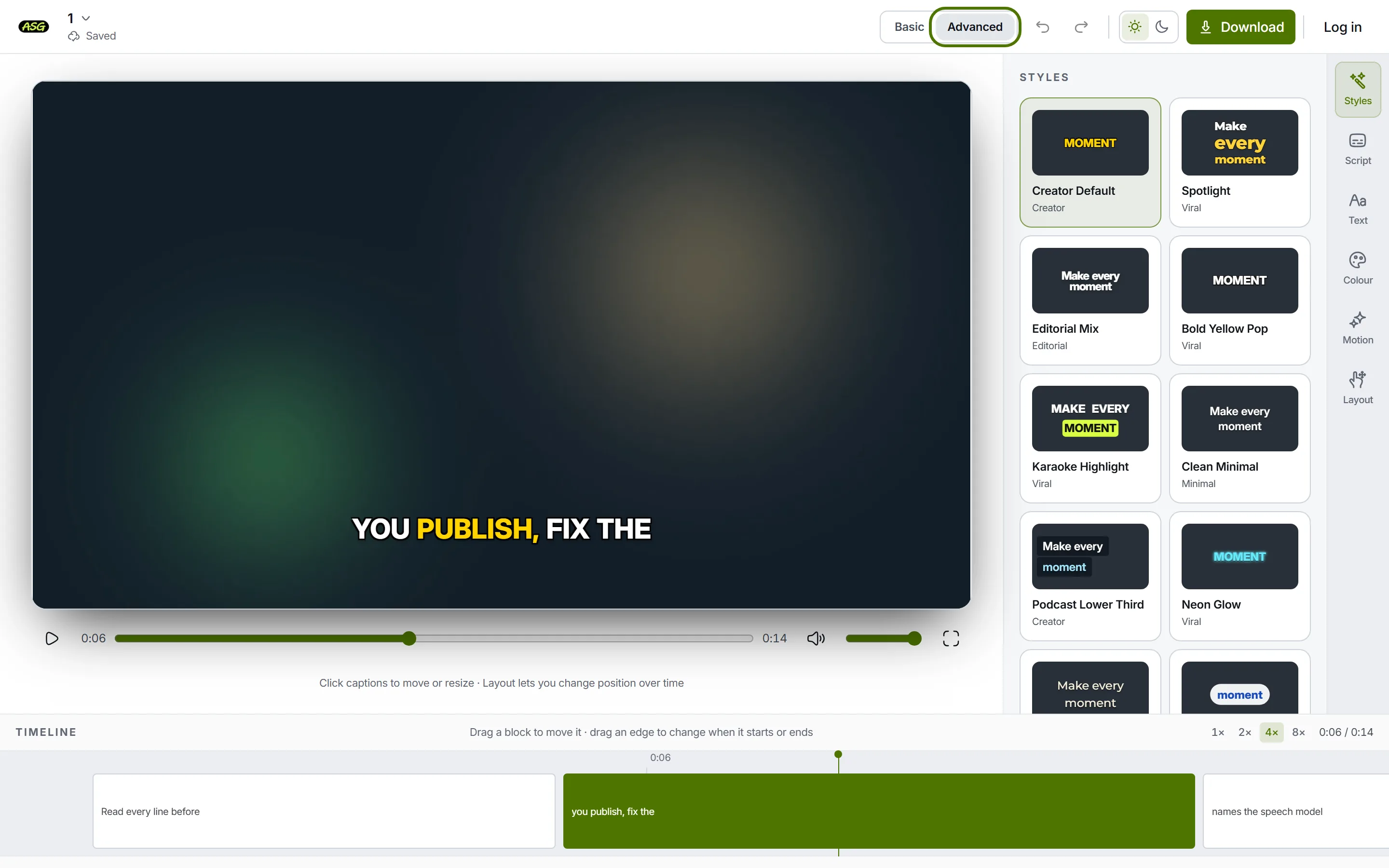
- Click Advanced in the toolbar. Basic hides the timeline again; nothing else changes between the two.
- Along the top of the timeline are its zoom buttons and the time, as position and total length.
- Each block is one line of the script, showing its first words. The line playing now is filled in.
- The thin vertical line is the playhead: where the video is.
How do you move or trim a line?
Find the line
Play to it, or click its time in Script. The timeline scrolls to keep the playhead in view.
Drag the block to move it
Grab the middle of the block and drag left for earlier or right for later. The whole line moves; its length stays the same.
Drag an edge to trim it
Each block has a narrow handle at both ends. The left edge changes when the line starts, the right edge when it ends.
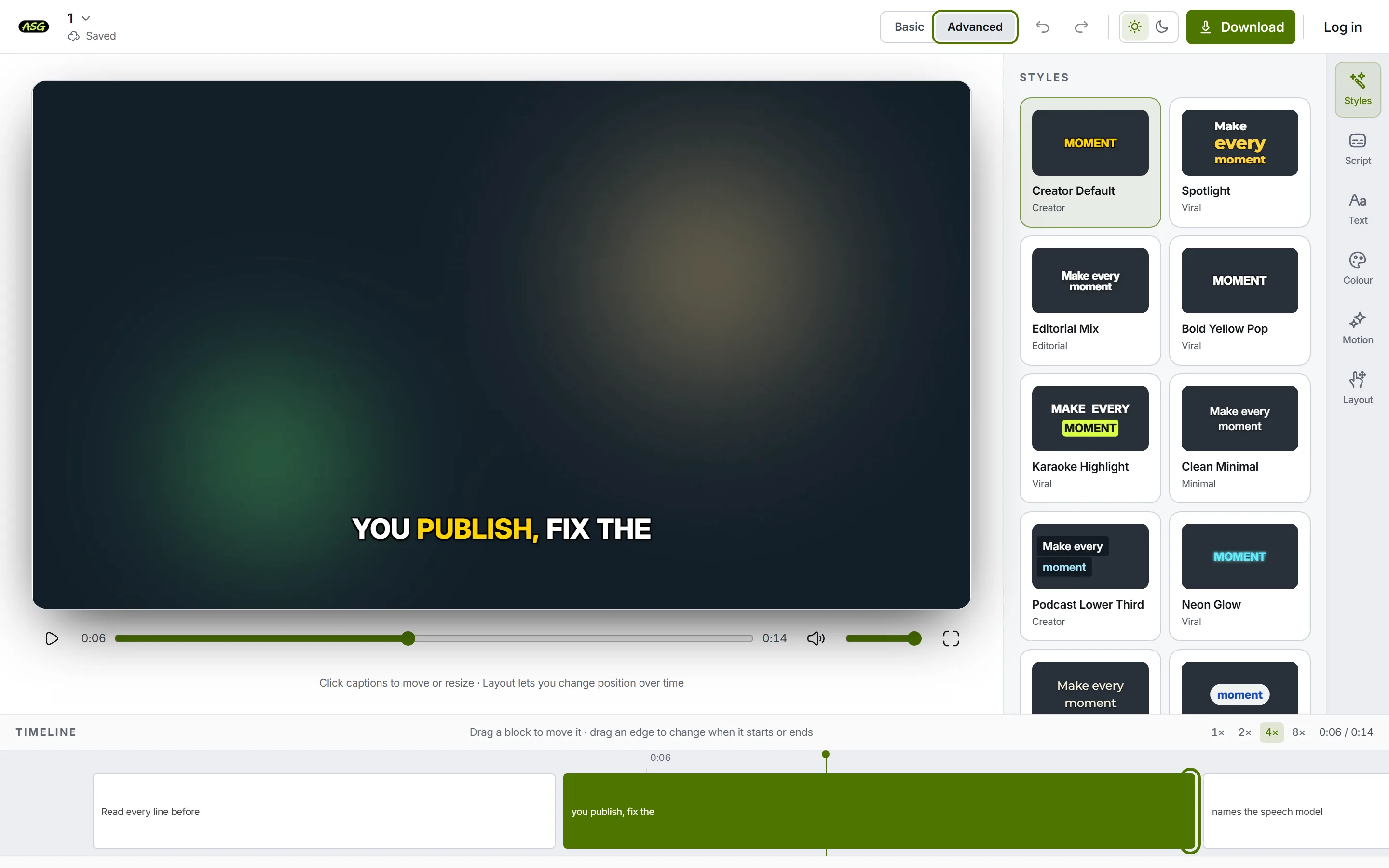
The edge handle: drag it to change when the line ends. Let go and play it back
The change saves on its own. Play across the line to check it against the speech; undo in the toolbar reverses the whole drag in one step.
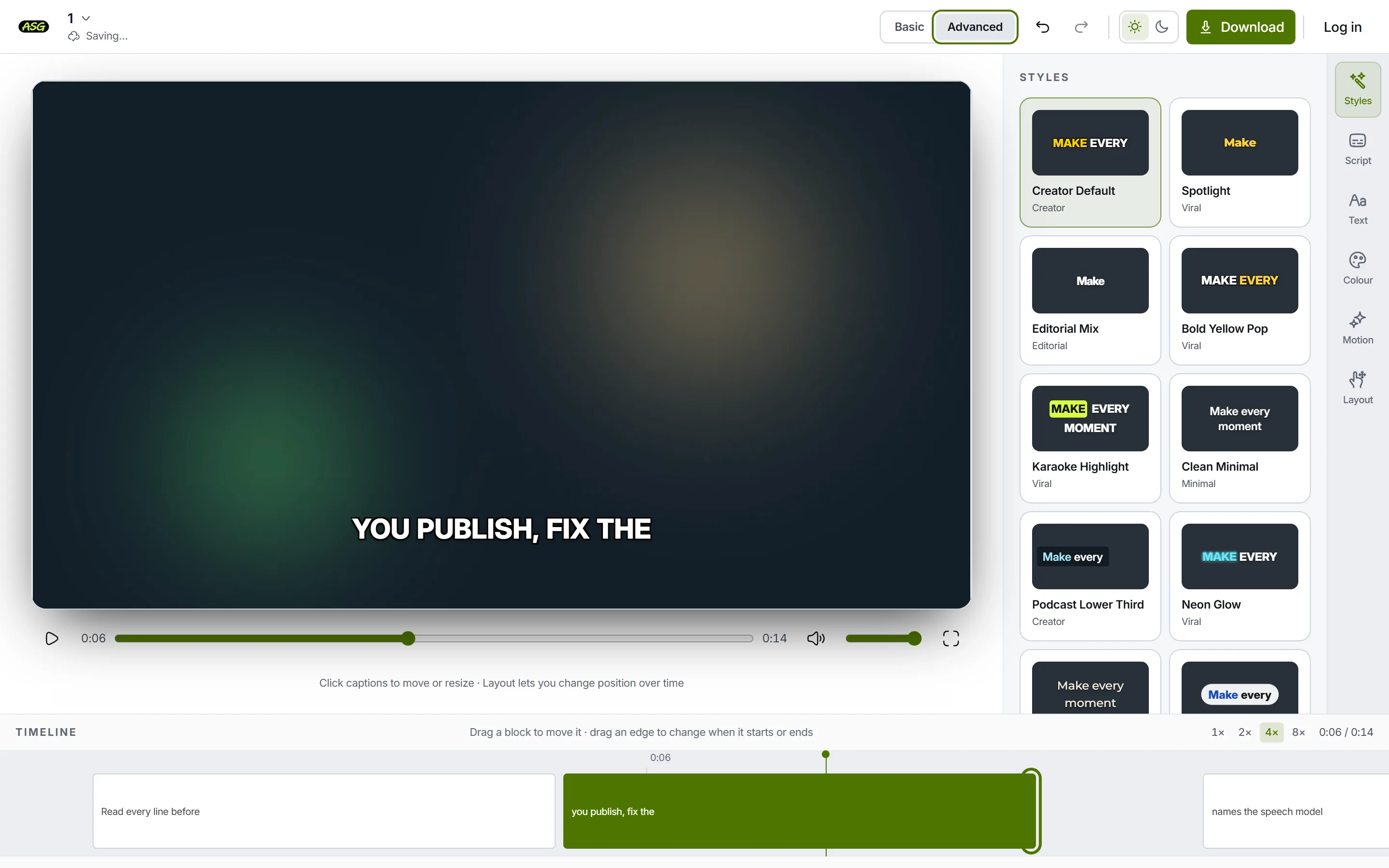
After trimming: the block is shorter, and so is the time the line is on screen.
| Rule | Why |
|---|---|
| A block stops at its neighbours. | Only one line shows at a time, so an overlap would hide part of the next one. |
| A block stays inside the video. | There is nothing to show a line against before the start or after the end. |
| A block is never shorter than 120 milliseconds. | Below that a line flashes past too fast to read and is hard to grab. |
| The words keep their share of the block. | A word that took a third of the line still takes a third, so highlighting stays in step. |
How do you get around the timeline?
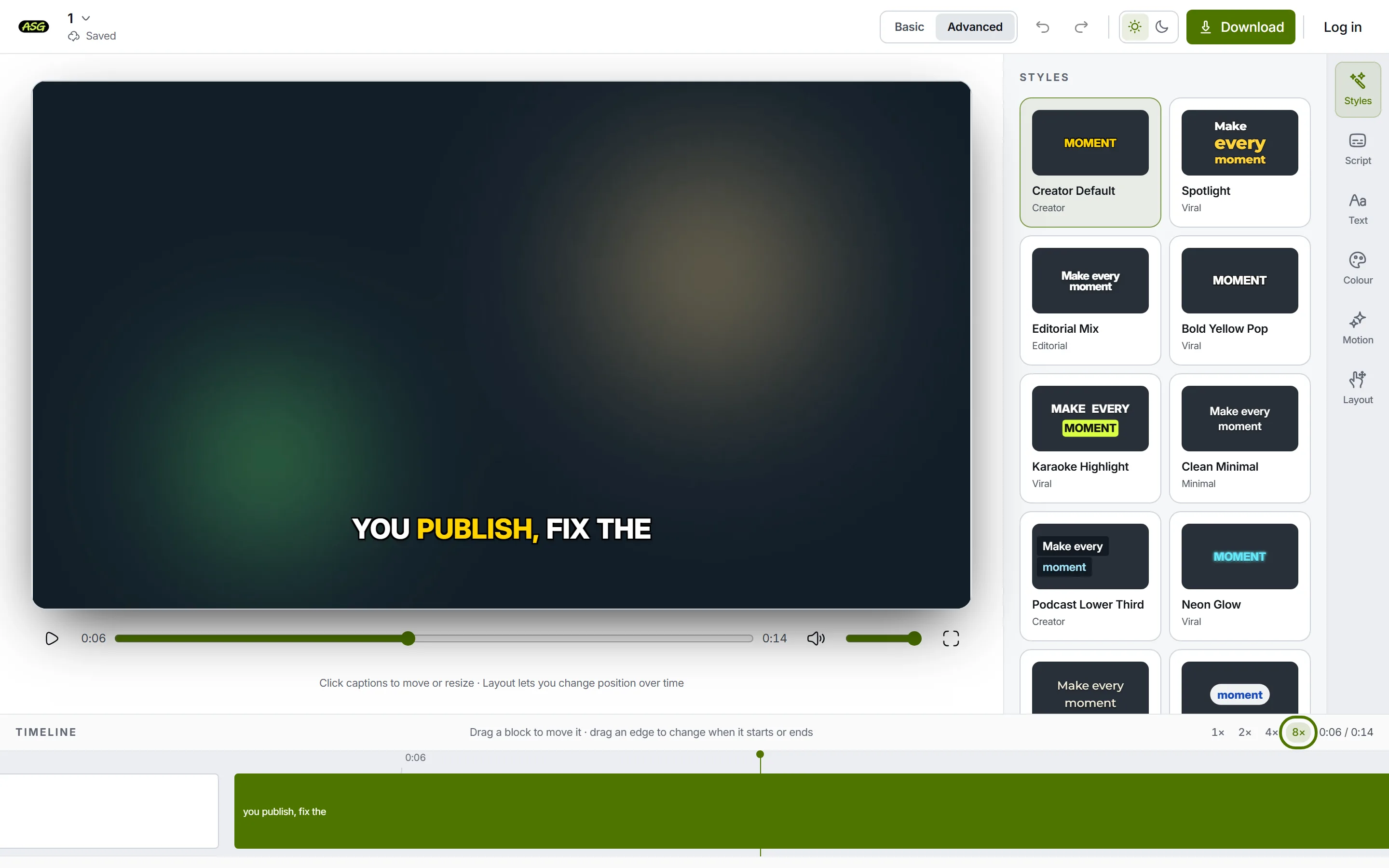
- Zoom with 1×, 2×, 4× and 8×. The timeline opens at 4×, where an average line is wide enough to read and grab; scroll sideways to move along it.
- Click the empty track to move the video to that moment.
- Double-click a block to move the video to the start of that line.
- While the video plays, the timeline scrolls to follow the playhead. It holds still while you drag.
How do you play back to check the timing?
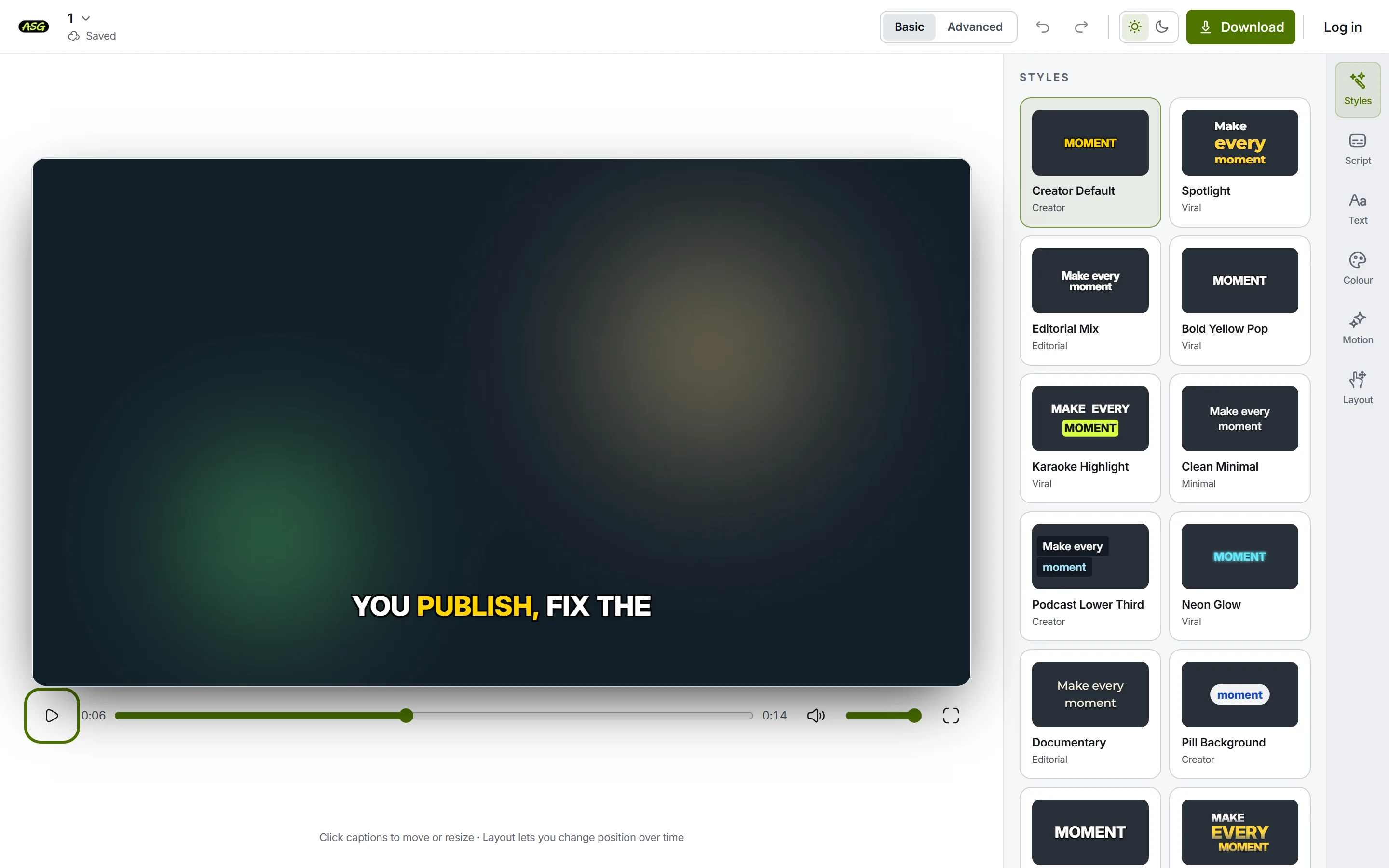
- Play and Pause sit at the left of the bar under the video. Space does the same whenever you are not typing in a field.
- Drag the seek bar to move through the video; the time beside it shows where you are.
- Mute and the volume slider control the sound, and Full screen shows the video with its subtitles filling the screen.
- There is no playback speed control. To check a fast passage, zoom the timeline in and step through it with clicks on the track.
What does a timing change affect?
- The video. The next MP4 you prepare shows each line at its new time. A video you already prepared does not change.
- Caption files. SRT and VTT subtitles use each line's start and end, so they follow the timeline too. TXT has no timing.
- Script. The time shown above each line moves with it. The words stay as they are.
- Corrections. Correcting a word later keeps the timing you set. Correcting the transcript explains why.
What the timeline does not do
- It does not split, join, add or delete blocks. There is one block per script line, as the project was created.
- It does not move the timing of one word inside a line on its own.
- It does not shift every line by the same amount, and it shows no audio waveform.
- It does not cut or trim the video itself. The download is as long as the upload.
Changing timing costs nothing from your allowance. Downloading covers what does. If the subtitles drift out of step across the whole video, see fixing subtitles that are out of sync.
Frequently asked questions
Why won't a block move any further?+
It has reached the next or previous line, or the start or end of the video. Blocks cannot overlap, because only one line can show at a time. Move or trim the neighbour first.
Can I shift every line at once?+
No. Each block moves on its own. If every line is late by the same amount, the cause is usually the video itself; download the SRT and shift it in a timing tool, or move the blocks one by one.
Can I add a line for a moment with no speech?+
No. Lines come from the speech in the video. You can change the words of an existing line in Script and its timing here.
Is the timeline available on a phone?+
Yes. On a narrow screen, Basic and Advanced are in the menu behind the settings button in the toolbar.