
Correct the transcript in Script
The speech model gets most words right and some wrong, usually names, numbers and specialist terms. Script is where you read every line and fix the ones it misheard, without touching the timing.
Last updated
How do you correct a word?
Open Script
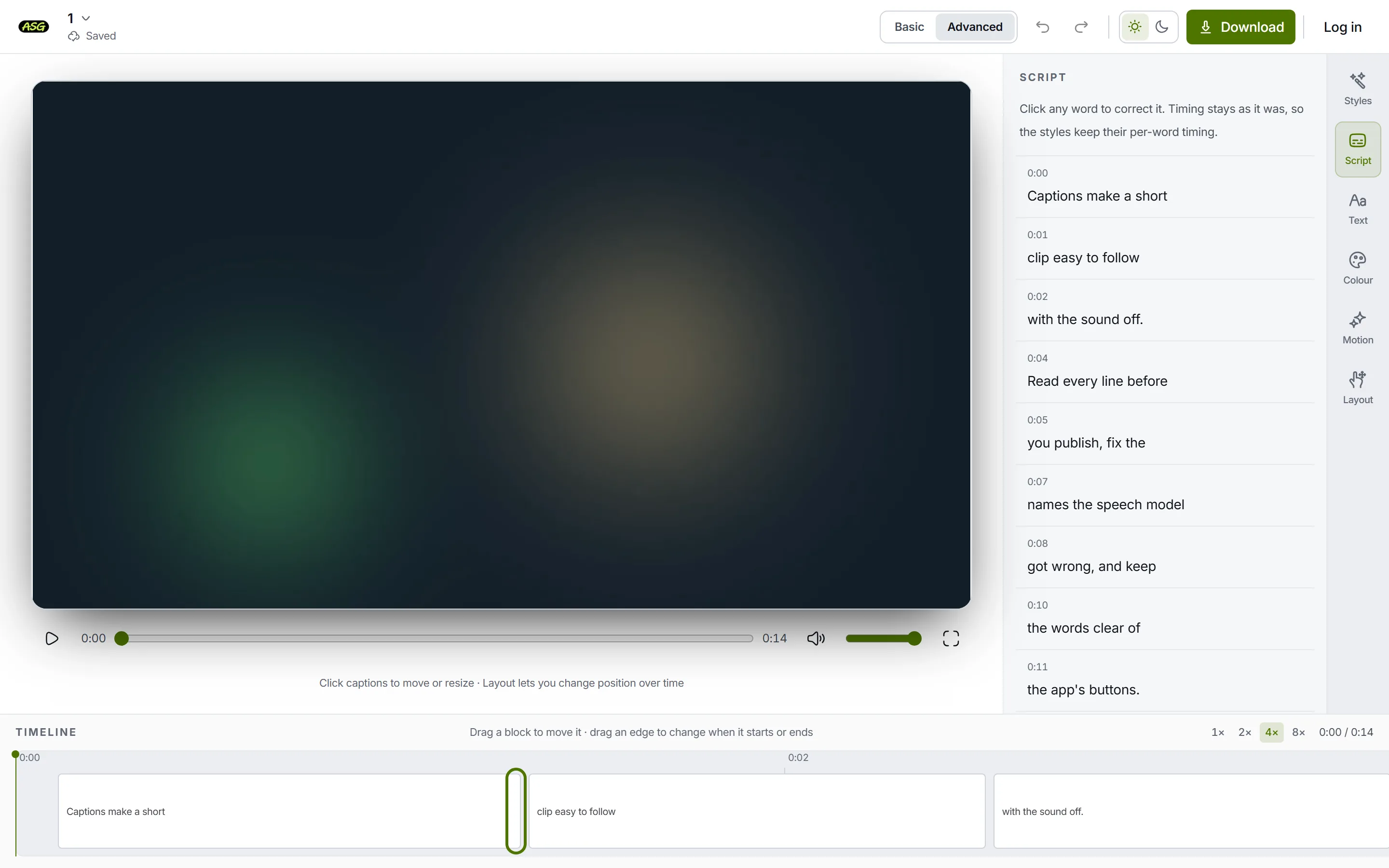
Click Script in the rail on the right. You can also double-click the subtitles on the video, or press Correct the words in the toolbar above them. Every line is listed in order with the time it starts, and the line being spoken is marked as the video plays.
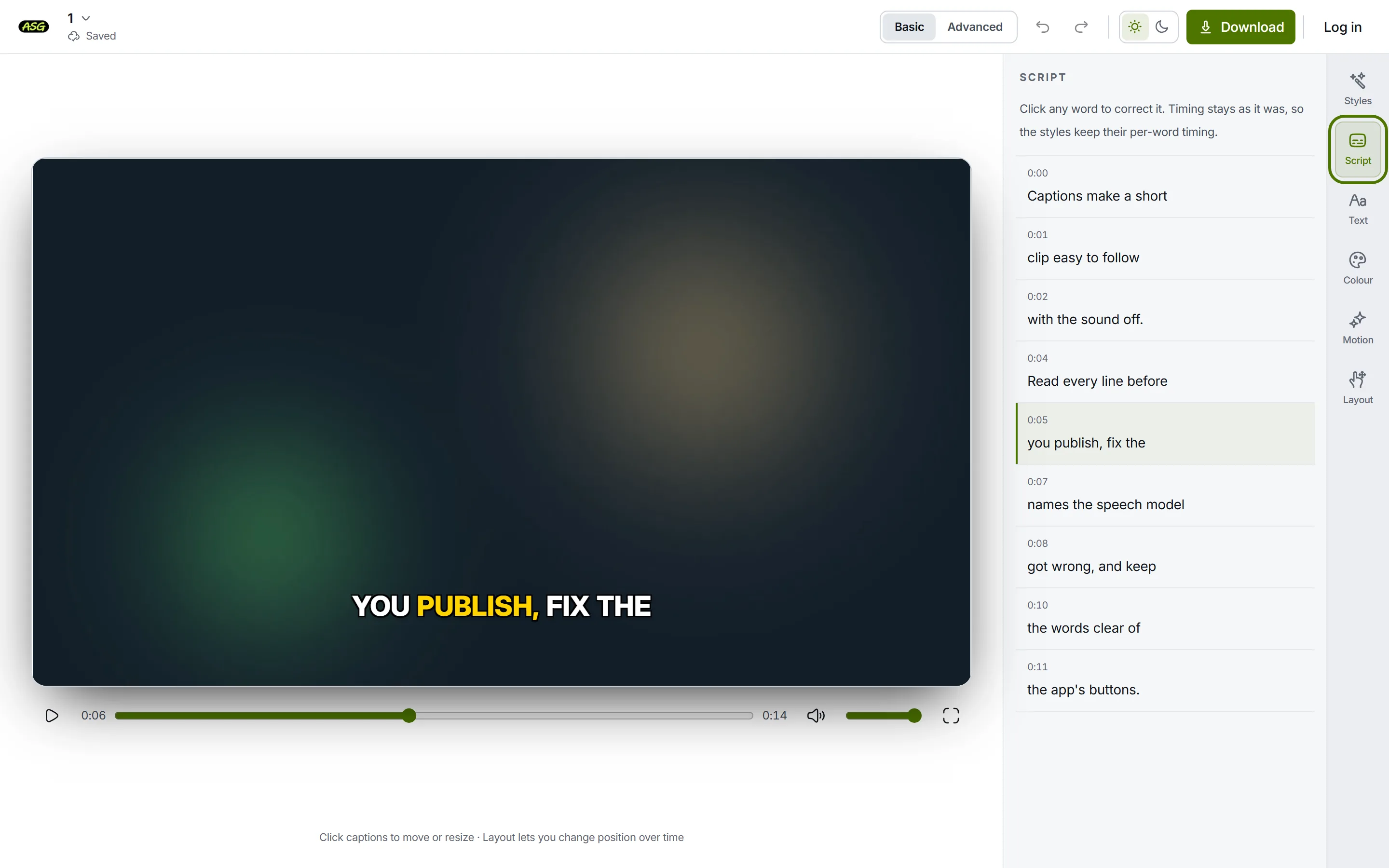
Script lists the whole transcript, one line at a time. Click the word that is wrong
It turns into a small text box with the word selected, so typing replaces it. Only that word is open; the rest of the line stays as it is.
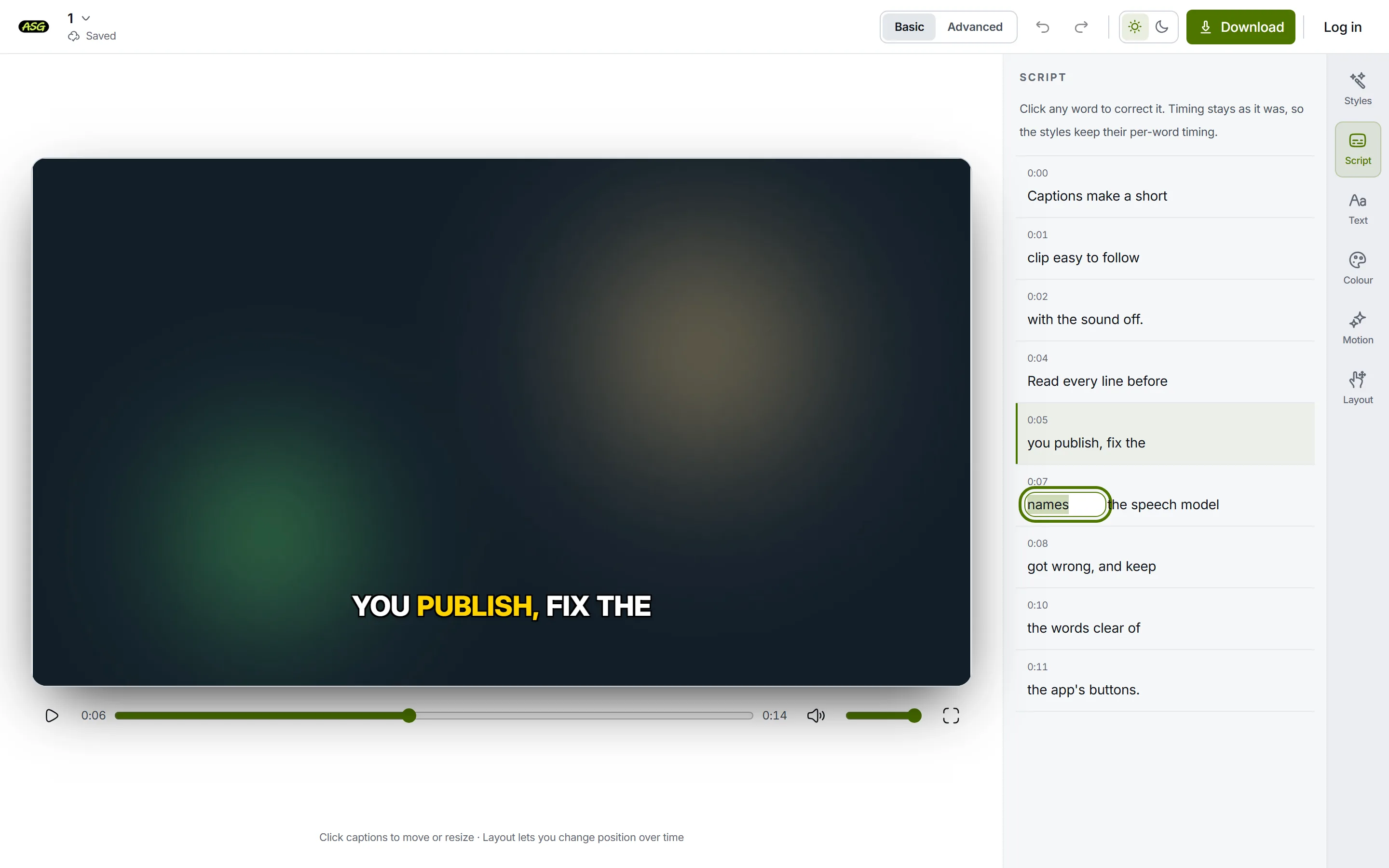
One word open for correction. Type the correction and press Enter
Clicking anywhere else also keeps the change. Escape puts the original back. The video shows the corrected words straight away, and the change saves on its own.
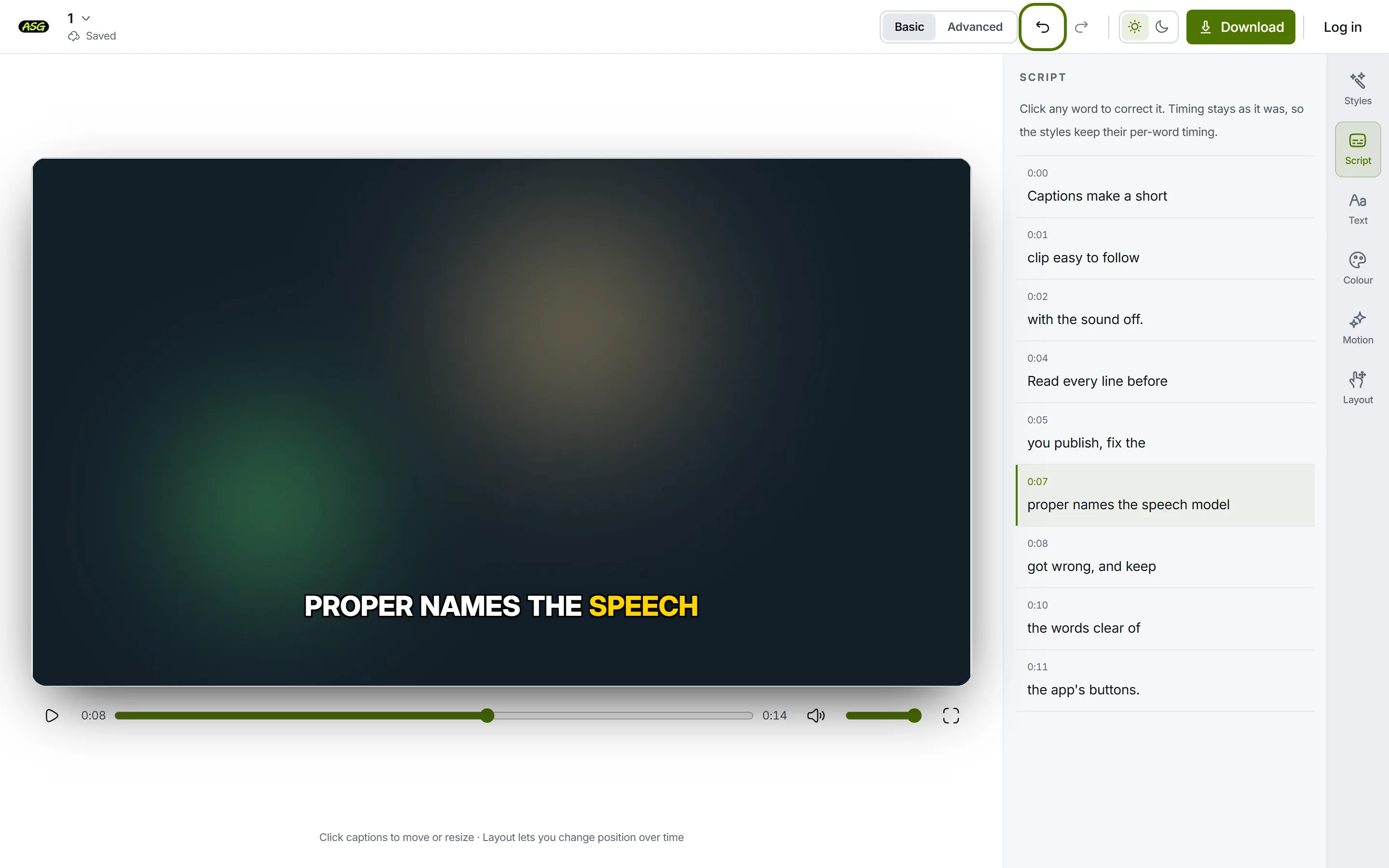
The corrected line, and undo in the toolbar if it was a mistake. Read the rest of the script
Names, numbers, brands and technical words are where speech models slip most. Read each line against the speech rather than watching for errors, and correct as you go.
What happens to the timing when you correct a word?
| You type | What happens |
|---|---|
| One word | It replaces the old word and keeps exactly its start and end. |
| Several words | They replace the old word and share its time, longer words getting a longer share. "wanna" corrected to "want to" becomes two timed words. |
| Nothing | The word is removed from the line. |
| The same word | Nothing changes, and no undo step is added. |
Because every word keeps its own time, styles that highlight one word at a time or build a line word by word stay in step with the speech after a correction.
How do you get to the line you want?
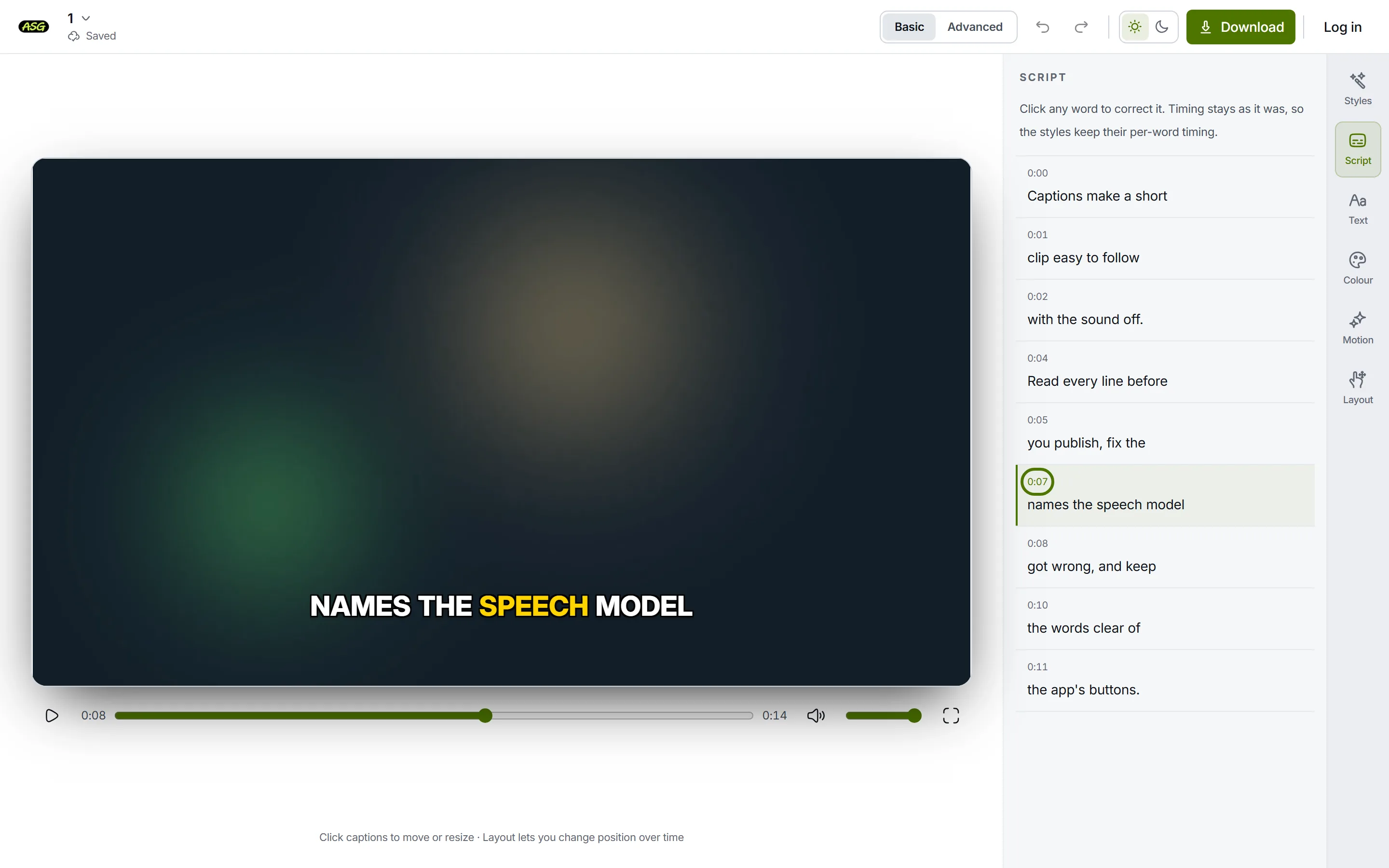
- Click the time above a line to move the video to where that line starts.
- While the video plays, the list scrolls to keep the spoken line in view. It stops following while you are typing, so it never pulls the word you are correcting away.
- Press Space to play or pause when no text box is open.
What if the words are right but the timing is off?
Correcting words never moves them. To change when a line appears, switch to Advanced in the toolbar and use the timeline under the video: drag a block to move the line, or drag its edge to change when it starts or ends. The editor tour covers the timeline.
Why can't I join or split lines?
The lines are cut once, when the project is created: up to four words each by default. There is no control to join two lines or split one, and correcting words does not re-cut them. A line that gains words from a correction simply gets longer.
| Output | How the words are grouped |
|---|---|
| SRT, VTT and TXT files | One subtitle per script line, with that line's start and end. |
| Timeline blocks | One block per script line. |
| The burned-in subtitles on the video | By the style: Motion, under Grouping, sets how many lines are on screen and the most words per line. |
So to change how many words appear on screen at once in the video, use Motion rather than Script. If a subtitle file needs different line breaks, edit the downloaded file in a text editor: SRT and VTT are plain text. Downloading explains the formats.
Why is there a warning above the script?
Script checks that the chosen font can draw the language of the words. If it cannot, a warning appears above the lines, because the video would otherwise come out with empty boxes where the letters should be. When another font can draw them, the warning offers a button to switch to it.
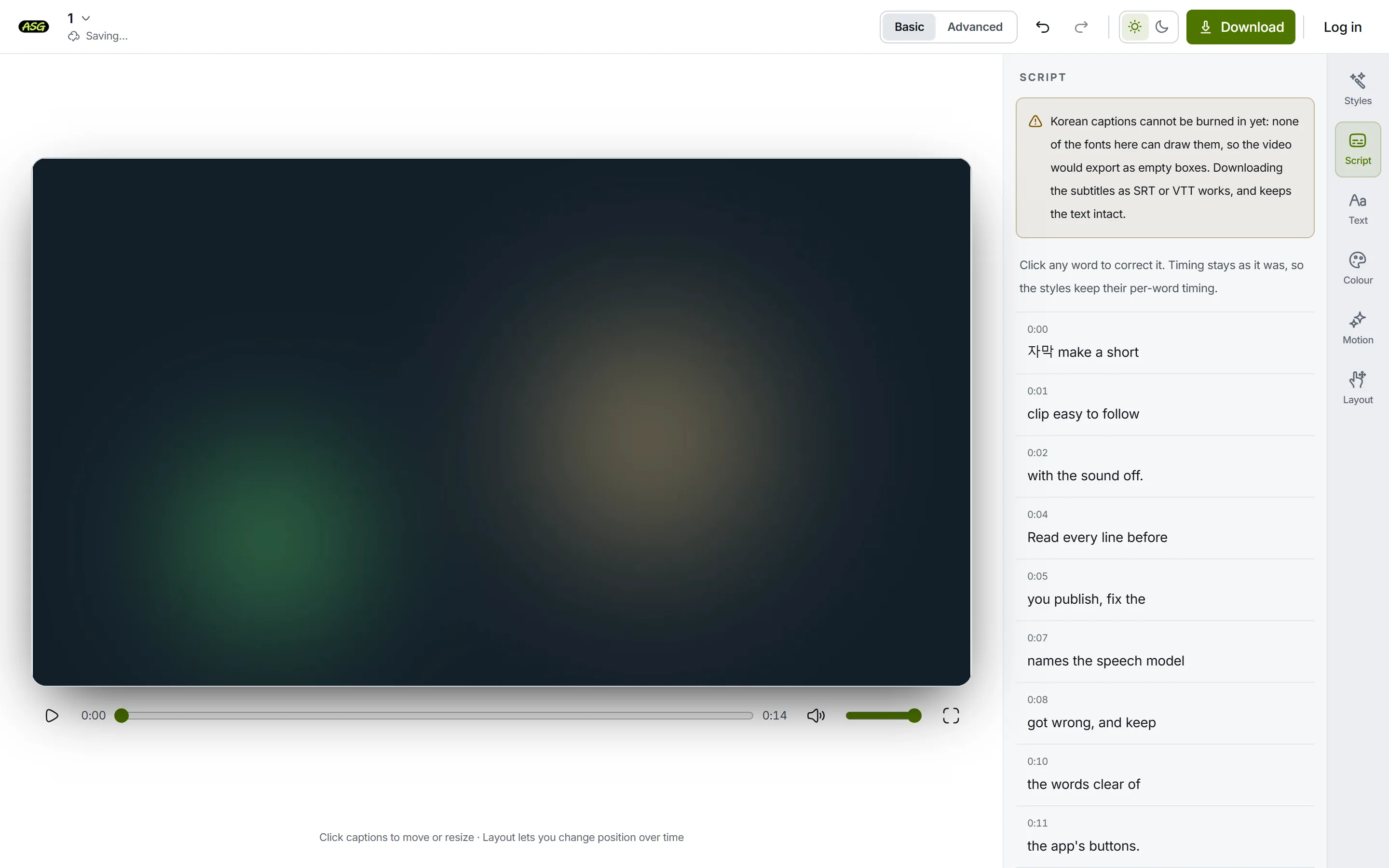
Korean and Thai text cannot be burned into the video at all yet: none of the bundled fonts draws it, and the download refuses to prepare a video rather than make one full of boxes. SRT and VTT files keep the text exactly, so download those instead.
What Script does not do
- It has no find-and-replace. A name misheard in several places is corrected in each place.
- It does not mark who is speaking.
- It does not transcribe again. If the audio was unclear, correct the words by hand.
- It does not translate. The subtitles stay in the language that was spoken.
- It does not import an SRT or VTT file to replace the transcript.
Frequently asked questions
Does correcting a word change its timing?+
No. The new text takes the start and end of the word it replaces, so word-by-word highlighting stays in step with the speech.
Can I fix a whole line at once?+
Not as one text box. Each word is corrected on its own, which is what keeps every word's timing. Typing several words into one word's box replaces that word with all of them.
How do I undo a correction?+
Press the undo arrow in the toolbar. Undo steps back through word corrections and style changes alike, and redo steps forward again.
Do my corrections reach the SRT file?+
Yes. Caption files are written from the script as it is when you download them, with each line as one subtitle.