
Layout and safe areas
Where the subtitles sit on the video, how wide they can spread, how to move them for part of the video, and how to keep them clear of an app's buttons.
Last updated
How do you move the captions to the top, center or bottom?
Open Layout
Click Layout in the rail. Placement is at the top, with three buttons: Top, Center and Bottom.
Choose an edge
The subtitles jump to that edge of the video, centred across it.
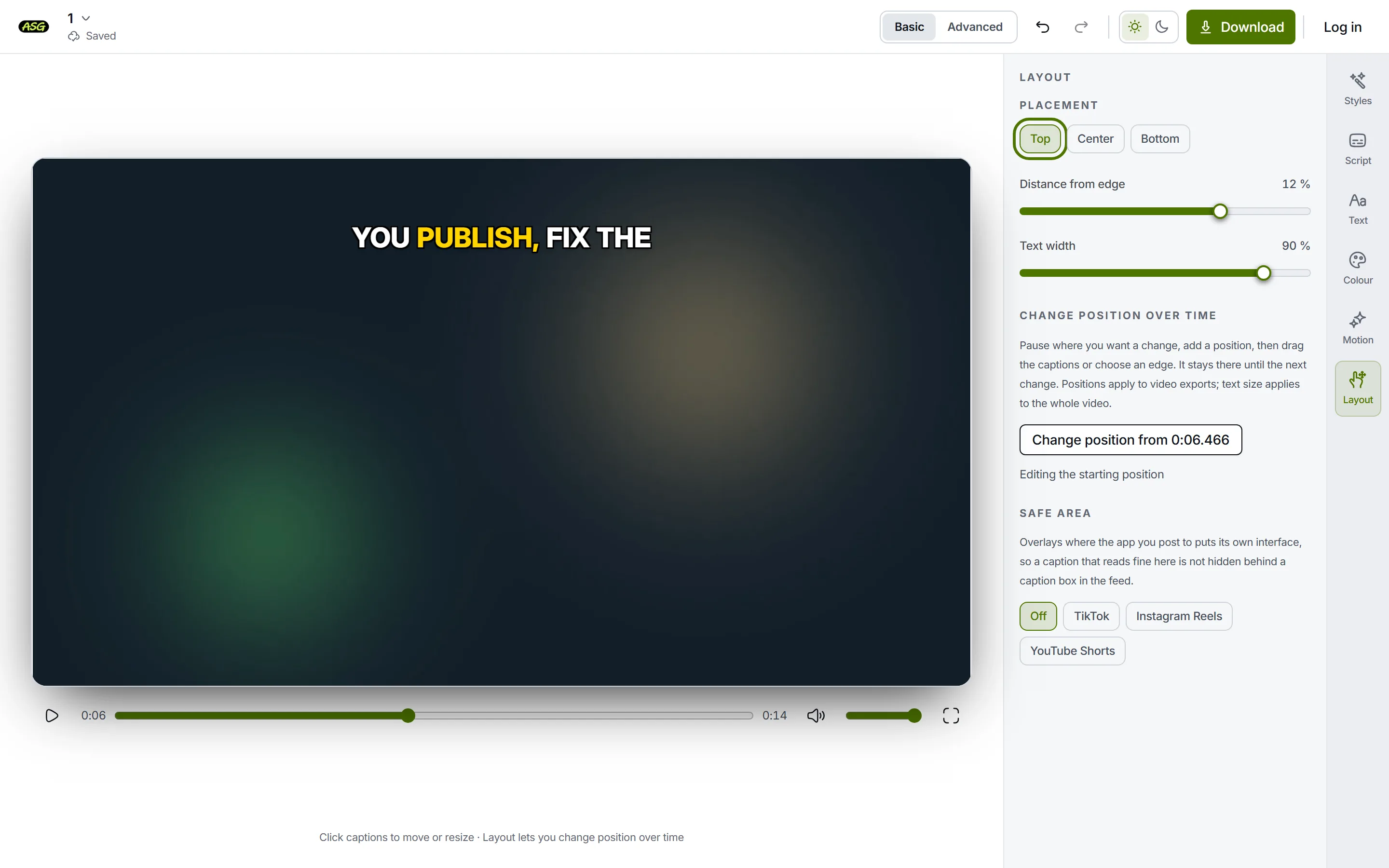
Top puts the words against the top edge. Set the distance from that edge
Distance from edge runs from -30% to 30% of the video's height, measured from the edge you chose. Raise it to move the words in from the edge. Below zero they move past the edge and can be cut off.
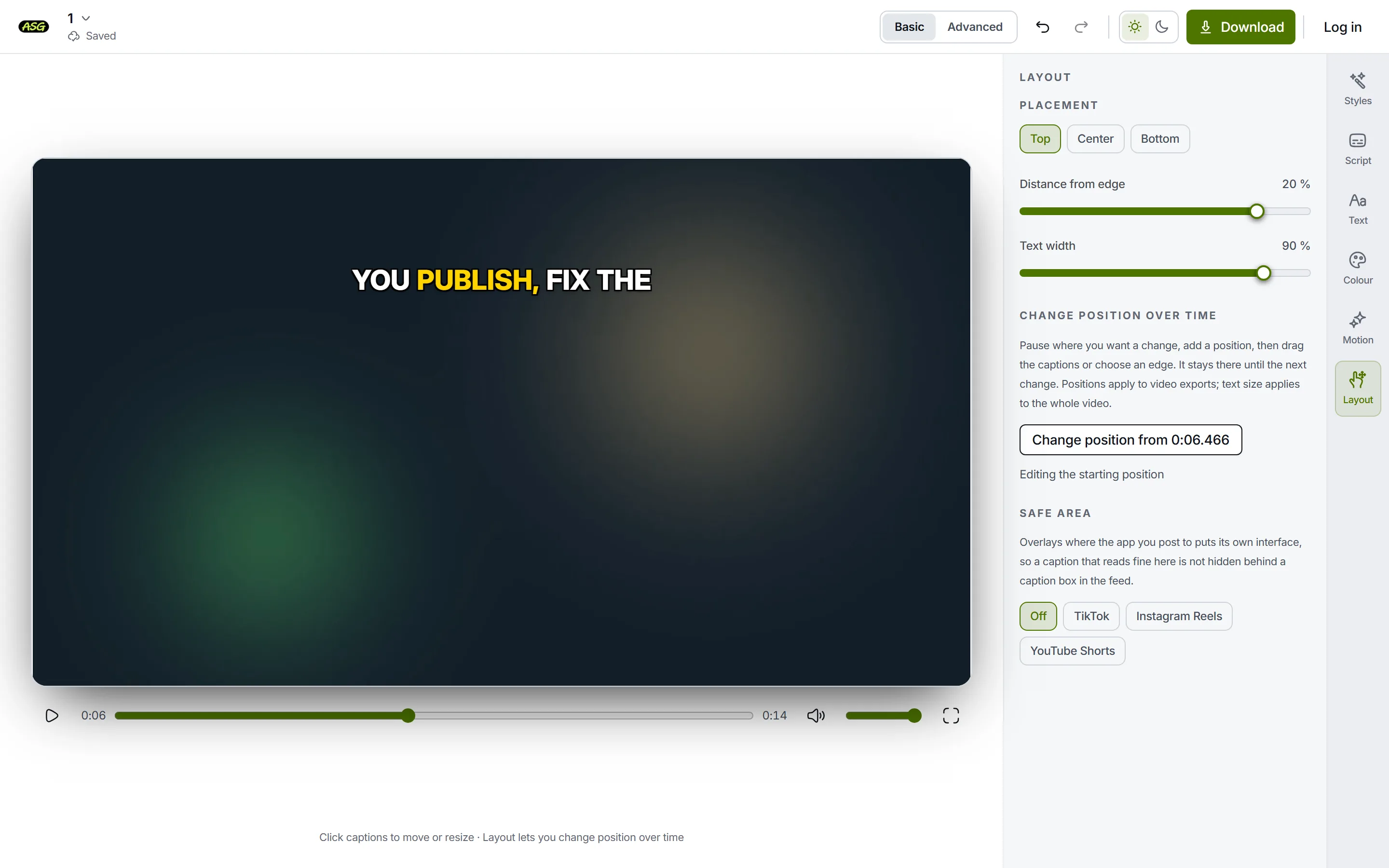
A larger distance moves the words in from the edge. Set the text width
Text width runs from 30% to 100% of the video's width. A narrower width wraps long lines sooner and keeps the words away from the sides.
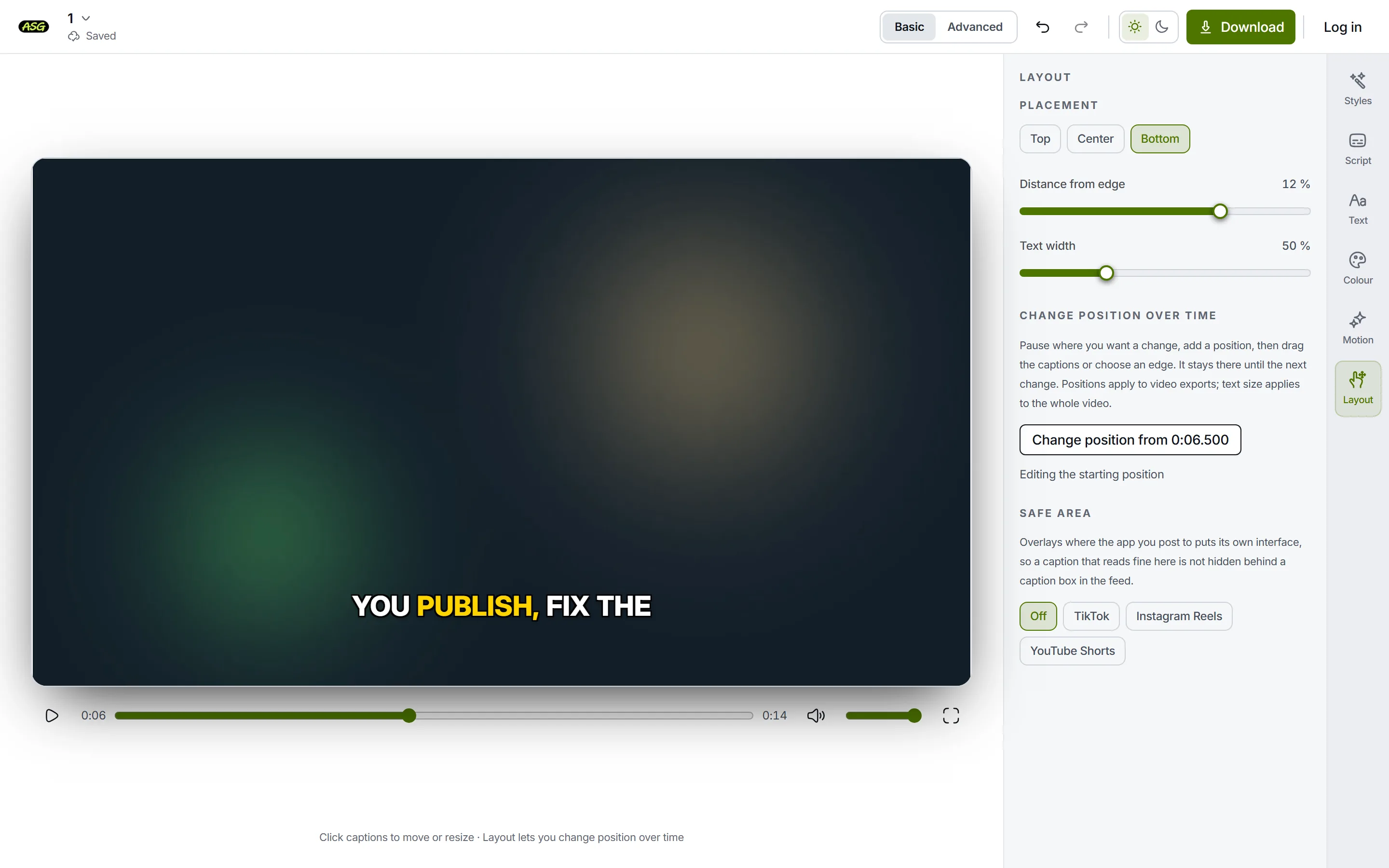
A narrower text width wraps the line sooner.
With Center, the words sit in the middle of the video and Distance from edge has no effect. The words stay centred across the width in all three placements, unless the style aligns them to one side.
How do you place the captions by hand?
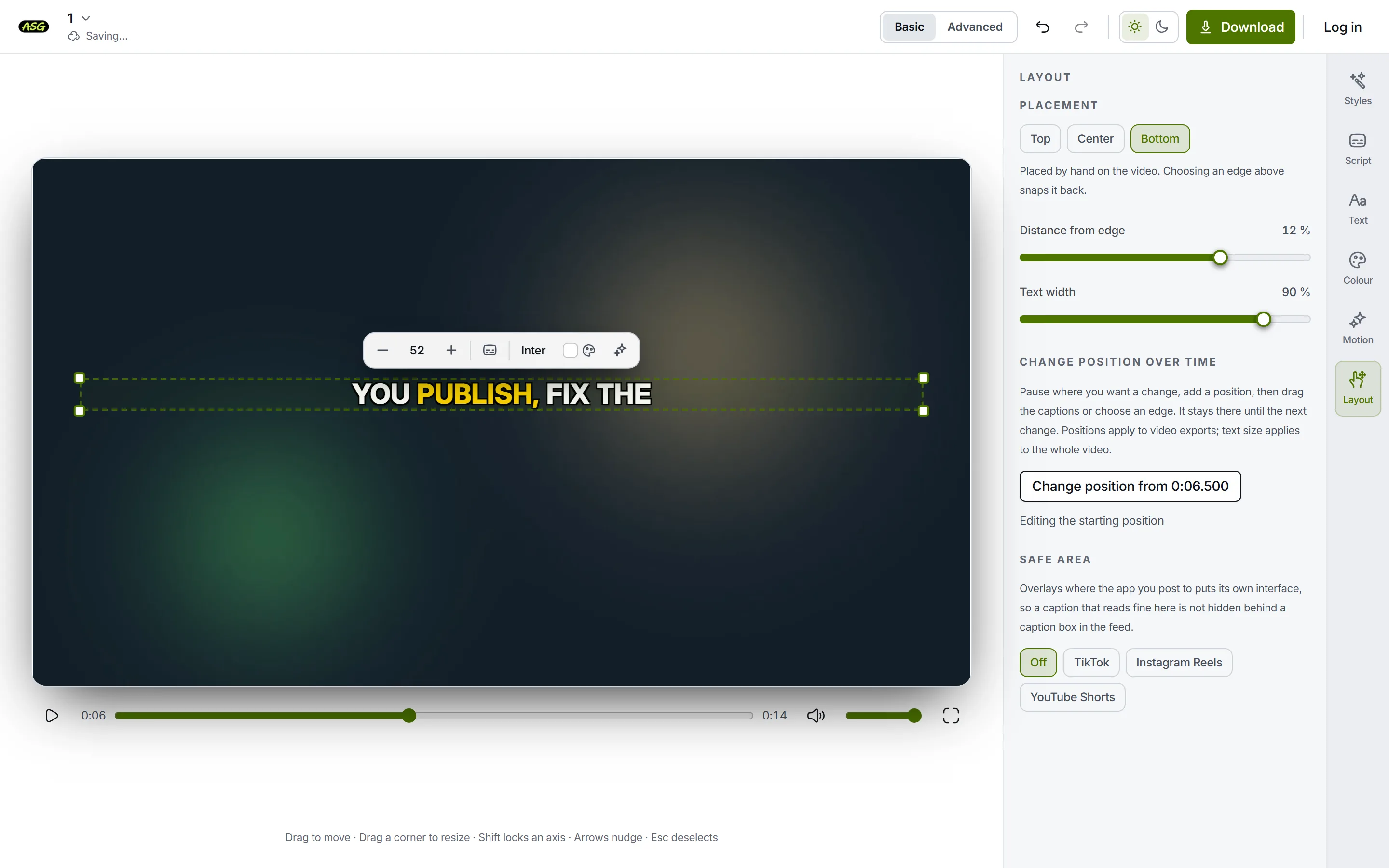
- Drag the subtitles on the video to move them anywhere. Click once first if they are not selected.
- Guides appear as you drag: the words snap to the centre line and to the thirds of the picture, across and down.
- Shift while dragging keeps the move to one direction.
- Arrow keys nudge the selected words a little at a time; Escape cancels a drag in progress.
- Corner handles change the text size, not the position. Text covers the size itself.
- Layout then reads Placed by hand on the video. Distance from edge has no effect until you choose an edge again, which snaps the words back.
How do you move the captions for part of the video?
Change position over time, lower in Layout, lets the subtitles move at chosen moments: up out of the way of a title card, say, and back down afterwards.
Pause where the move should happen
Play to the moment, or click on the timeline in Advanced mode, then pause.
Press Change position from, followed by the time
The button shows the playhead's time to the millisecond. A new position starts there, and the line under the button says which position you are editing.
Place the words
Drag them on the video, or choose Top, Center or Bottom. They stay there until the next change.
Review or remove changes
Every change is listed with its time. Click one to jump to it, or Remove it. Starting position jumps to the beginning, and Use one position throughout removes them all.
A video can have up to 200 changes. Only the position changes over time: the text size, the width and the rest of the style apply to the whole video. Positions are part of the downloaded MP4; caption files have no position.
How do you keep captions clear of TikTok, Reels and Shorts buttons?
Short-video apps lay their own text and buttons over a vertical video. Subtitles that read well in the editor can be hidden behind them in the feed. Safe area, at the bottom of Layout, draws those areas over your video.
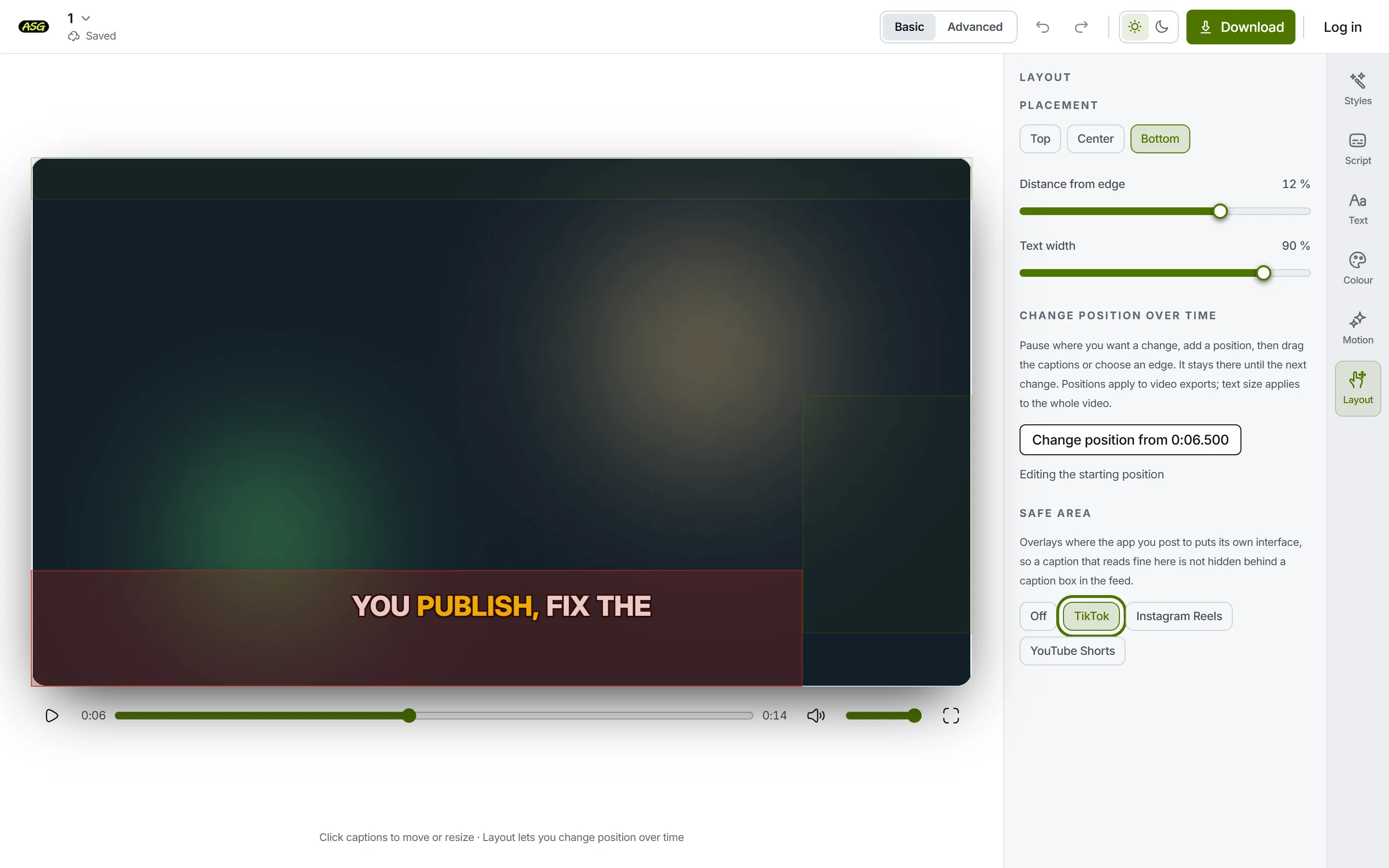
| Safe area | Areas drawn |
|---|---|
| TikTok | Caption and handle along the bottom, the action rail on the right, the top bar |
| Instagram Reels | Caption and audio along the bottom, the action rail on the right, the top bar |
| YouTube Shorts | Title and channel along the bottom, the action rail on the right, the progress bar |
- Choose an app under Safe area; choose Off to hide the shading.
- When the centre of the words is inside a shaded area, that area turns red, and so does the dashed box round the selected words.
- Move the words with Placement, Distance from edge or by dragging until nothing is red.
- The areas are deliberate approximations that err towards covering a little more than the apps do, because each app moves its buttons between versions and devices.
- The shading is never drawn into the download, and it switches off when you reopen the editor.
The areas are fractions of the frame, so they are drawn on a landscape video too, but they only describe vertical feeds. To check a frame without opening the editor, or to read more about each app, see the guide to subtitle safe areas.
What Layout does not do
- It does not crop, reframe or resize the video. The download has the same frame as the upload.
- It does not place two lines in different places at the same moment. All the words on screen share one position.
- It does not rotate the words from the panel.
- It does not position caption files. Players decide where SRT and VTT subtitles appear. Downloading explains the difference.
Frequently asked questions
Where do the captions start?+
Where the style you chose puts them, which for most styles is near the bottom. Choose Top, Center or Bottom, or drag them, to change it.
Does Distance from edge work with Center?+
No. Center keeps the words in the middle of the video, so the distance has no effect until you choose Top or Bottom again.
Can captions move during the video?+
Yes. Under Change position over time, add a position at the moment you want the words to move, then place them. They stay there until the next change.
Is the safe area saved with the project?+
No. It is a guide for checking the picture while you edit, so it is off again when you reopen the editor, and it is never drawn into the downloaded video.