
Connect ChatGPT or Claude
Auto Subtitle Generator also runs inside ChatGPT and Claude, with the same account, projects and plan as the website. Here is how connecting works and what an assistant can and cannot do once it is connected.
Last updated
How do you connect an assistant?
Add Auto Subtitle Generator in your assistant
In ChatGPT it is an app, and in Claude it is a connector. How you add one is up to the assistant, and its own help explains it. Where your assistant does not list it, contact us and say which assistant you use.
Sign in on the page that opens
The assistant opens a page on this site headed Connect and the assistant's name, with the address of the site asking. If you are not signed in, it asks you to sign in there first, with the same Google, email code or password sign-in as the website.
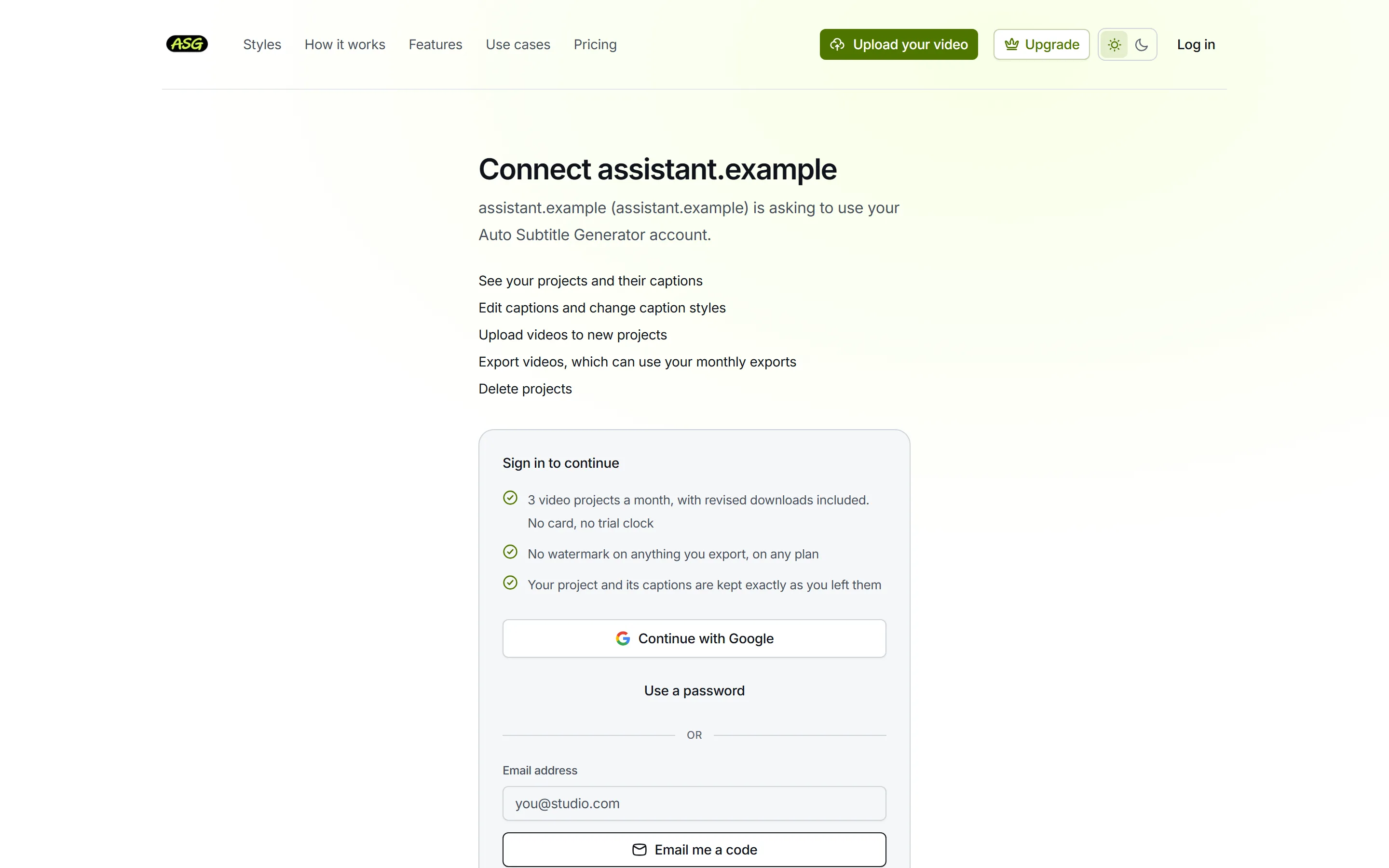
Before approving, the page asks you to sign in. Read the permissions and press Allow
The page lists exactly what the assistant is asking to do with your account. Allow connects it and returns you to the assistant; Cancel refuses and nothing is connected.
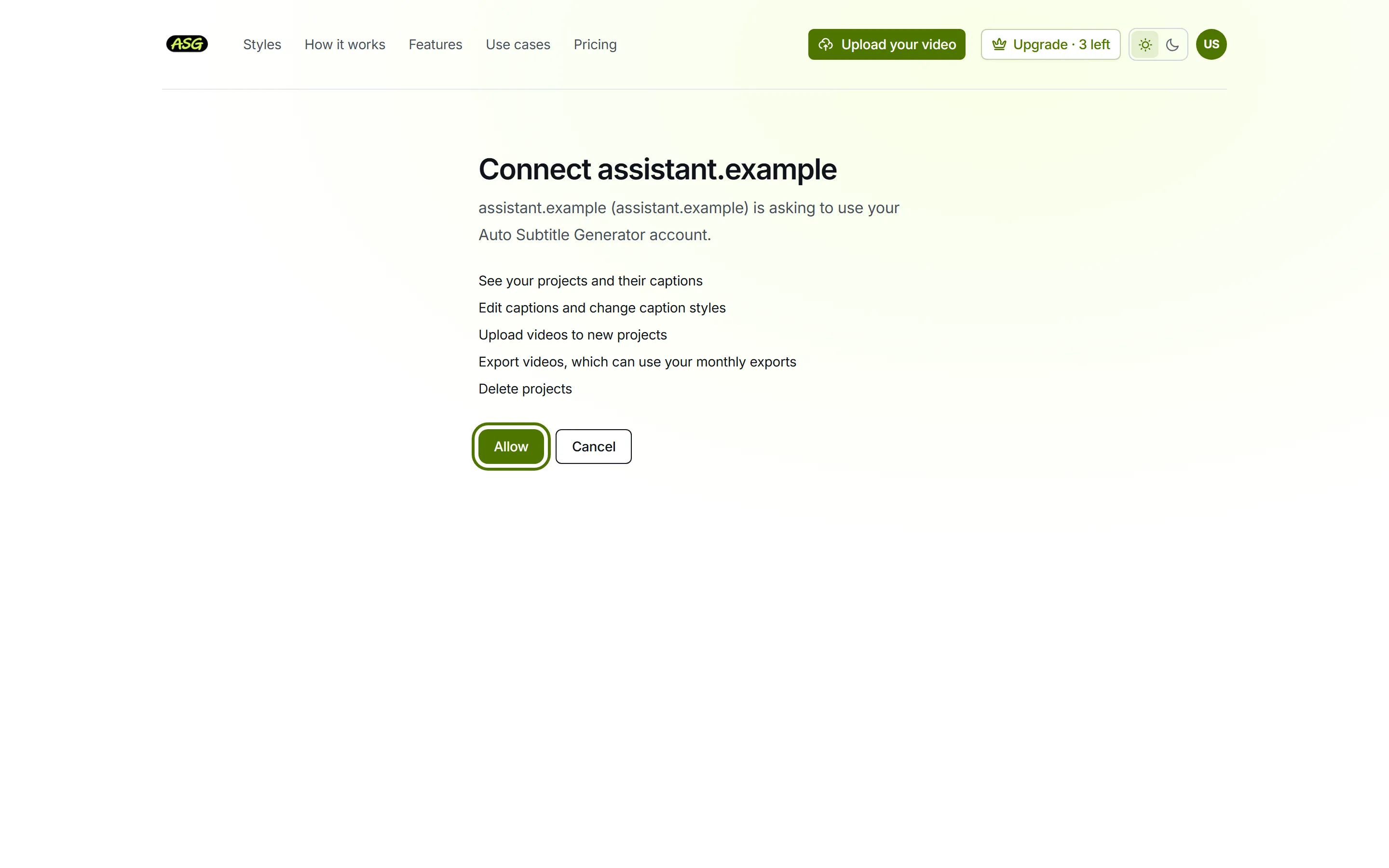
Allow connects the assistant to your account. Open Auto Subtitle Generator in the chat
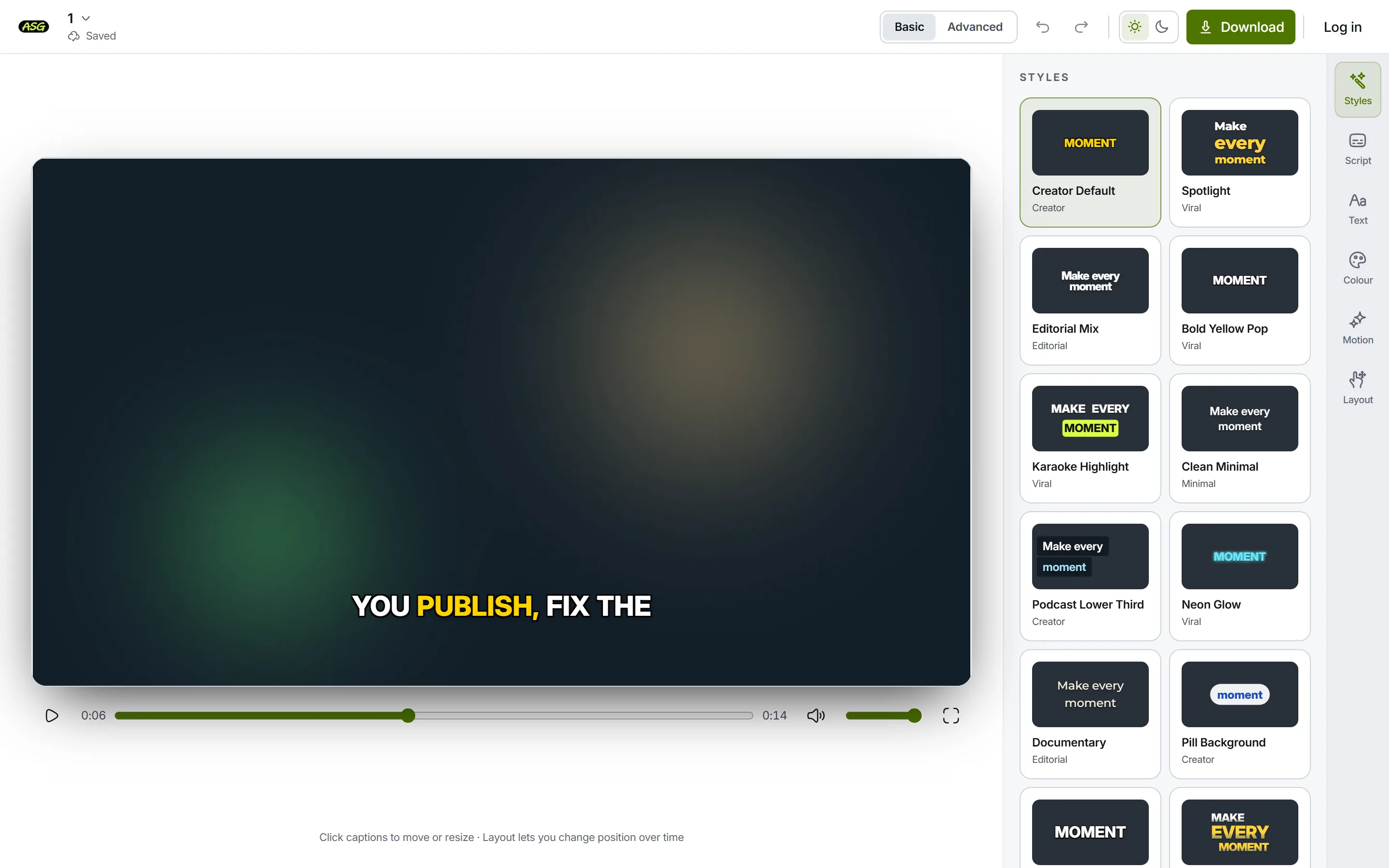
In ChatGPT, open the app; in Claude, ask it to open the caption editor. The panel starts on a home screen with an upload button and your projects, and can be expanded where the assistant allows it.
If the page says the link is not a connection request, or that something did not go through, start again from the assistant: the request it sent has expired or was not complete.
What permissions does it ask for?
| Permission | What it allows |
|---|---|
| See your projects and their captions | Listing projects, opening one, reading its captions and style, checking an export. |
| Edit captions and change caption styles | Saving the changes you make in the editor panel. |
| Upload videos to new projects | Sending a video you choose in the panel, which becomes a new project. |
| Export videos, which can use your monthly exports | Preparing an MP4, which uses your allowance as on the website. |
| Delete projects | Deleting one project after you confirm it in the panel. |
Every request is checked against your account and against what you allowed. A connection made before the delete permission existed asks for it the first time you delete a project from the panel.
What can the assistant do, and what do you do in the panel?
| Task | The assistant, when you ask | You, in the editor panel |
|---|---|---|
| See your projects | Lists them and describes one | Browses them on the home screen |
| See the styles and your plan | Lists the styles, reads your plan and what is left of the month | Sees them in the editor and the download options |
| Open a project | Opens the editor in the chat | Opens one from the home screen |
| Upload a video | No | Chooses a file from your device |
| Correct words, style, timing | No | The same Script, Styles, Text, Colour, Motion, Layout and timeline as the website |
| Prepare an MP4 | Starts one from the saved project and checks its progress | Presses Download |
| Download the MP4 or caption files | No | Downloads them through the assistant's own download or link |
| Delete a project | No | Deletes one after confirming |
- The assistant only prepares a video when you ask for one, and only from a saved project. Retrying the same request does not prepare it twice.
- While a project is open in the panel, the panel tells the assistant its name, so "this video" means the open one.
- SRT, VTT and TXT files download where the assistant lets apps save files. Where it does not, the panel gives a private link that works for five minutes, and a button to copy the text.
- An MP4 opens through a short-lived private link that the assistant asks you to approve.
What does not work in an assistant?
- The assistant cannot change words, styles or timing from a chat message. Edits are made in the panel.
- It cannot use a video attached to the chat. Upload from the panel instead.
- It cannot delete a project, or several, on its own. Deleting is one project at a time, confirmed by you.
- It cannot buy or change a plan. Plans change on the pricing page.
- It does not translate, upload fonts or change account settings, none of which the website does either.
- It does not send the email the website sends when a video is ready. Check the panel instead.
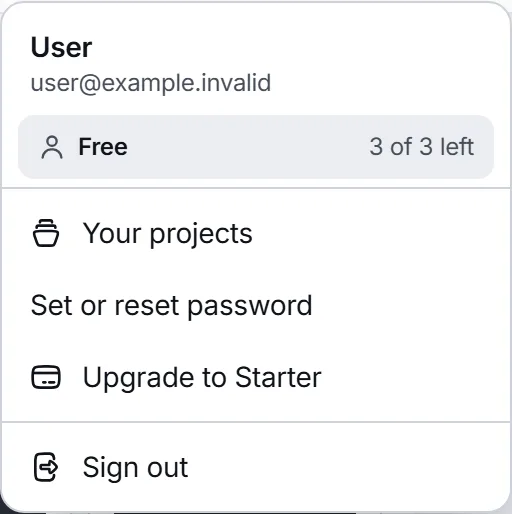
Your plan's limits apply exactly as on the website: the monthly allowance, the styles a video may use and the highest resolution. When a style or the allowance is not included, the panel says so and shows the styles and caption files you can still have, but it offers no checkout. Plans and limits lists them.
How do you disconnect?
- Remove the app or connector in your assistant's settings. The assistant can then no longer reach your account.
- Disconnecting does not delete anything. Your projects stay in your account until they expire or you delete them; projects and retention explains how long that is.
- There is no list of connected assistants on this site yet, so disconnect from the assistant's side.
- For a problem with a connected assistant, contact us and say which assistant you use. Never send a password or a sign-in code.
Frequently asked questions
Do I need an account to connect?+
Yes. A connection acts for a signed-in account, so a session started without signing in cannot approve one. You can sign in on the approval page itself.
Does the assistant see my video?+
The assistant can receive project names and identifiers, processing and export status, style summaries and plan usage. The editor panel receives your captions and short-lived private links to your video through the assistant's app, separately from what the assistant itself is told. The privacy policy has the full list.
Can I ask the assistant to fix a word?+
Not by itself. It can open the project in the editor panel, where you correct the word. The panel tells the assistant which project is open, so you can refer to "this video".
Does preparing a video in the assistant use my allowance?+
Yes, the same as on the website. Asking again for a video that was already prepared from the same saved project does not use it again.