How to burn subtitles into a video
Burning subtitles in renders the text into the picture itself, so it shows on every player and cannot be switched off. If your video has no subtitles yet, generate, correct and style them in Auto Subtitle Generator and download the MP4. If you already have an SRT file, use ffmpeg, HandBrake or your video editor, because our editor does not import subtitle files.
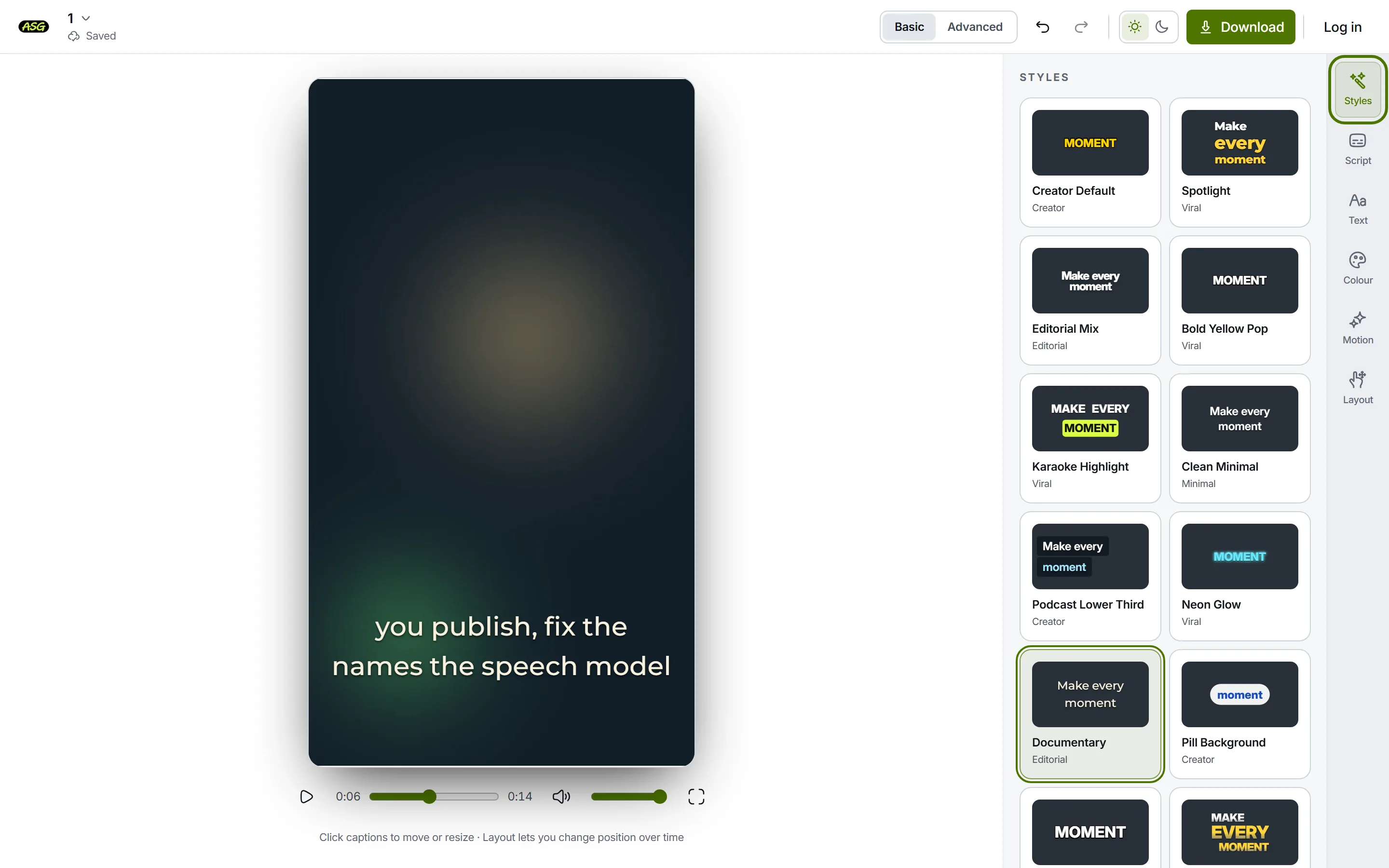
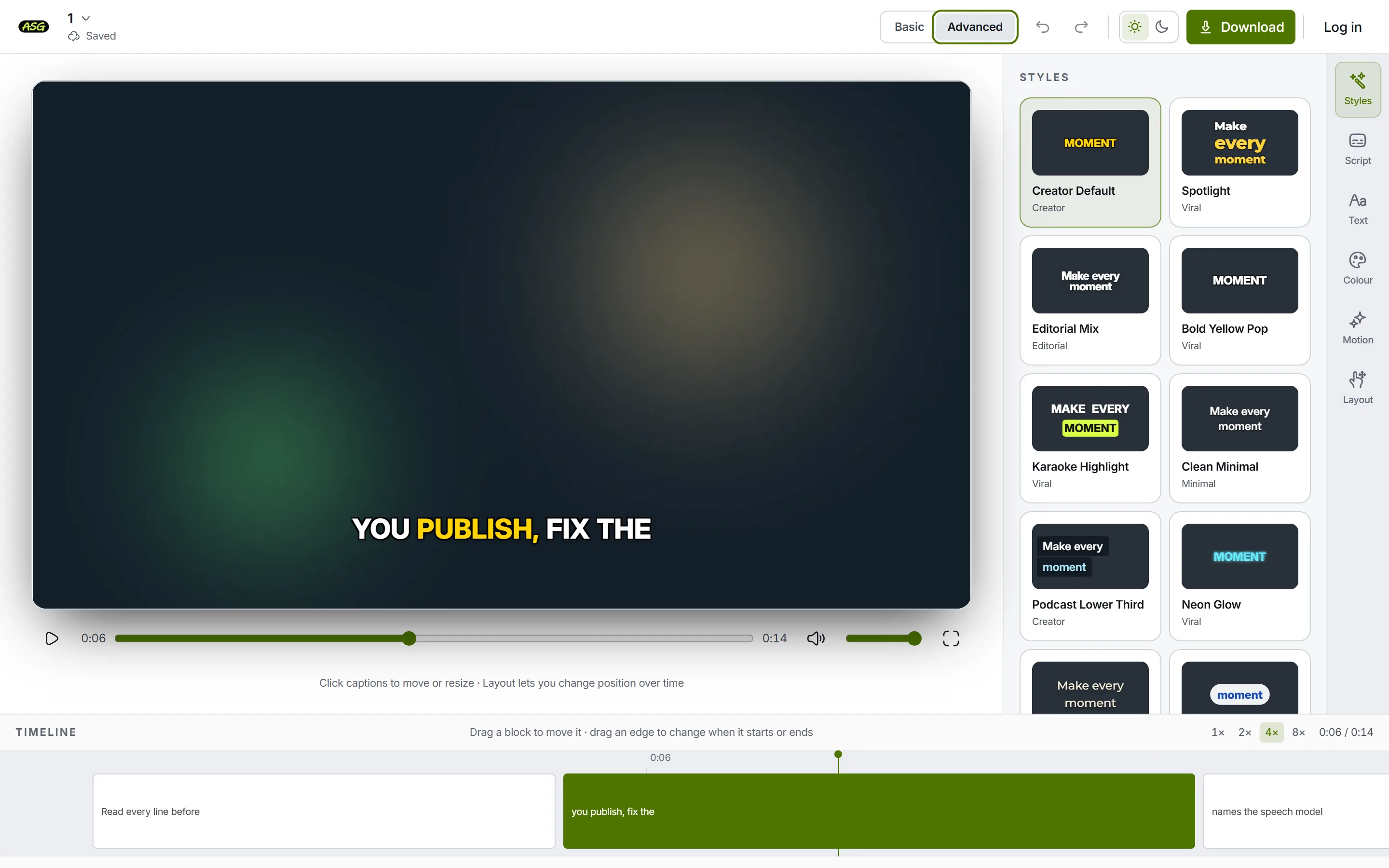
Pick the section that matches what you have. The product walkthrough uses screenshots of our own editor; the ffmpeg section shows frames from the commands' actual output; HandBrake and Premiere are described from their own documentation, linked in place.
What does burning subtitles into a video mean?
A burned-in subtitle is drawn into the image, the same way a title card is. A separate SRT or VTT track, by contrast, stays as timed text that the player can show, hide or restyle. Burning in suits clips that get reposted or autoplay muted, where a separate file would be lost or ignored; a player with caption controls is usually better served by the track. The burned-in vs closed captions guide covers that choice in full, including what each means for accessibility.
Which method should you use?
| You have | Use | What it costs |
|---|---|---|
| A video, no subtitles | Auto Subtitle Generator | Free plan: 3 video projects a month at 1080p, sign-in to download |
| A video and an SRT, happy with a terminal | ffmpeg | Free; one command |
| A video and an SRT, prefer a window | HandBrake | Free; open source |
| A project already open in an editor | The editor's caption export | Whatever the editor costs |
How do you burn subtitles in with Auto Subtitle Generator?
This route is for a video that has no subtitles yet. The editor transcribes the speech, lets you correct it, and renders the captions into the picture of an MP4. It is the same workflow as adding subtitles to a video, carried through to the burned-in download.
Upload the video
Drop the file onto the uploader on the home page. You can start without an account. On the free plan a video can run to 10 minutes and 500 MB. When transcription finishes, the editor opens with the captions already timed to the speech and drawn on the frame.
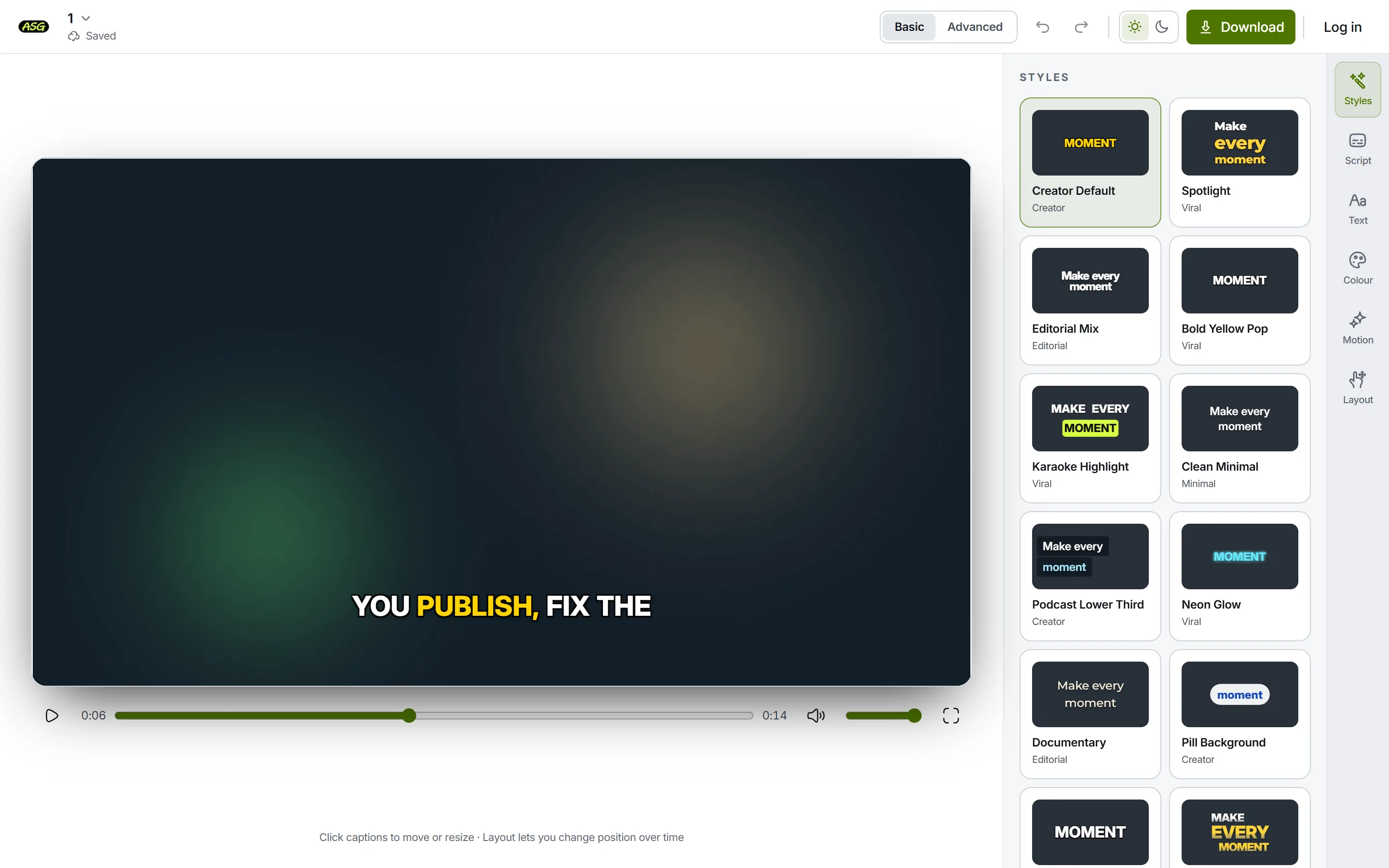
The editor after upload: captions generated and placed on the video. Correct the words in Script
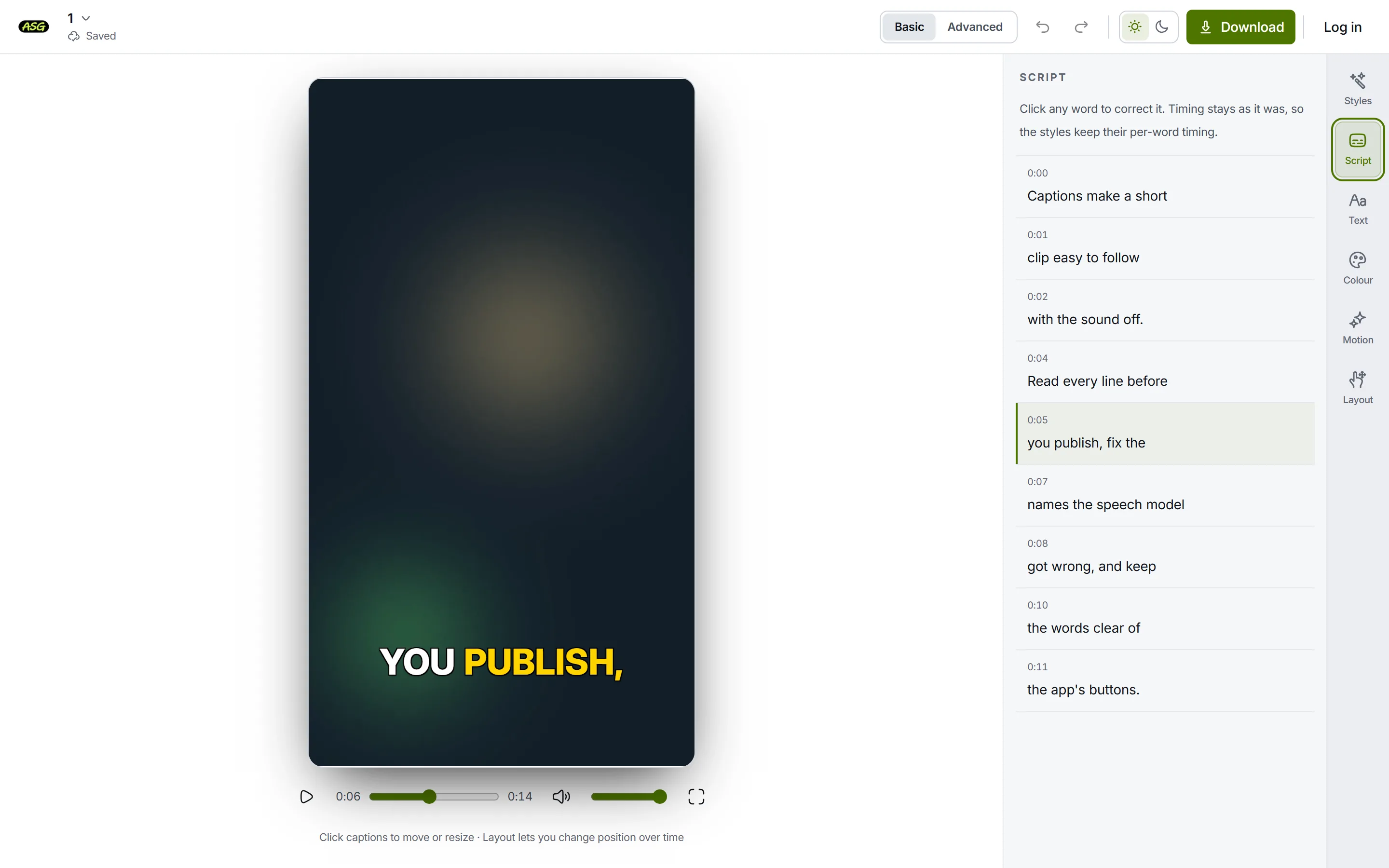
Open Script and read every line against the audio. Automatic transcription gets names, jargon and quiet speech wrong most often, and once the text is burned in, a typo can only be fixed by rendering the video again.
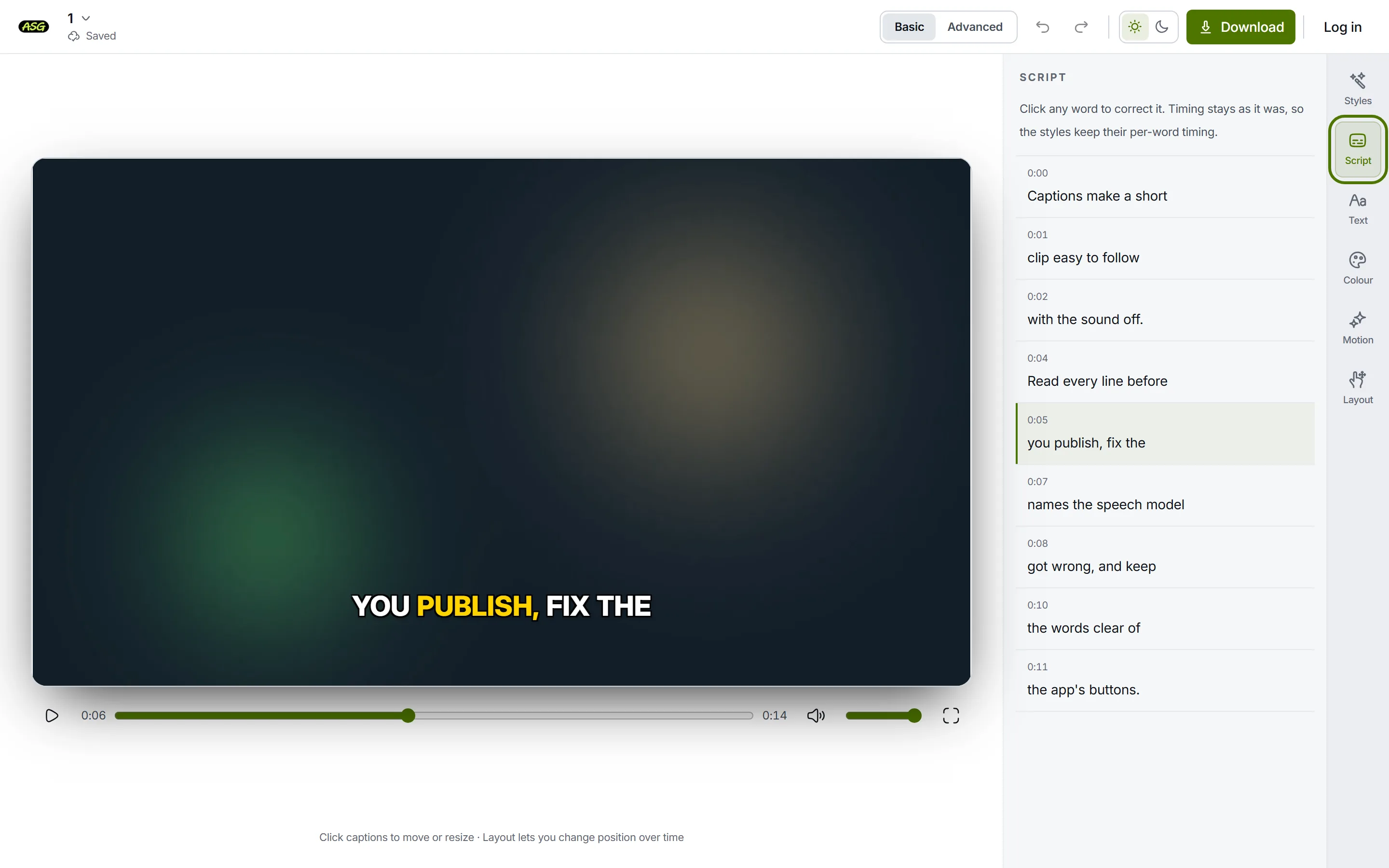
Script lists every caption line, so a wrong word is fixed before it reaches the pixels. Choose how the captions look
Pick a preset in Styles, then adjust font, size, colour, motion and position if you need to. The free plan exports Podcast Lower Third and Documentary; the rest of the catalogue exports on Starter. Accounts created before 4 October 2026 keep Clean Minimal and Documentary instead. Whatever you see in the preview is what gets rendered into the frame.
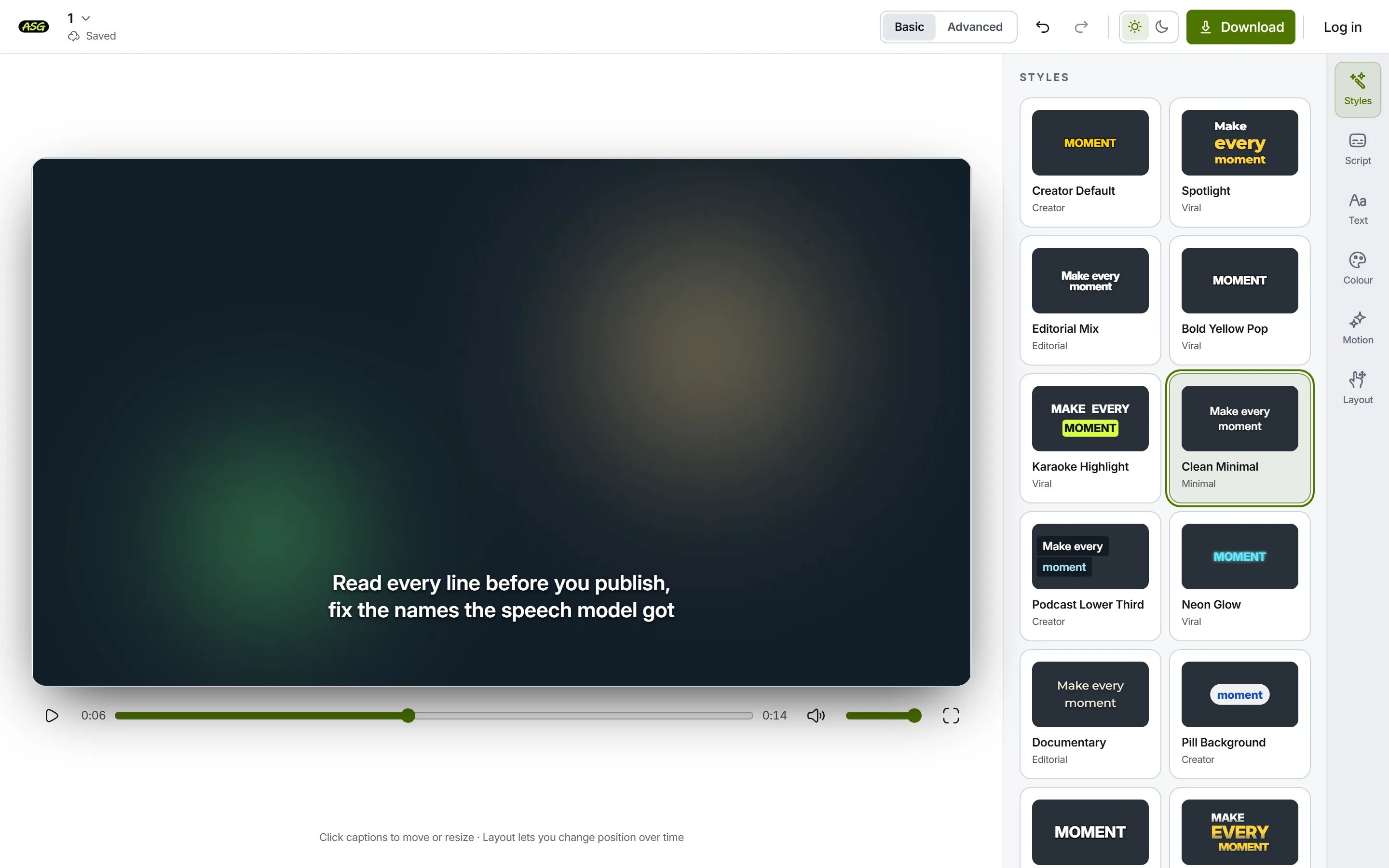
A preset applied: the preview is the burned-in result. Download the video
Press Download. Downloading is the one step that needs a free sign-in, with Google or email. Choose the resolution (1080p on the free plan, up to 4K on Starter) and press Download video. The captions are rendered into every frame of an MP4 with no watermark on any plan.
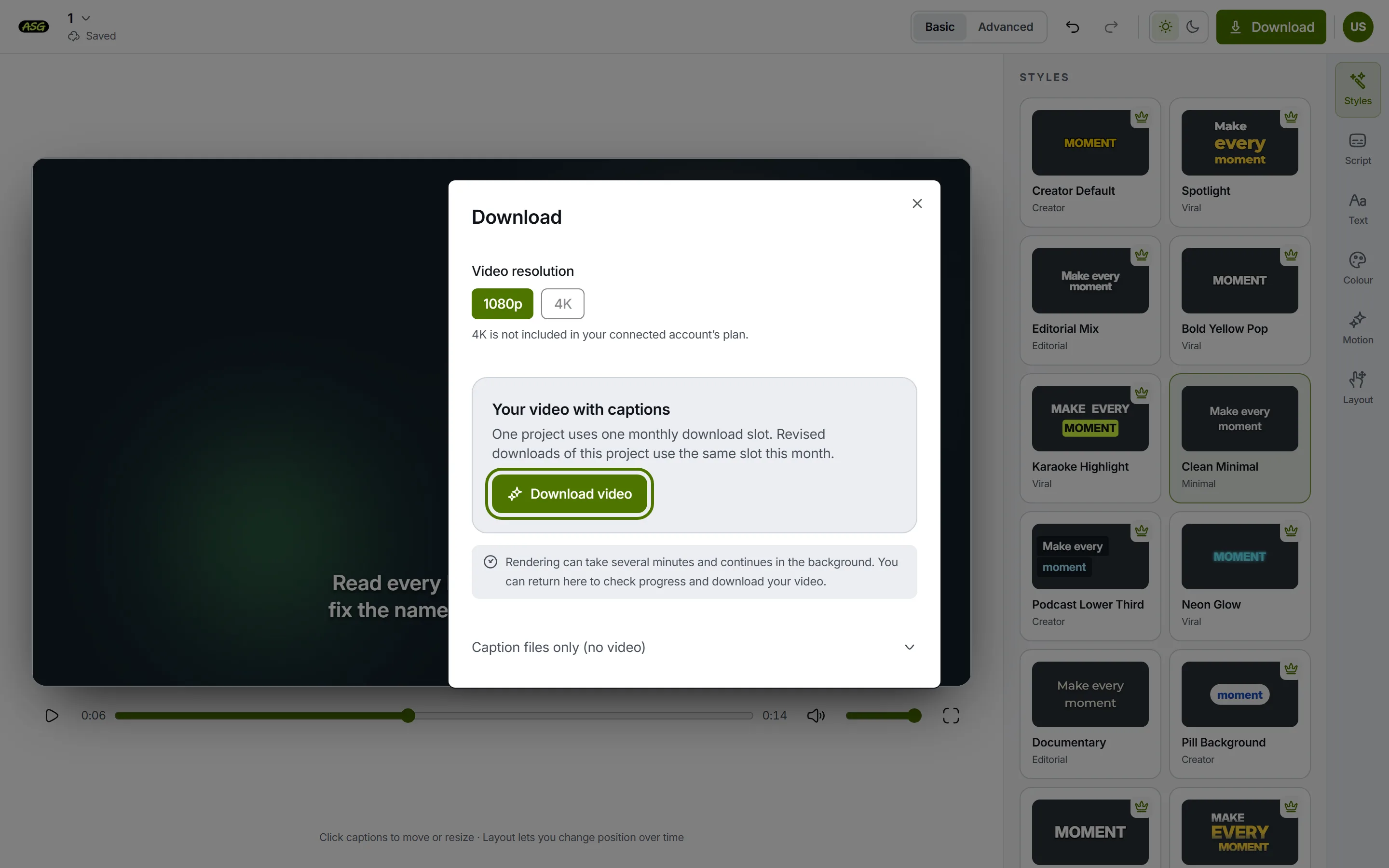
Download video renders the burned-in MP4. Caption files only gives SRT, VTT or TXT instead.
The free plan covers 3 video projects a month, and a revised download of the same project uses the same slot. The SRT, VTT and TXT files under Caption files only (no video) never use one, so you can keep a subtitle file from the same project for players that take a separate track.
How do you burn an SRT into a video with ffmpeg?
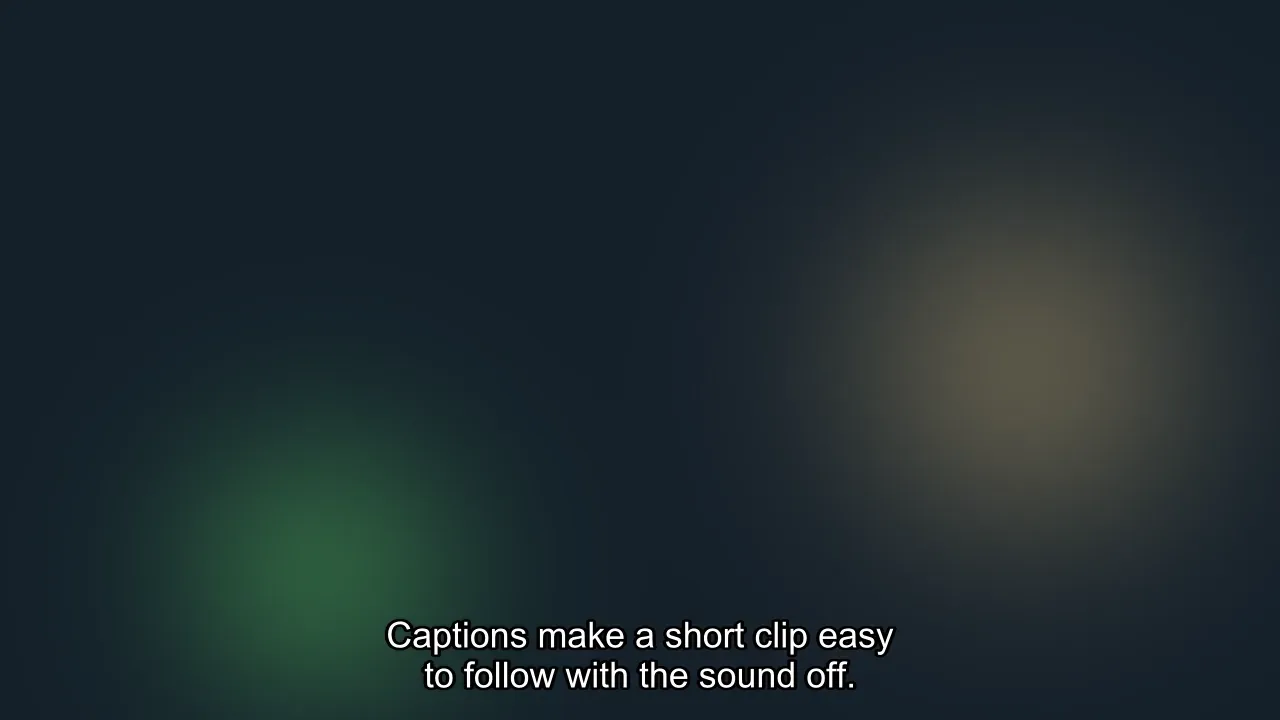
If you already have an SRT, ffmpeg's subtitles filter draws it onto every frame using the libass library. Put the video and the subtitle file in one folder, open a terminal there and run:
ffmpeg -i input.mp4 -vf "subtitles=subs.srt" -c:a copy output.mp4-vf applies the filter to the picture, subtitles=subs.srt names the file to draw, and -c:a copy passes the audio through untouched. The video itself has to be encoded again, because the text is now part of every frame; that is what makes a burn-in slower than adding a soft track. Running the command from the folder that holds both files keeps the file name bare. A full Windows path needs extra escaping inside a filter, because a colon separates the filter's options.
Keep the quality up
Without an encoder setting, our build encoded H.264 at CRF 23. A lower CRF keeps more detail and makes a larger file: on our 14-second test clip, CRF 18 produced 995 KB against 702 KB at the default.
ffmpeg -i input.mp4 -vf "subtitles=subs.srt" -c:v libx264 -crf 18 -c:a copy output.mp4Change the font, size and position
An SRT carries no styling, so ffmpeg uses a default. The filter's force_style option overrides it with ASS style fields, separated by commas.
ffmpeg -i input.mp4 -vf "subtitles=subs.srt:force_style='FontName=Arial,FontSize=20,Outline=2,MarginV=30'" -c:a copy output.mp4FontSize is not measured in pixels of your video. On our 1280 by 720 clip, FontSize=28 made one line span nearly the whole width of the frame, and 20 gave a readable size, so change it in small steps and check a frame each time. MarginV lifts the text off the bottom edge, which matters on platforms that put buttons there; the subtitle safe areas guide has the zones to keep clear.
Burning subtitles into a trimmed clip
Where you put -ss decides whether the subtitles stay in sync. Placed before -i, it resets the clock the filter reads, so the cut starts with the SRT's first cue whatever is being said. Placed after -i, the filter sees the original timestamps and shows the right line.
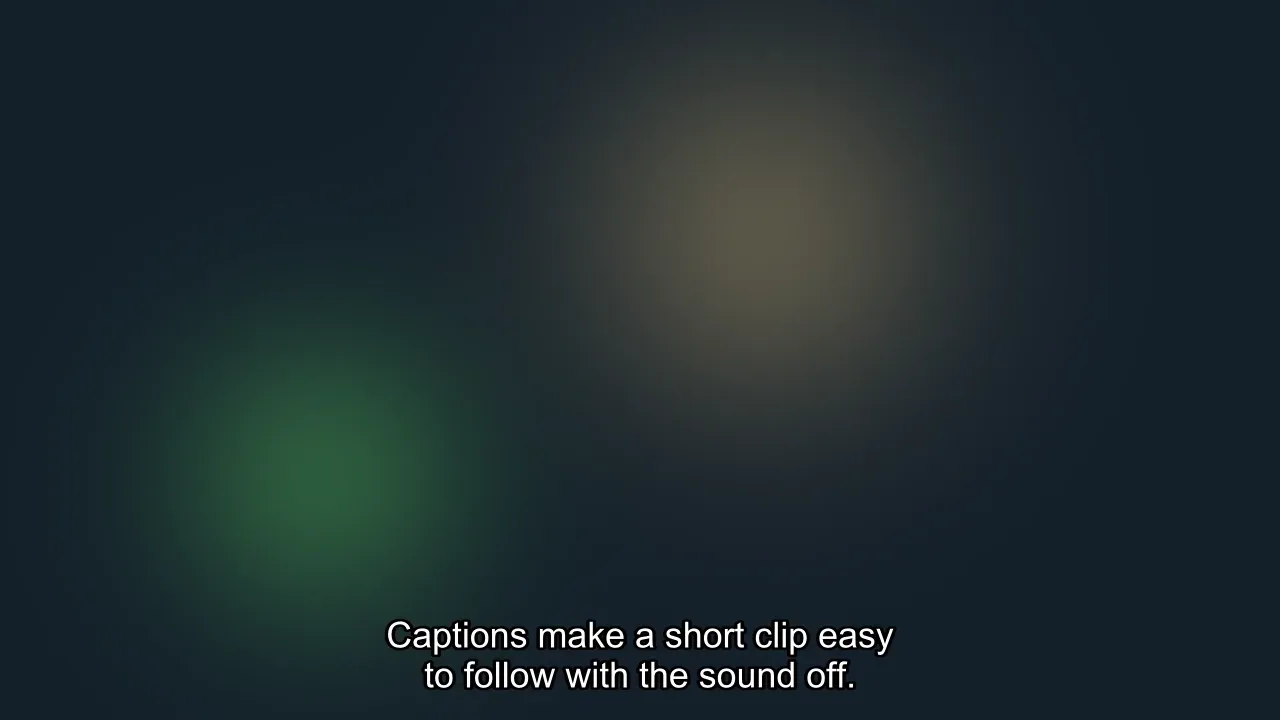
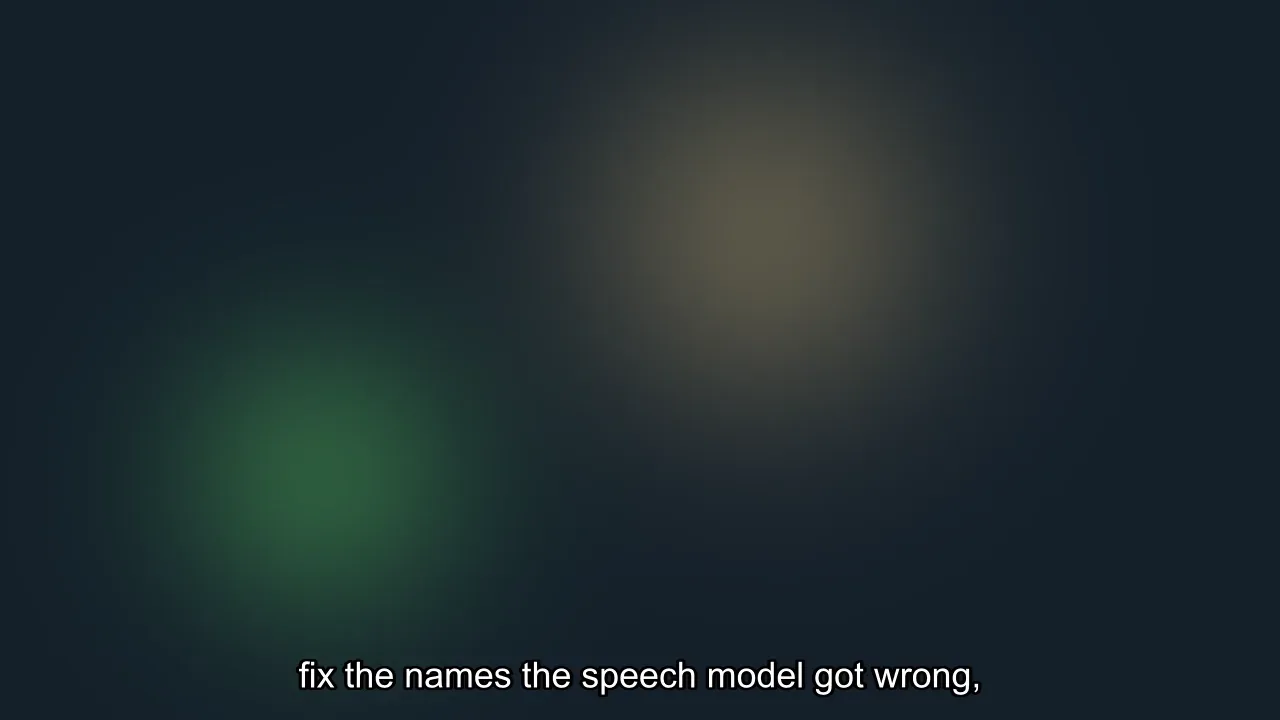
ffmpeg -i input.mp4 -ss 7.5 -t 3 -vf "subtitles=subs.srt" output-clip.mp4If you would rather cut first and burn later, move the SRT to match the cut with the subtitle timing shifter: a clip that starts 7.5 seconds in needs every cue moved 7.5 seconds earlier.
When ffmpeg refuses the subtitle file
We saved a test SRT in Windows-1252 rather than UTF-8, with an accented word in it. FFmpeg 7.1 stopped with "Invalid UTF-8 in decoded subtitles text" and wrote no video. Naming the encoding with the filter's charenc option fixed it, and the accents rendered correctly:
ffmpeg -i input.mp4 -vf "subtitles=subs.srt:charenc=CP1252" -c:a copy output.mp4Saving the file as UTF-8 in a text editor does the same job for good. Subtitles stored inside an MKV can be burned in without extracting them: subtitles=video.mkv:si=0 draws the first subtitle stream of that file, and **si=1` the second.
How do you burn subtitles in with HandBrake?
HandBrake is an open-source video transcoder for Windows, Mac and Linux that anyone can use for free, and its graphical interface suits anyone who would rather not type commands. Its subtitles documentation describes the workflow; we followed it from the manual rather than running it for this article.
- Open the video in HandBrake and choose a preset for the output.
- Go to the Subtitles tab, press Tracks and choose the option to import your SRT file.
- Set that track to burn into the video. HandBrake's documentation calls this a hard burn: the text is written onto the image and cannot be switched off.
- Check the Char Code setting matches the file's encoding. The manual warns that the wrong one leaves the output with no subtitle track.
- Start the encode, then play the result from start to finish.
Two notes from the manual are worth knowing before you start. Its notes on Blu-ray and DVD subtitles allow one burned-in track per output file, with any others passed through as switchable tracks. And an imported SRT can be given an offset in milliseconds if its timing is off, though the manual suggests finding the value by trial and error. HandBrake's command-line version takes the same job as --srt-file and --srt-burn, and per its command-line reference it assumes Latin-1 unless --srt-codeset says otherwise, so name UTF-8 explicitly for a file with accents.
How do you burn subtitles in with a video editor?
If the video is already open in an editor, burning in at export saves a separate pass. In Adobe Premiere, importing a caption file works like importing any media: drag the SRT from the Project panel into the sequence and Premiere creates a caption track for it. At export, the caption export options include burn-in, which renders the active caption tracks directly onto the video.
Other editors have their own names for the same switch, so look for burn-in or open captions in that editor's export settings rather than following steps written for a different version.
How do you check burned-in subtitles before publishing?
A burned-in mistake costs a full render to fix, so check the output file itself, not the editor preview or the SRT.
- Timing: play the first, a middle and the last cue against the speech. A drift that grows over the video is a different fault from a constant offset; the out-of-sync subtitles guide tells them apart.
- Placement: on vertical video the platform's own buttons and captions cover parts of the frame. Compare against the subtitle safe areas for where you will post.
- Line length: a line that runs edge to edge is hard to read and may wrap mid-phrase, as libass did on our vertical test clip. The subtitle line length guide sets out the limits Netflix and the BBC publish.
- Legibility: pick a face that holds up at small sizes; the subtitle font guide compares them, and the contrast checker tests the text colour against your footage.
How do you fix a subtitle file before burning it in?
Most failed burn-ins trace back to the SRT, not the tool. Run it through the subtitle validator first: it lists missing timing lines, cues that end before they start, overlaps and missing blank lines, each with its line number, and nothing is uploaded. If every cue is early or late by the same amount, the timing shifter moves the whole file at once. A VTT can be converted with the VTT to SRT converter for tools that only read SubRip.
Frequently asked questions
Can Auto Subtitle Generator burn in an SRT file I already have?+
No. It generates captions from the speech in your video and burns those in; there is no way to import an existing SRT or VTT. If your subtitle file is finished, ffmpeg or HandBrake will burn it in without transcribing anything again.
Does burning in subtitles lower the video quality?+
The video is always encoded again, so some loss is possible. With ffmpeg you control it: our build used CRF 23 by default, and setting -crf 18 kept more detail at the cost of a larger file. Auto Subtitle Generator renders at the resolution you choose in the Download dialog.
Can I burn subtitles into a vertical video?+
Yes, the methods are the same. On our 720 by 1280 test clip, ffmpeg wrapped a long subtitle line onto two lines by itself. On vertical video the bigger risk is the platform's own interface covering the text, so check the result against the safe areas for TikTok, Reels or Shorts.
Is there a free way to burn subtitles into a video?+
ffmpeg and HandBrake are both free. Auto Subtitle Generator's free plan gives 3 video projects a month at 1080p, for videos up to 10 minutes, with no watermark; you need a free sign-in to download.
Why are my burned-in subtitles out of sync?+
Either the SRT was timed against a different cut of the video, or the clip was trimmed in a way that reset the clock the subtitles follow. Shift the whole file with a timing tool when every cue is off by the same amount, and with ffmpeg place -ss after -i when cutting and burning in one command.
Burn captions into your own video
Upload a video, correct what the speech model misheard, choose a style and download the MP4 with the captions rendered in. Start without an account; sign in free to download. No watermark on any plan.
Upload your video