What is an SRT file?
An SRT file is a plain-text subtitle file: a numbered list of captions, each with the time it appears, the time it disappears and the words to show. It sits beside a video rather than inside it, which is why one file can be uploaded to YouTube, loaded in VLC or imported into a video editor.
Below: what is inside one, line by line, then how to open, edit, create and use it, and what to check when it will not load.
What is inside an SRT file?
Open one in a text editor and you see a list of short blocks, one per caption, separated by empty lines. Each block, called a cue, has the same three parts in the same order. Here is a two-cue file, written with the words of the example clip in our screenshots and annotated line by line:
| Line in the file | What it is |
|---|---|
| 1 | The cue number. The first cue is 1 and each cue after it counts up by one. |
| 00:00:00,110 --> 00:00:03,579 | The timing line: when the caption appears and when it disappears, as hours:minutes:seconds,milliseconds. The arrow is two hyphens and a greater-than sign, with a space on each side. |
| Captions make a short clip easy to follow | The caption text. |
| with the sound off. | A second line of the same caption. A cue can hold more than one line of text; it ends at the first empty line. |
| (empty line) | The separator. Without it, a player reads the next cue as more text of this one. |
| 2 | The next cue number. |
| 00:00:04,559 --> 00:00:06,547 | The second cue starts after the first one ends, so the two never share the screen. The second between them has no caption. |
| <i>Read every line before you publish,</i> | Text with an italic tag. Tags are optional, and not every player reads them. |
That is the whole format. The Library of Congress format description lists the same four components of an SRT cue: a number, a start and end time, the text and a blank line. The UK National Archives' format registry adds the detail that trips up hand-written files: every time unit is zero-padded, two digits for hours, minutes and seconds and three for milliseconds, so one second is written 00:00:01,000 and never 0:0:1,0.
Note the comma before the milliseconds. It is the single most common difference between SRT and its web cousin WebVTT, which uses a full stop, and a frequent reason a renamed file fails to load.
Some SRT files also carry HTML-style tags for bold, italic, underline and colour. VideoLAN's description of the format lists <b>, <i>, <u>, <s> and <font> as tags some SubRip files use. Support is patchy: YouTube, for one, says plainly that for SubRip no style markup is recognised. Treat tags as a suggestion the player may ignore.
What an SRT file cannot hold
- The video or audio. An SRT is a few kilobytes of text that sits beside the video file. Delete the video and the SRT still opens; it just has nothing to play against.
- A design. There is no font, size, outline, background box or animation in the format. The player decides how the captions look.
- A position. Basic SRT has no way to say "put this caption at the top", so the player places it, usually near the bottom of the frame.
- Word-by-word timing. A cue has one start and one end. Captions that highlight each word as it is spoken cannot survive as SRT; they have to be burned into the video instead.
Who defines the SRT format?
Nobody, formally. SRT is named after SubRip, a Windows program that read the picture-based subtitles on DVDs, recognised the letters, and saved the result as plain text with timings. The Library of Congress describes the format as not well standardized, with little formal documentation, which is why you will find tools that disagree on edge cases such as a full stop instead of a comma, or a missing cue number.
WebVTT, the caption format browsers use, grew out of it: the W3C specification's acknowledgements thank the SubRip community for the program whose SRT file format was used as the basis for WebVTT. That is why the two look alike.
How do you open an SRT file?
It depends on what you want to do with it: read the words, or watch them over the video.
To read or change the text
Any plain-text editor opens an SRT, because that is all it is. On Windows, right-click the file, choose Open with and pick Notepad. On a Mac, open it with TextEdit. Avoid word processors such as Word for anything but reading: they add formatting when they save, and a file saved as a document is no longer a subtitle file.
If TextEdit shows a ruler and font controls, the document is in rich-text mode; Apple's guide shows how to switch it with Format > Make Plain Text before you save. Then check that the file name still ends in .srt and not .srt.txt.
If you only need the words, without the numbers and timings, the free SRT to TXT converter strips them out in your browser.
To watch it with the video
Use a media player that loads subtitle files. In VLC, VideoLAN's user guide describes two ways: tick the subtitle option in Open Multiple Files and browse to the .srt, or load it from the subtitle track menu while the video plays. The same dialog lets you set the file's character encoding, which matters if accented letters come out garbled (more on that below).
How do you edit an SRT file without breaking it?
Changing a misspelt word is safe in any text editor. Changing structure is where files break. Keep to these rules and a player will read your edit:
- Leave the timing line's shape alone. Change digits, not punctuation: two digits, colon, two digits, colon, two digits, comma, three digits, space, -->, space, and the same again.
- Keep one empty line between cues, and no empty line inside a cue. An empty line is how the player knows a cue has ended.
- Renumber if you add or remove a cue. Many players cope with a gap or a repeat, but stricter software may not, and a clean count costs nothing.
- Keep start before end, and cues in order. A cue that ends before it starts is never shown, and an overlap puts two captions on screen at once.
- Keep cues to one or two short lines. The format allows more, but a deep block of text is hard to read in the second or two it is on screen; our subtitle line length guide covers the limits Netflix and the BBC publish.
- Save as UTF-8 plain text. This keeps accented letters and other scripts intact.
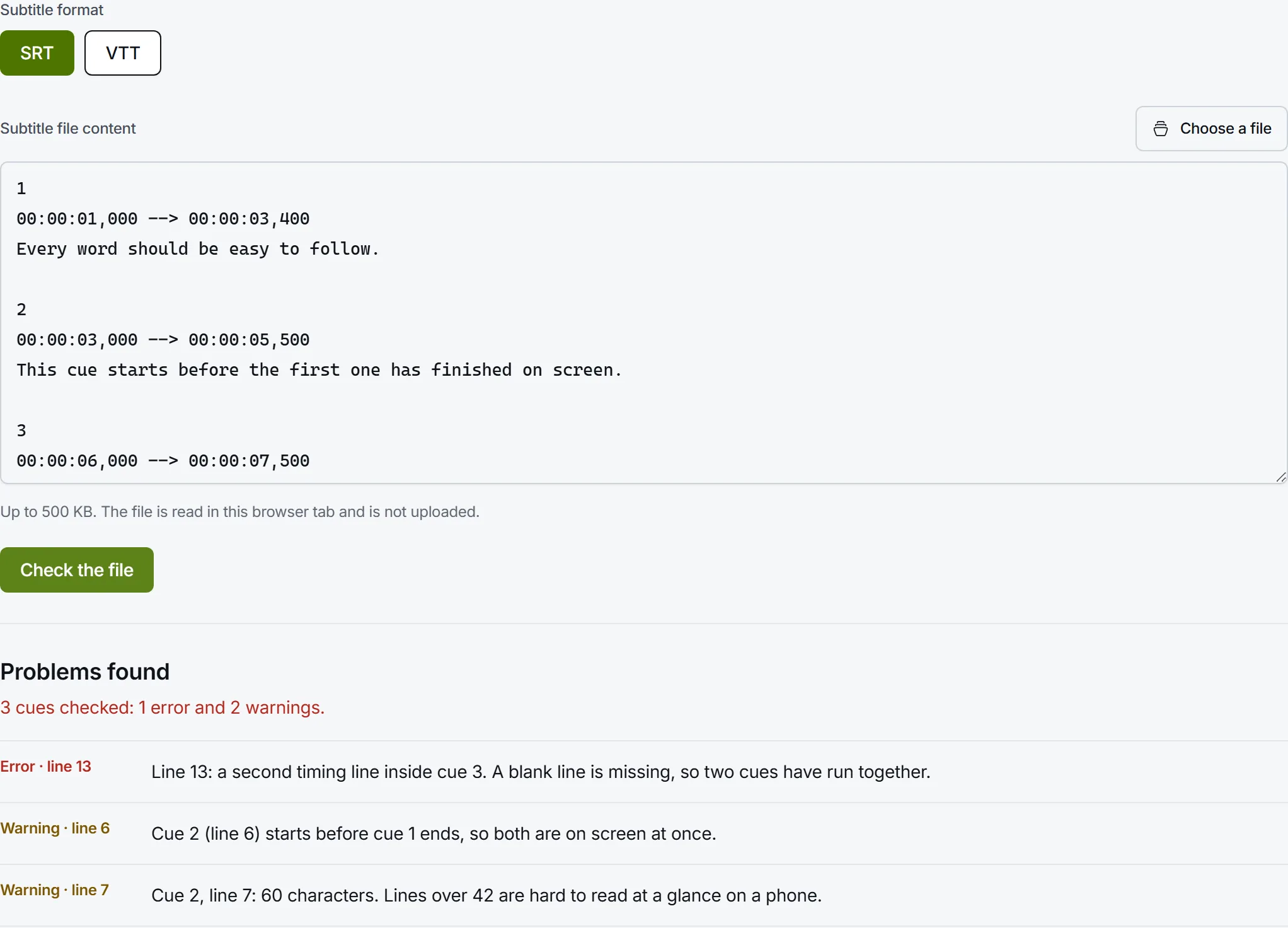
Shifting every timing by hand is slow and error-prone. If the whole file is early or late by the same amount, the subtitle timing shifter moves every cue at once, and to combine two files into one numbered sequence there is the SRT merger. Before you upload anything you edited by hand, paste it into the subtitle validator: it lists every broken timing line, missing blank line and skipped number with the line it is on.
For more than a few corrections, it is faster to fix the captions in an editor that shows the video, then download a fresh file.
How do you create an SRT file automatically?
Typing timings by hand works for a ten-second clip and nothing longer. The quicker route is to let speech recognition write the first draft, then correct it against the video. In our editor that takes four steps, and you can start without an account:
Upload the video
Choose an MP4, MOV, WebM or MKV file in the uploader on the home page. The speech is transcribed and split into timed caption lines, and the editor opens with captions already on the video.
Read the Script panel and correct the words
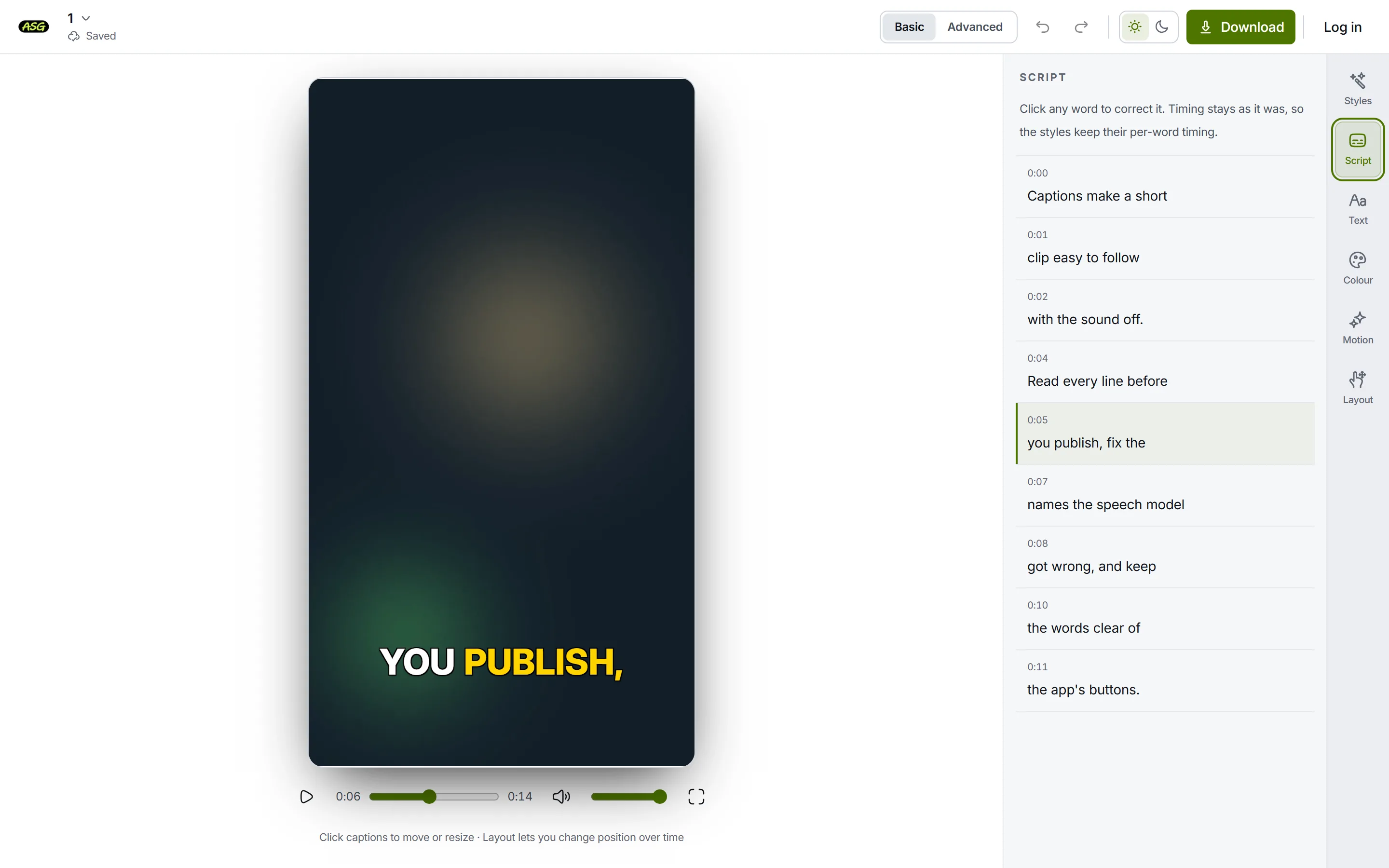
Open Script. Every line in this list has its start time above it. Click any word to correct a name or a misheard phrase. The timing stays where it was, so a corrected word still appears when it is spoken.
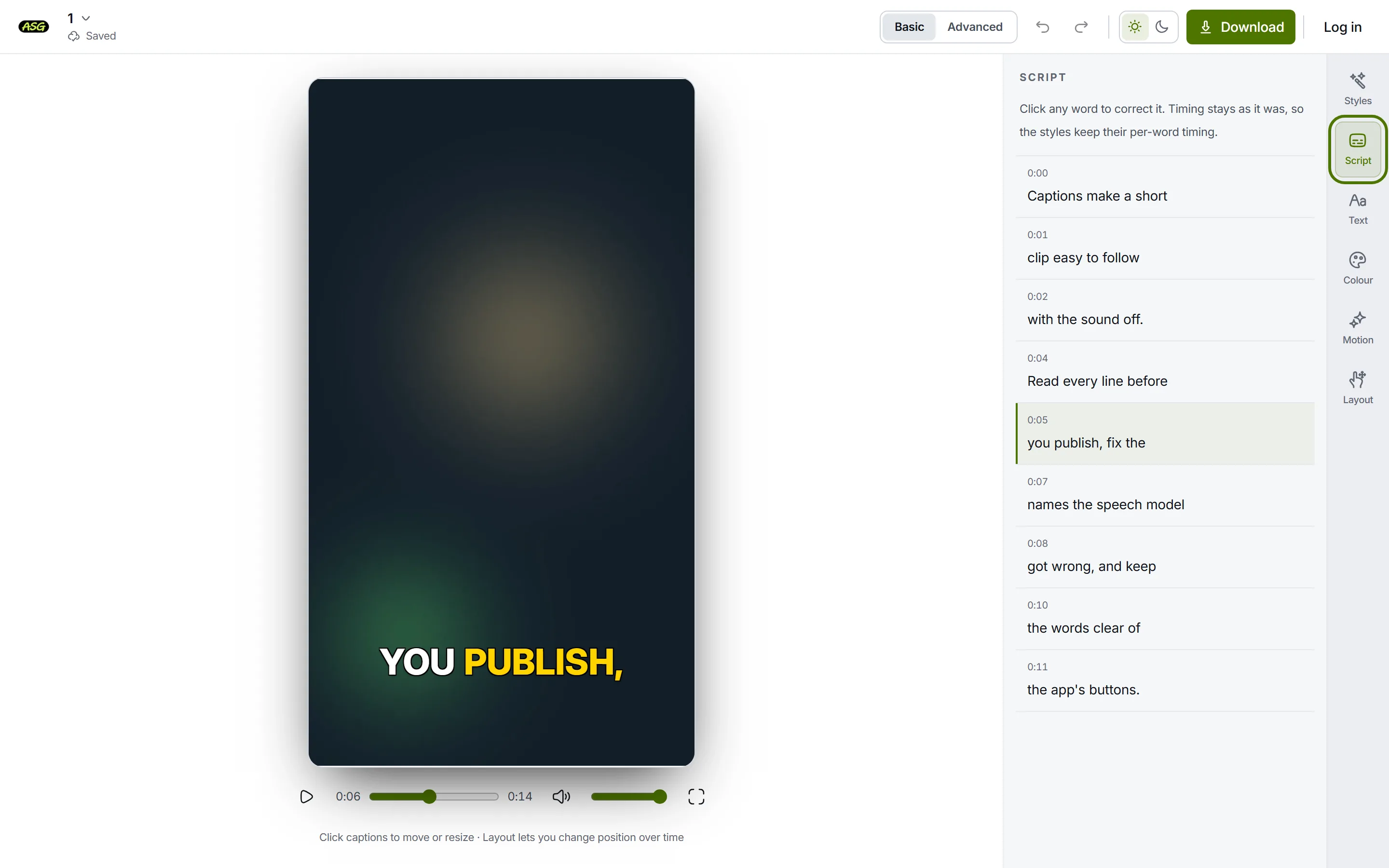
The Script panel, with each line's start time above its words. Adjust a cue's timing on the timeline
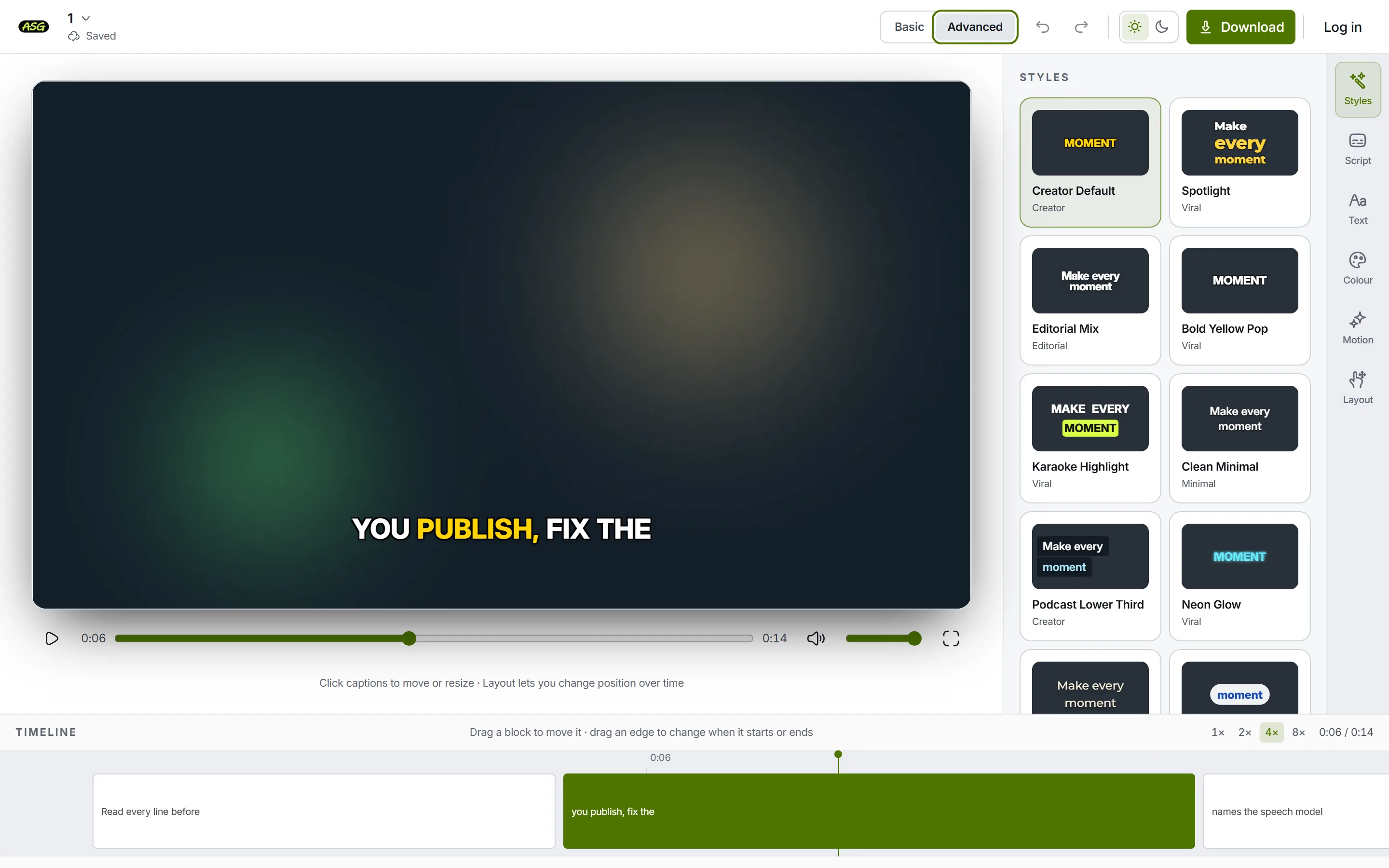
Switch the editor to Advanced and each caption line also appears as a block on the timeline under the video. Drag either edge to change when that caption starts or ends, or drag the whole block to move it. Those edges are the two times on the cue's timing line.
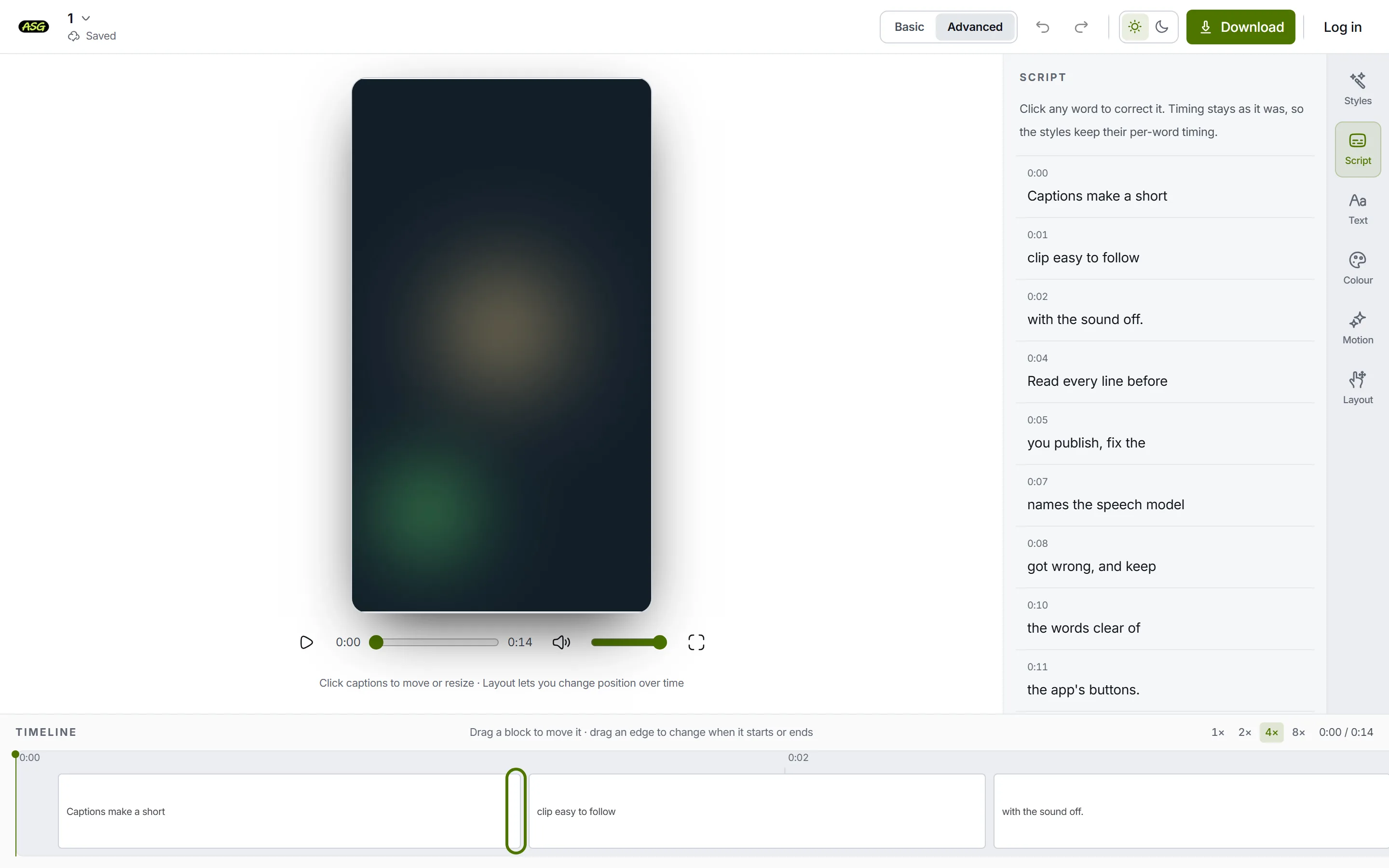
Drag a block's edge to change the start or end time written into the cue. Download the SRT
Click Download and sign in free with Google or email. Open Caption files only (no video), leave Standard subtitles selected for cues sized for reading (or choose Match the editor’s lines for one cue per Script line), and choose SRT. VTT and TXT sit beside it. Caption files do not use any of the Free plan's video project slots.
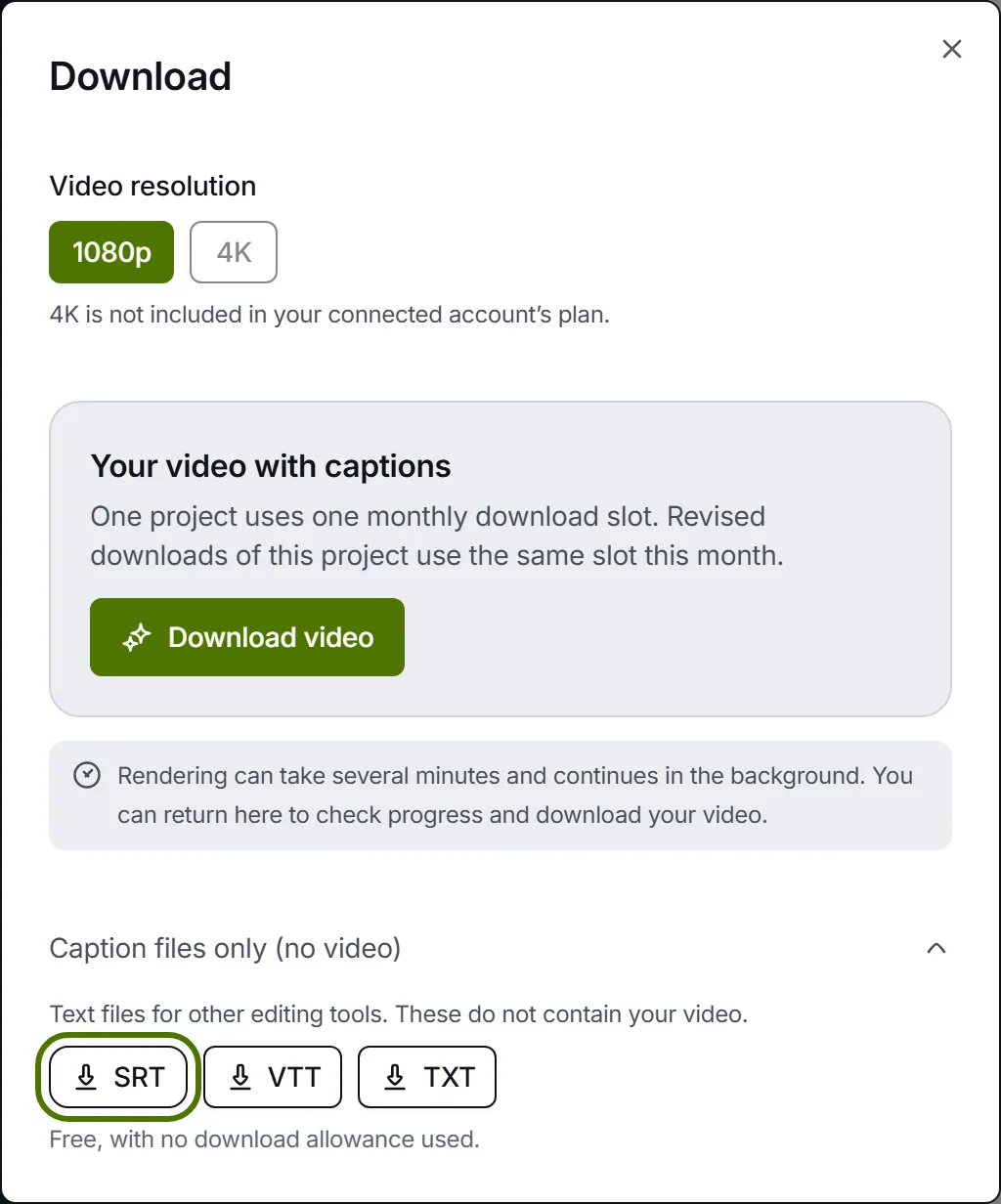
Caption files are a separate download from the captioned video.
What the downloaded file contains
We read our own exporter rather than describe it from memory. The file it writes is standard SRT, and a few of its choices are worth knowing before you hand it to another program:
- Standard subtitles by default, numbered from 1 with no gaps: up to 2 lines of 42 characters, broken after punctuation or before a conjunction where possible, and each on screen for between five sixths of a second and seven seconds where the speech allows.
- Or the editor's lines. Choose Match the editor’s lines for one cue per Script line instead. Lines are grouped when the video is transcribed: at most 4 words with the default starting style, and a new line after each sentence. That suits short clips; for a long talk it makes many brief cues.
- Each cue starts on its first word and ends on its last, and a standard cue is held a little longer only when it would otherwise flash by, so a pause between sentences is a gap with no caption rather than a caption left hanging.
- Standard cues carry their own line breaks. With the editor's lines, each cue is a single line and the receiving player wraps it to fit its own screen.
- Cues do not follow the style you pick. Changing a style's words per line changes what the video shows, not where the SRT's cues begin and end.
- No styling. Fonts, colours, word highlights and animation stay in the editor. If those matter, render a captioned MP4 instead, or as well.
- Saved as UTF-8, the encoding YouTube asks for.
The SRT generator page covers this workflow on its own, and the export options help page compares SRT with VTT, TXT and the captioned MP4. On Free, the MP4 allowance is 3 video projects a month; caption files sit outside it.
How do you add an SRT file to a video?
There are two different things people mean by this, and they produce different results. You can attach the SRT, so the viewer's player shows the captions and can turn them off. Or you can burn the text into the picture, so it becomes part of every frame and shows everywhere. The burned-in versus closed captions guide weighs the two; here is how each works with an SRT.
On YouTube
In YouTube Studio, open Subtitles, pick the video, choose Add language, then Add under Subtitles and Upload file. YouTube asks whether the file has timing; an SRT does, so choose With timing and select the file. Those are the steps in YouTube's own help page.
YouTube lists SubRip among its basic formats and sets two conditions: the file must be plain UTF-8, and only basic SRT is supported, so any styling tags are ignored. For a long-form upload, a separate SRT is usually the right choice; our YouTube subtitle generator page covers making one from the video.
In a media player or on a website
Desktop players such as VLC load an SRT next to the video, as described above. Many video editors and course platforms have an import or caption-upload option; check that the one you use names .srt before you upload.
A web page is the exception. The HTML <track> element that adds captions to a browser video expects a WebVTT file, not SRT. Run the file through the SRT to VTT converter first; renaming it is not enough, because the header and the millisecond separator differ.
Burned into the picture
Where a platform has no caption-file upload, or the captions must look a certain way wherever the video is posted, render them into the video instead: an attached SRT cannot carry a design. In our editor that is the other half of the Download dialog: a captioned MP4 with the caption style you chose, rendered without a watermark on every plan.
How is SRT different from VTT and other subtitle formats?
WebVTT is the closest relative. A VTT file starts with the word WEBVTT, puts a full stop rather than a comma before the milliseconds, and must be UTF-8, as the W3C WebVTT specification sets out. It can also position and style cues, which SRT cannot. Our SRT vs VTT guide goes through the differences with examples, and the VTT to SRT converter goes the other way.
YouTube's list of supported caption files runs from basic formats like SubRip to advanced ones like TTML and broadcast ones like SCC. Where SRT is accepted, it is the simplest to hand over: plain text you can read and check yourself.
Why is my SRT file not working?
Most failures come down to a handful of causes. Find yours in the table, then use the fix beside it.
| What you see | Likely cause | Fix |
|---|---|---|
| Accented letters or other scripts show as strange symbols | The file was saved in a legacy encoding such as Windows-1252 and read as UTF-8, or the reverse | Re-save the file as UTF-8, or set the encoding in the player's subtitle settings |
| Every caption is early or late by the same amount | The video was trimmed, or a title card added, after the SRT was made | Shift every cue at once with the timing shifter |
| Captions start in sync and drift further out | The file was timed to a copy at a different frame rate or playback speed | A single shift cannot fix drift; see fix subtitles out of sync |
| Two captions show as one, or one disappears | A missing empty line between cues, or a broken timing line | Run the subtitle validator and fix the line it names |
| The upload form rejects the file | A full stop instead of a comma, skipped cue numbers, or a .txt extension | Validate the file, check it ends in .srt, and renumber if needed |
| Tags such as <i> show up as text | The player does not read SRT formatting tags | Remove the tags, or burn the captions in if the styling matters |
Encoding deserves its own note because nothing in an SRT says which one it uses. The Library of Congress points out that the format has no character encoding standard and that SubRip itself saved Windows-1252 by default. Old files from that era open with broken accents in tools that assume UTF-8. Our downloads are UTF-8, which is what YouTube requires.
Frequently asked questions
What does SRT stand for?+
SubRip Subtitle. SubRip was a Windows program that recognised the picture-based subtitles on DVDs and saved them as timed plain text with the .srt extension, and the format kept the program's name.
Is an SRT file safe to open?+
An SRT is plain text with no program code in it, so opening it in a text editor shows you exactly what it contains. As with any download, check the file really ends in .srt and not in an executable extension.
Can I convert an SRT file to a video?+
Not on its own: the file has no picture. You need the video it belongs to, and then either attach the SRT as a caption track or burn the text into the video with an editor that renders captions.
Does an SRT file keep my caption style?+
No. SRT carries text and timing only. Fonts, colours, outlines, positions and word-by-word highlights are lost, so export a captioned video when the look matters.
Is downloading an SRT from Auto Subtitle Generator free?+
Yes. Start without an account; sign in free to download. SRT, VTT and TXT downloads are available on every plan and do not use any of the Free plan's 3 monthly video projects.
Make an SRT from your own video
Upload a clip, correct the transcript against the picture, and download SRT, VTT or TXT, or a captioned MP4. Start without an account; sign in free to download. No watermark on any plan.
Upload your video